
1. สินค้าหมดview
The Grandstream GXP1630 is a powerful Gigabit IP phone designed for small businesses. This Linux-based, 3-line IP Phone model includes 8 BLF keys and 4-way conferencing. It features a 132x64 backlit LCD screen for clear display, dual HD audio, multi-language support, integrated Power over Ethernet (PoE), and 3 XML programmable soft keys. The GXP1630 incorporates state-of-the-art security encryption technology (SRTP and TLS) and supports various automated provisioning options for easy mass deployment.
คุณสมบัติหลัก:
- 3 SIP accounts, 3 line keys, 4-way conferencing
- 3 XML programmable context-sensitive soft keys
- HD audio on speakerphone and handset
- บันทึกรายชื่อผู้ติดต่อได้สูงสุด 1000 ราย ประวัติการโทรสูงสุด 200 รายการ
- พอร์ต Gigabit แบบสวิตช์คู่, PoE ในตัว
- ปุ่ม BLF/ปุ่มโทรด่วนสองสี 8 ปุ่ม
- การสนับสนุน EHS สำหรับชุดหูฟัง Plantronics
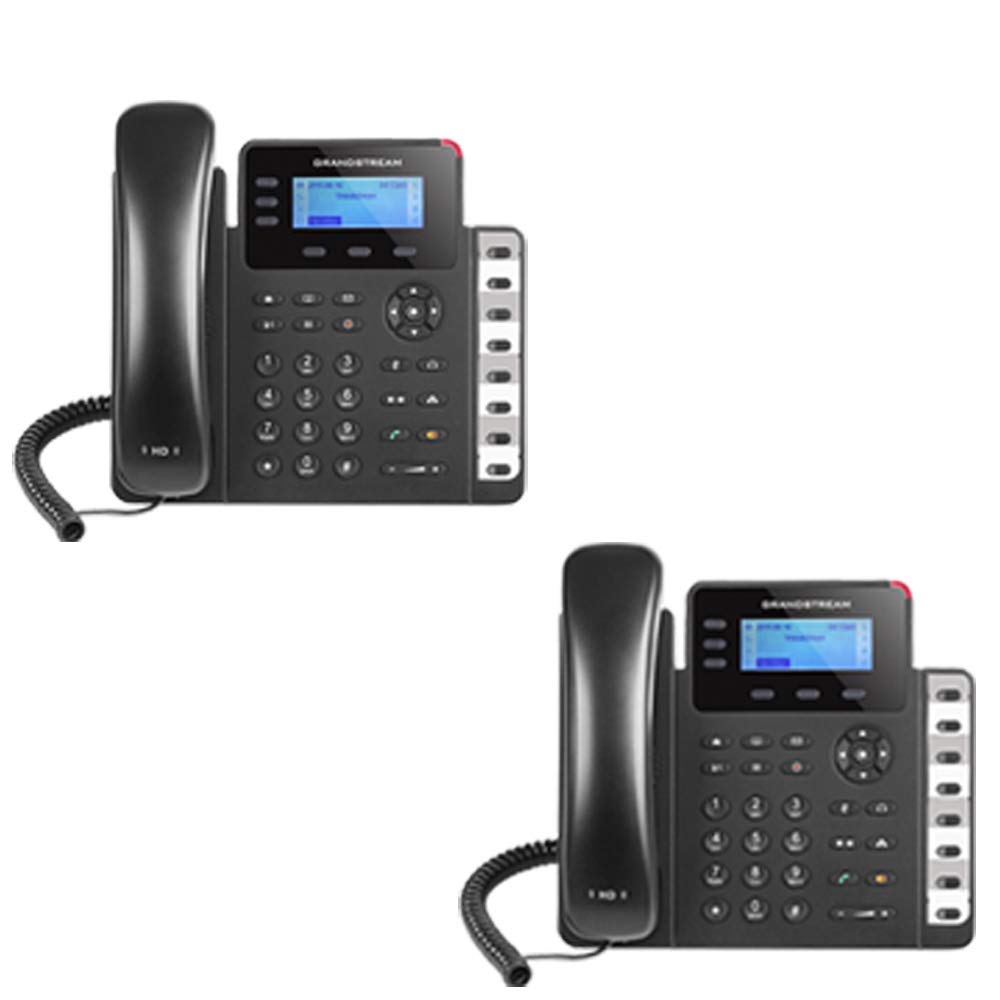
Figure 1: Grandstream GXP1630 Gigabit IP Phone
2. การตั้งค่าและการติดตั้ง
2.1 เนื้อหาบรรจุภัณฑ์
ตรวจสอบให้แน่ใจว่ามีส่วนประกอบทั้งหมดอยู่:
- หน่วยโทรศัพท์ IP Grandstream GXP1630
- หูฟังและสายขด
- สายอีเทอร์เน็ต
- อะแดปเตอร์ไฟฟ้า (หากไม่ได้ใช้ PoE)
- ขาตั้งโทรศัพท์
2.2 การเชื่อมต่อโทรศัพท์
- Connect the coiled cord to the handset and the handset port on the phone base.
- Connect the Ethernet cable from your network switch (with PoE) or router to the LAN port on the phone. If not using PoE, connect the power adapter to the phone and a power outlet.
- Optionally, connect a headset to the headset port.
- Attach the phone stand to the base unit.
2.3 การเปิดเครื่องและการตั้งค่าเริ่มต้น
Once connected, the phone will power on and begin the boot-up sequence. The LCD screen will display status information. The GXP1630 supports automated provisioning options, including zero-configuration with Grandstream’s UCM series IP PBXs, encrypted XML files, and TR-069, to facilitate easy mass deployment and configuration.
3. การใช้งานโทรศัพท์
3.1 Using the Headset or Speaker
- To turn the speaker on or off during a call, press the ลำโพง ปุ่ม.
- ในการใช้ชุดหูฟังที่เชื่อมต่อ ให้กดปุ่ม ชุดหูฟัง ปุ่ม.
วิดีโอ 1: จบview of using headset and speaker functions on Grandstream GXP1600 series IP phones.
3.2 โทรออก
มีสามวิธีหลักในการเริ่มการโทร:
- โทรศัพท์มือถือ/ชุดหูฟัง: ยกหูโทรศัพท์หรือกด ชุดหูฟัง ปุ่ม.
- สปีกเกอร์โฟน: กดปุ่ม ลำโพง ปุ่ม.
- การเลือกคีย์ไลน์: Press an available line key.
Once you hear a dial tone (the corresponding line key will turn green), enter the phone number using the keypad. Then, press the ส่ง ปุ่มหรือปุ่ม # key to place the call. To use a different SIP account, simply press a different line key before dialing.
3.3 การโทรซ้ำหมายเลข
หากต้องการโทรซ้ำหมายเลขสุดท้ายที่โทรออก:
- ยกหูโทรศัพท์หรือกด ลำโพง ปุ่ม.
- กดปุ่ม ส่ง ปุ่มหรือปุ่ม โทรซ้ำ soft key displayed on the phone screen.
The phone will redial using the same SIP account as the previous call.
3.4 การรับสายโทรศัพท์
เมื่อมีสายเรียกเข้า:
- สายเรียกเข้าเดียว: ยกหูโทรศัพท์ขึ้น กด ลำโพง ปุ่ม หรือกดปุ่มที่มีไฟกระพริบที่เกี่ยวข้อง
- สายเรียกเข้าหลายสาย (การรอสาย): If you are on an active call and another call comes in, you will hear a call waiting tone. The new incoming call's line key will flash red. Press the flashing red line key to answer the new call. Your current call will be placed on hold. You can toggle between calls by pressing the line key corresponding to each call.
3.5 การวางสาย
ในการวางสายที่ใช้งานอยู่:
- วางหูโทรศัพท์.
- กดปุ่ม วางสาย soft key on the phone screen.
3.6 Hold and Resume a Call
- หากต้องการพักสายที่ใช้งานอยู่ ให้กดปุ่ม ถือ button. The line key will typically flash.
- To resume a call that was placed on hold, press the corresponding blinking line key.
3.7 Volume Adjustment and Mute
- When the phone is idle, use the ปริมาณ ปุ่มปรับระดับเสียงกริ่ง
- ในระหว่างการสนทนา ให้กดปุ่ม ปริมาณ button to adjust the call volume for the handset, headset, or speaker.
- To mute or unmute your microphone during a call, press the ปิดเสียง ปุ่ม.
4. การบำรุงรักษา
To ensure optimal performance and longevity of your Grandstream GXP1630 IP Phone, consider the following maintenance tips:
- การทำความสะอาด: ใช้ผ้าแห้งนุ่มๆ เช็ดทำความสะอาดพื้นผิวโทรศัพท์ หลีกเลี่ยงการใช้สารทำความสะอาดที่มีฤทธิ์กัดกร่อนหรือตัวทำละลาย
- อัพเดตเฟิร์มแวร์: Regularly check for and apply firmware updates provided by Grandstream. Keeping the firmware up to date can improve performance, add new features, and address security vulnerabilities.
- สภาพแวดล้อม : ควรใช้งานโทรศัพท์ในอุณหภูมิและความชื้นที่เหมาะสมเพื่อป้องกันความเสียหาย
5 การแก้ไขปัญหา
If you encounter issues with your GXP1630 IP Phone, try the following basic troubleshooting steps:
- ไม่มีเสียงสัญญาณ/ไม่สามารถโทรออกได้: Check all cable connections (Ethernet, handset, power). Ensure the phone is properly registered with your SIP server.
- ไม่มีไฟฟ้า: Verify the power adapter is securely connected to both the phone and a working power outlet, or that your network switch is providing Power over Ethernet (PoE).
- คุณภาพเสียงไม่ดี: Check network connectivity. Ensure the handset/headset cord is properly connected. Adjust the call volume using the volume buttons.
- Phone Unresponsive: As with any electronic device, occasional reboots can resolve minor issues. Disconnect the power for a few seconds and then reconnect it.
- ปัญหาการแสดงผล: If the screen is blank or frozen, try rebooting the phone.
For more advanced issues, consult your IT administrator or Grandstream's official support resources.
6. ข้อมูลจำเพาะ
| คุณสมบัติ | คำอธิบาย |
|---|---|
| บัญชี SIP | 3 |
| แป้นไลน์ | 3 |
| การประชุมทางไกล | 4 ทาง |
| BLF/Speed Dial Keys | 8 dual-colored |
| เสียง | HD audio on speakerphone and handset |
| เชื่อมต่อเครือข่าย | Dual-switched Gigabit ports |
| PoE | ระบบจ่ายไฟผ่านอีเธอร์เน็ตแบบรวม (Integrated Power over Ethernet) |
| แสดง | 132x64 backlit LCD |
| ขนาด | 8 x 12 x 6 นิ้ว |
| น้ำหนัก | 6 ปอนด์ |
| สี | สีดำ |
| วัสดุ | พลาสติก |
| อุปกรณ์ที่รองรับ | Grandstream IP phones, Plantronics headsets with EHS feature, devices supporting TR-069 and XML config files |
7. การรับประกันและการสนับสนุน
7.1 การรับประกันของผู้ผลิต
The Grandstream GXP1630 IP Phone comes with a การรับประกันจากผู้ผลิต 1 ปีโปรดเก็บหลักฐานการซื้อไว้เพื่อใช้เรียกร้องการรับประกัน
7.2 การสนับสนุนด้านเทคนิค
For technical assistance, product registration, or to access additional resources, please visit the official Grandstream website or contact your product vendor. Support resources often include FAQs, knowledge bases, and community forums.