
1. บทนำ
This manual provides instructions for the installation, operation, and maintenance of your Linksys RE4100W N600 Wireless Dual Band Wi-Fi Range Extender. The RE4100W is designed to extend the coverage of your existing wireless network, eliminating dead zones and improving Wi-Fi signal strength in areas with weak reception. It supports N600 wireless speeds and simultaneous dual-band operation (2.4 GHz and 5 GHz).
2. เนื้อหาบรรจุภัณฑ์
ตรวจสอบว่าแพ็คเกจของคุณมีรายการต่อไปนี้:
- Linksys RE4100W N600 Wireless Dual Band Wi-Fi Range Extender
- อะแดปเตอร์แปลงไฟ
- คู่มือเริ่มต้นอย่างรวดเร็ว (ไม่รวมอยู่ในคู่มือดิจิทัลฉบับนี้)
3. สินค้าหมดview
The Linksys RE4100W features various indicators and ports for easy setup and monitoring.
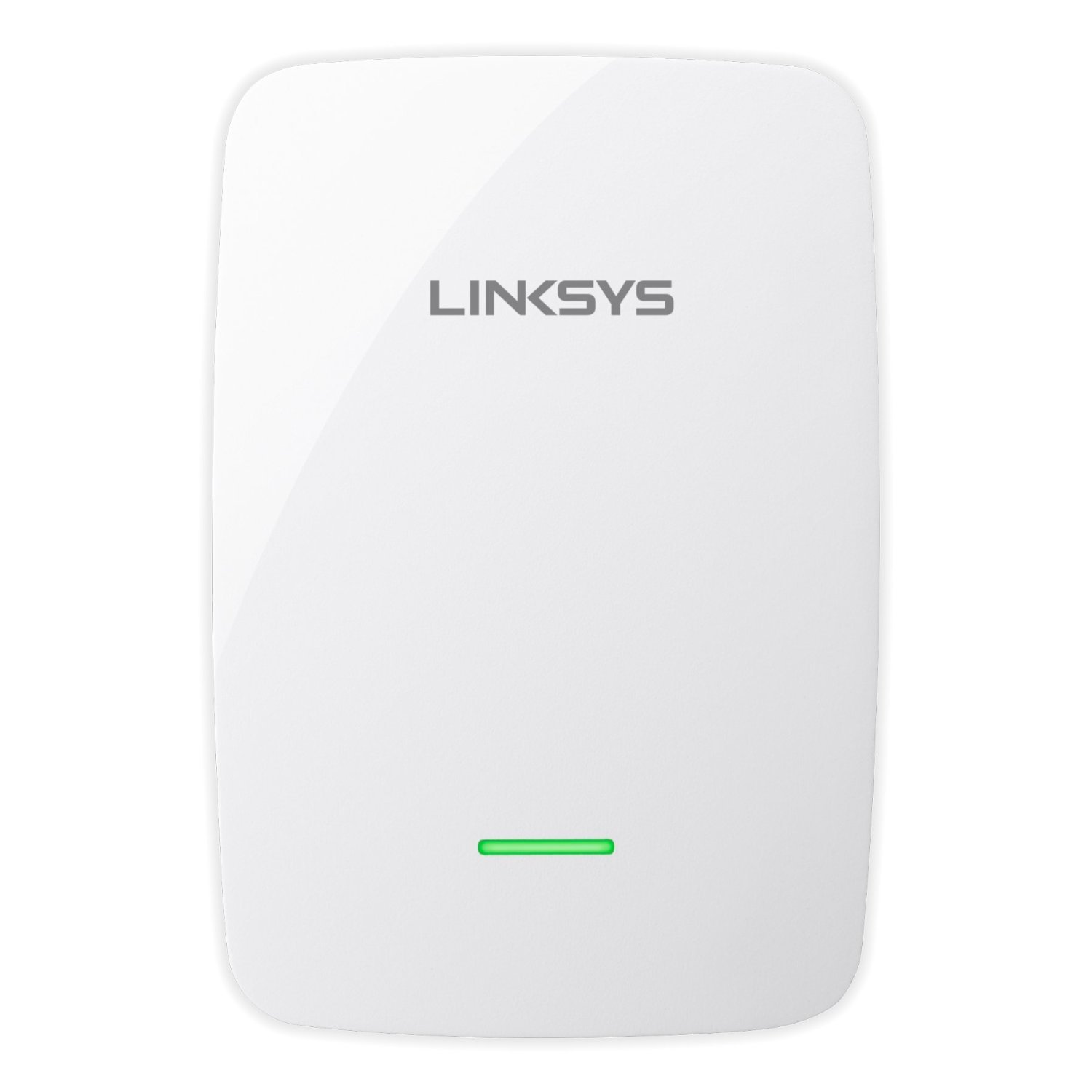
รูปที่ 1: ด้านหน้า view of the Linksys RE4100W N600 Wireless Dual Band Wi-Fi Range Extender, showing its compact design and LED indicators.
3.1. ไฟแสดงสถานะบนแผงด้านหน้า
- กำลังไฟ LED: ระบุสถานะพลังงานของอุปกรณ์
- LED Wi-Fi: แสดงสถานะการเชื่อมต่อ Wi-Fi
- ไฟ LED WPS: Indicates the status of the Wi-Fi Protected Setup (WPS) function.
3.2. Side/Rear Panel Ports and Buttons
- ปุ่มรีเซ็ต: ใช้เพื่อคืนค่าตัวขยายสัญญาณให้เป็นการตั้งค่าเริ่มต้นจากโรงงาน
- ปุ่ม Wi-Fi Protected Setup (WPS): Initiates a WPS connection with your router.
- พอร์ตอีเทอร์เน็ต (RJ45): For connecting a wired device to the extended network.
- พอร์ตเสียง: For connecting audio devices (specific functionality may vary, refer to advanced settings).
- พอร์ตไฟ: เชื่อมต่อกับอะแดปเตอร์ไฟฟ้าที่ให้มา
4. การตั้งค่า
The Linksys RE4100W offers two primary methods for setup: Wi-Fi Protected Setup (WPS) and manual setup using a web เบราว์เซอร์
4.1. การจัดวางเริ่มต้น
For optimal performance, place the range extender approximately halfway between your wireless router and the area where you want to extend Wi-Fi coverage. Ensure it is within range of your existing router's Wi-Fi signal.
4.2. Setup using Wi-Fi Protected Setup (WPS)
WPS is the simplest way to connect your extender to your router.
- Plug the RE4100W into a power outlet near your wireless router.
- รอจนกว่าไฟ LED แสดงสถานะเปิดเครื่องบนตัวขยายสัญญาณจะติดสว่างค้าง
- Press the WPS button on your Linksys RE4100W extender. The WPS LED should start blinking.
- Within two minutes, press the WPS button on your wireless router. Refer to your router's manual for the exact location of its WPS button.
- Wait for the WPS LED on the extender to turn solid, indicating a successful connection. The Wi-Fi LED should also turn solid.
- Unplug the extender and move it to a location approximately halfway between your router and the Wi-Fi dead zone. Plug it into a power outlet.
- Wait for the Wi-Fi LED to turn solid. Use the Spot Finder Technology (via the web interface) to ensure optimal placement.
4.3. Manual Setup using a Web เบราว์เซอร์
If your router does not support WPS or if you prefer manual configuration:
- Plug the RE4100W into a power outlet near your wireless router.
- On a computer or mobile device, connect to the Wi-Fi network named "Linksys Extender Setup" (or similar). No password is required.
- เปิด web browser (e.g., Chrome, Firefox, Edge) and navigate to http://extender.linksys.com or http://192.168.1.1.
- Follow the on-screen instructions to select your existing Wi-Fi network (both 2.4 GHz and 5 GHz bands) and enter its password.
- Complete the setup wizard. The extender will reboot.
- Once the Wi-Fi LED is solid, unplug the extender and move it to your desired location.
- Plug it into a power outlet and wait for the Wi-Fi LED to turn solid. Use the Spot Finder Technology (accessible via the web interface) to verify optimal placement.
5. การดำเนินการ
Once the Linksys RE4100W is successfully set up, it will automatically extend your existing Wi-Fi network. Devices connected to the extended network will experience improved signal strength and coverage.
5.1. อุปกรณ์เชื่อมต่อ
Your extended network will typically have the same name as your original network with "_EXT" appended (e.g., "MyWiFi_EXT"). Connect your wireless devices to this extended network using your original Wi-Fi password.
5.2. Dual Band Functionality
The RE4100W operates on both 2.4 GHz and 5 GHz frequency bands simultaneously. This allows compatible devices to connect to the less congested 5 GHz band for higher speeds, while other devices can use the 2.4 GHz band for broader coverage.
5.3. การใช้งานพอร์ตอีเธอร์เน็ต
The Ethernet port allows you to connect a wired device, such as a smart TV, gaming console, or desktop computer, to your extended network. This provides a stable wired connection for devices that may not have Wi-Fi capabilities or require maximum stability.
6. การบำรุงรักษา
Regular maintenance helps ensure the longevity and optimal performance of your Linksys RE4100W extender.
- อัพเดตเฟิร์มแวร์: ตรวจสอบข้อมูลการสนับสนุนจาก Linksys เป็นระยะ webเว็บไซต์สำหรับอัปเดตเฟิร์มแวร์ การอัปเดตเฟิร์มแวร์จะช่วยเพิ่มประสิทธิภาพ เพิ่มคุณสมบัติใหม่ และแก้ไขช่องโหว่ด้านความปลอดภัย
- การทำความสะอาด: Keep the device clean and free from dust. Use a soft, dry cloth. Do not use liquid cleaners or aerosols.
- การระบายอากาศ : Ensure the extender is placed in a location with adequate ventilation to prevent overheating.
- วงจรไฟฟ้า: If you experience intermittent issues, try power cycling the extender by unplugging it from the power outlet for 10 seconds and then plugging it back in.
7 การแก้ไขปัญหา
This section addresses common issues you might encounter with your Linksys RE4100W extender.
7.1. ไม่มีไฟ / ไฟ LED แสดงสถานะการทำงานดับ
- Ensure the power adapter is securely connected to the extender and a working power outlet.
- ลองใช้เต้ารับไฟอื่น
7.2. No Internet Access After Connecting to Extender
- ตรวจสอบการเชื่อมต่อเราเตอร์: ตรวจสอบให้แน่ใจว่าเราเตอร์หลักของคุณมีการเชื่อมต่ออินเทอร์เน็ตที่ใช้งานได้
- ตำแหน่งการติดตั้งตัวขยายสัญญาณ: The extender might be too far from your main router. Relocate it closer and use the Spot Finder Technology (via the web interface) to find an optimal spot.
- Re-run Setup: If the Wi-Fi LED is not solid, re-run the setup process (WPS or manual).
- ความขัดแย้งของที่อยู่ IP: รีบูตทั้งเราเตอร์และตัวขยายสัญญาณของคุณ
7.3. Slow Speeds on Extended Network
- การจัดวาง: The extender might be too far from the router or too close to the devices. Adjust its position using Spot Finder Technology.
- การรบกวน: Other electronic devices (microwaves, cordless phones) can cause interference. Try moving the extender away from such devices.
- ความแออัดของเครือข่าย: Too many devices on the network or heavy internet usage can slow speeds.
- ประสิทธิภาพของเราเตอร์: ตรวจสอบให้แน่ใจว่าเราเตอร์หลักของคุณทำงานได้อย่างเหมาะสมที่สุด
7.4. ไม่สามารถเข้าถึง Extender ได้ Web อินเทอร์เฟซ
- Ensure your device is connected to the extender's Wi-Fi network (e.g., "Linksys Extender Setup" during initial setup, or the extended network after setup).
- พยายาม http://extender.linksys.com or the extender's IP address (check your router's connected devices list).
- ล้างแคชและคุกกี้ของเบราว์เซอร์ของคุณหรือลองใช้เบราว์เซอร์อื่น
7.5. Resetting the Extender to Factory Defaults
If you encounter persistent issues or forget your settings, you can reset the extender:
- With the extender powered on, use a paperclip or a similar pointed object to press and hold the รีเซ็ต ประมาณ 5-10 วินาที
- ปล่อยปุ่มเมื่อไฟ LED แสดงสถานะเปิดเครื่องเริ่มกะพริบ
- The extender will reboot with factory default settings, and you will need to re-run the setup process.
8. ข้อมูลจำเพาะ
| คุณสมบัติ | คำอธิบาย |
|---|---|
| หมายเลขรุ่น | RE4100W |
| ไร้มาตรฐาน | IEEE 802.11a / b / g / n |
| ระดับย่านความถี่ | ดูอัลแบนด์ (2.4 GHz และ 5 GHz) |
| Max. Link Rate | N600 (up to 300 Mbps per band) |
| พิสัย | Up to 7,500 Sq. Ft. (coverage may vary) |
| พอร์ต | 1x Ethernet (RJ45), 1x Audio, 1x Power |
| ปุ่ม | Reset, Wi-Fi Protected Setup (WPS) |
| คุณสมบัติพิเศษ | Spot Finder Technology, Simultaneous Dual Band |
| อุณหภูมิในการทำงาน | 32 ถึง 104°F (0 ถึง 40°C) |
| อุณหภูมิในการจัดเก็บ | -4 ถึง 140°F (-20 ถึง 60°C) |
| ความชื้นในการทำงาน | 10 ถึง 80% ไม่ควบแน่น |
| อุปกรณ์ที่รองรับ | Security Camera (example), various Wi-Fi devices |
| ความเข้ากันได้ของแพลตฟอร์ม | Windows 7/8/8.1/Vista/XP, Mac OS X 10.5.8 and higher |
9. การรับประกันและการสนับสนุน
For detailed warranty information, please refer to the warranty card included with your product or visit the official Linksys website. Linksys provides technical support and resources for its products.
For further assistance, product registration, or to download the latest drivers and firmware, please visit the official Linksys support webเว็บไซต์: