การแนะนำ
The Philips Hue Bridge (2nd Generation) is the central hub for your Philips Hue smart lighting system. It allows you to connect and control up to 50 Philips Hue lights and accessories, enabling smart features such as scheduling, remote control, and integration with smart home platforms like Apple HomeKit.
คุณสมบัติที่สำคัญ ได้แก่:
- The heart of your Philips Hue system.
- Connects up to 50 Philips Hue lights.
- New connectivity system compatible with Apple HomeKit.
การตั้งค่า
1. การแกะกล่องและการเชื่อมต่อครั้งแรก
Carefully remove the Philips Hue Bridge from its packaging. The box contains the Bridge unit, a power adapter, and an Ethernet cable.
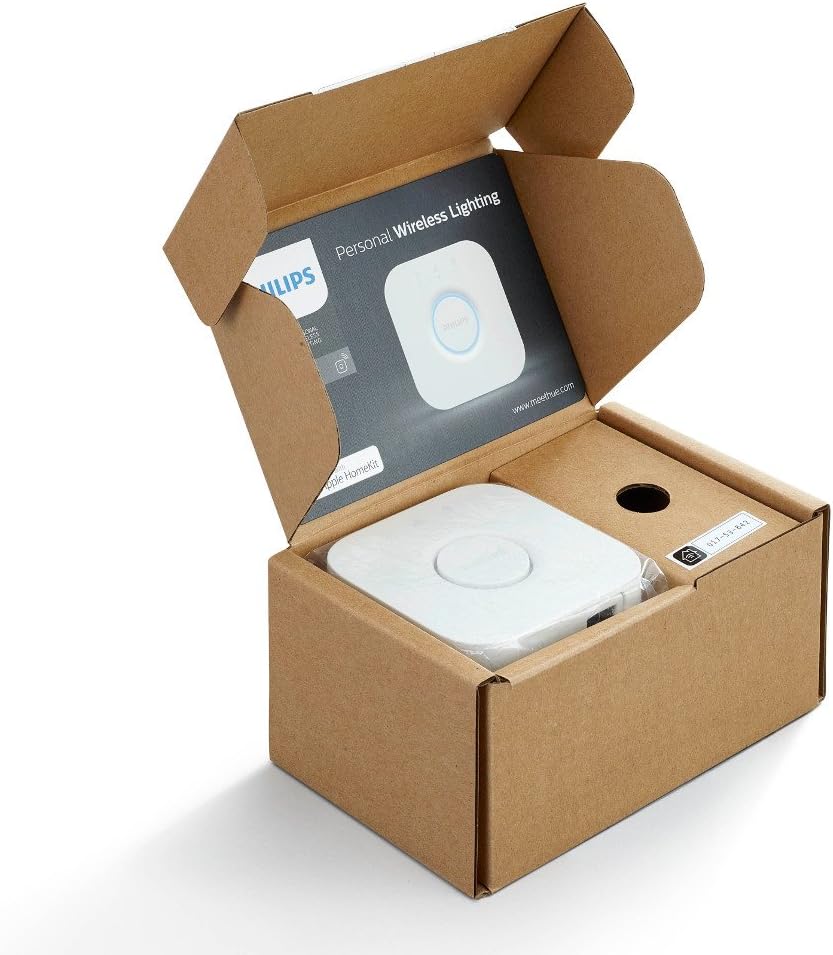
The Philips Hue Bridge (2nd Generation) as it appears when unboxed, showing the device and initial documentation.
- Connect one end of the provided Ethernet cable to the Philips Hue Bridge and the other end to an available LAN port on your Wi-Fi router.
- Connect the power adapter to the Bridge and plug it into a power outlet.
- Wait for the three indicator lights on the Bridge to illuminate steadily. This indicates that the Bridge is powered on and connected to your network.

This image illustrates the process of connecting the Ethernet cable to the Philips Hue Bridge, which is necessary for network connectivity.
2. การติดตั้งและการจับคู่แอป
- Download the official Philips Hue app from your smartphone's app store (available for iOS and Android).
- Open the Philips Hue app and follow the on-screen instructions to set up your Bridge. The app will search for your Bridge on the network.
- When prompted, press the large circular button on the top of the Philips Hue Bridge to pair it with the app.
- Once paired, you can begin adding your Philips Hue lights and accessories within the app.

The Philips Hue Bridge is shown mounted on a wall, demonstrating its compact size and how it can be discreetly placed in a home environment.
Operating the Philips Hue System
Controlling Lights via the App
The Philips Hue app provides comprehensive control over your lighting. You can:
- เปิด/ปิดไฟ
- Adjust brightness and color (for color-capable lights).
- Create custom scenes and routines.
- Set schedules for lights to turn on or off automatically.
- Group lights into rooms for easier control.

A woman stands in a living room, using her smartphone to adjust the Philips Hue lighting, demonstrating app-based control.
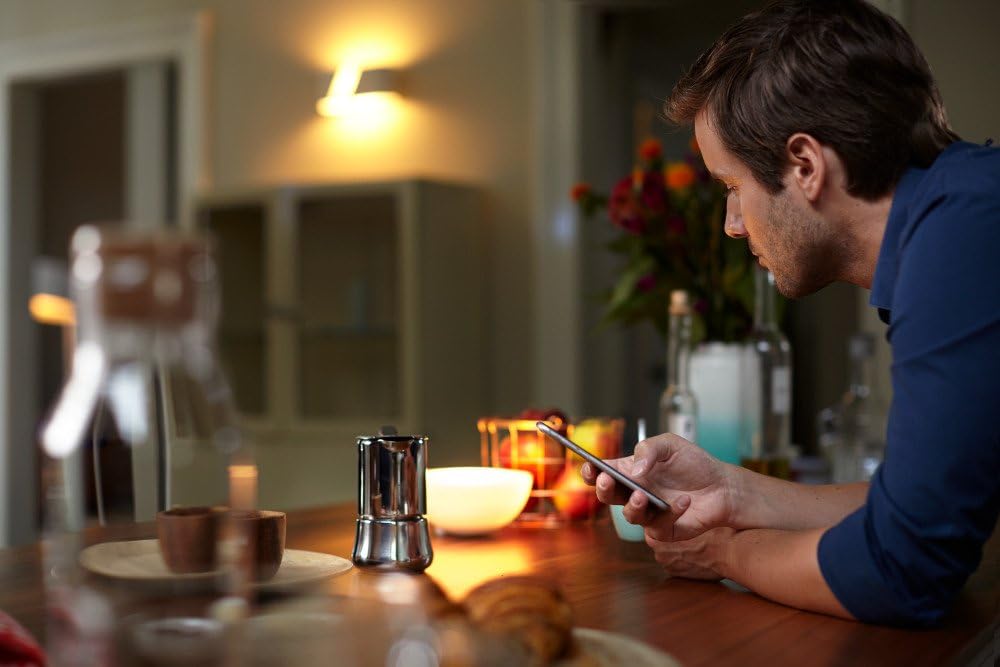
A man is shown at a kitchen table, interacting with his smartphone, which can be used to manage the Philips Hue lighting system.
การควบคุมด้วยเสียงและการเชื่อมต่อกับระบบบ้านอัจฉริยะ
The Philips Hue Bridge (2nd Generation) supports integration with various smart home ecosystems, including Apple HomeKit. This allows for voice control of your lights using virtual assistants like Siri.
- Apple HomeKit: Use the Apple Home app to add your Hue Bridge and control lights with Siri commands.
- แพลตฟอร์มอื่นๆ: The Bridge is compatible with other smart home platforms. Refer to the respective platform's documentation for integration instructions.

A family celebrating a birthday, with the room illuminated by various colorful Philips Hue lights, showcasing the ambiance possibilities.
การซ่อมบำรุง
To ensure optimal performance of your Philips Hue Bridge:
- การอัปเดตซอฟต์แวร์: Regularly check the Philips Hue app for available software updates for your Bridge. Updates often include new features, performance improvements, and security enhancements.
- การทำความสะอาด: Keep the Bridge clean and free from dust. Use a soft, dry cloth to wipe its surface. Do not use liquid cleaners.
- การจัดวาง: Ensure the Bridge is placed in a well-ventilated area, away from direct heat sources or moisture.
- ความเสถียรของเครือข่าย: A stable internet connection is crucial for the Bridge's functionality. Ensure your router is working correctly.
การแก้ไขปัญหา
If you encounter issues with your Philips Hue Bridge, try the following steps:
- Bridge Not Found:
- Ensure the Bridge is powered on and connected to your router via Ethernet.
- Check that all three indicator lights on the Bridge are steadily lit.
- Restart your Wi-Fi router and the Philips Hue Bridge by unplugging them for 10 seconds and then plugging them back in.
- โปรดตรวจสอบให้แน่ใจว่าสมาร์ทโฟนของคุณเชื่อมต่อกับเครือข่าย Wi-Fi เดียวกันกับอุปกรณ์ Bridge แล้ว
- ไฟไม่ตอบสนอง:
- Verify that the lights are powered on and within range of the Bridge.
- Try resetting the individual light (refer to the light's specific manual for instructions).
- Check the Philips Hue app for any error messages or connectivity issues.
- ปัญหาการเชื่อมต่อแอพ:
- Close and reopen the Philips Hue app.
- รีสตาร์ทสมาร์ทโฟนของคุณ
- โปรดตรวจสอบให้แน่ใจว่าแอปของคุณได้รับการอัปเดตเป็นเวอร์ชันล่าสุดแล้ว
หากต้องการความช่วยเหลือเพิ่มเติม โปรดไปที่เว็บไซต์ฝ่ายสนับสนุนอย่างเป็นทางการของ Philips Hue webเว็บไซต์หรือติดต่อฝ่ายบริการลูกค้าของพวกเขา
ข้อมูลจำเพาะ
| ผู้ผลิต | ฟิลิปส์ ไลท์ติ้ง |
| หมายเลขชิ้นส่วน | 458489 |
| สไตล์ | สะพานเว้ |
| เล่มที่tage | 240 โวลต์ |
| รายการ จำนวนแพ็คเกจ | 1 |
| คุณสมบัติพิเศษ | Motion Sensor (Note: This feature refers to compatibility with Hue motion sensors, not built-in to the Bridge itself.) |
| แบตเตอรี่ที่จำเป็น | เลขที่ |
| ขนาดสินค้า | 18.21 x 11.61 x 8.1 ซม.; 158.76 กรัม (7.17 x 4.57 x 3.19 นิ้ว) |
| หมายเลขรุ่น | 466516 |
| ASIN | B014H2P42K |
การรับประกันและการสนับสนุน
For information regarding the product warranty, please refer to the warranty card included in the product packaging or visit the official Philips Hue webเว็บไซต์นี้ให้บริการสนับสนุนลูกค้าสำหรับผลิตภัณฑ์ของฟิลิปส์
การสนับสนุนทางออนไลน์: Visit the Philips Hue support page for FAQs, troubleshooting guides, and contact options.
ติดต่อฝ่ายบริการลูกค้า: Details for contacting customer service can be found on the official Philips webเว็บไซต์.