
1. บทนำ
Thank you for choosing the TECKNET M003 2.4G Wireless Optical Mouse. This ergonomic mouse is designed for comfort and precision, offering a reliable wireless connection for various computing tasks. Please read this manual carefully to ensure proper setup and operation.

Figure 1: TECKNET M003 Wireless Optical Mouse with ergonomic design highlighted.
2. เนื้อหาบรรจุภัณฑ์
- TECKNET Pro Wireless Mouse
- ตัวรับสัญญาณ Nano USB
- คู่มือการใช้งาน (เอกสารนี้)
3. สินค้าหมดview
Familiarize yourself with the components of your TECKNET M003 mouse:
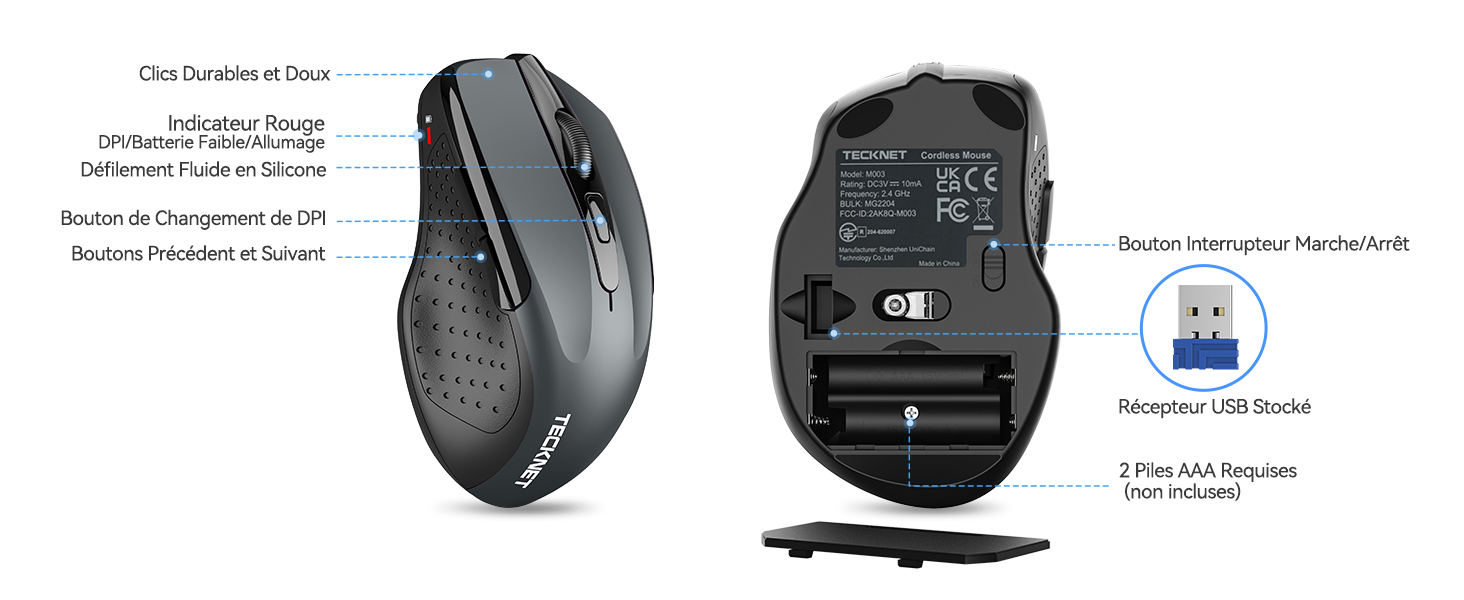
รูปที่ 2: ด้านหน้าและด้านล่าง view ของหนูที่มีการระบุส่วนต่างๆ ไว้
- ปุ่มซ้าย: ฟังก์ชั่นคลิกมาตรฐาน
- ปุ่มขวา: ฟังก์ชั่นคลิกขวามาตรฐาน
- ล้อเลื่อน: สำหรับการเลื่อนแนวตั้งและฟังก์ชันคลิกกลาง
- ปุ่มสลับ DPI: ปรับความไวของเคอร์เซอร์
- ปุ่มไปข้างหน้า: นำทางไปข้างหน้าใน web เบราว์เซอร์หรือ file explorers (not available for Mac OS).
- ปุ่มย้อนกลับ: นำทางย้อนกลับใน web เบราว์เซอร์หรือ file explorers (not available for Mac OS).
- Power Switch (On/Off): อยู่บริเวณด้านล่างของเมาส์
- Optical Tracking Sensor: For precise movement detection.
- ช่องใส่แบตเตอรี่: ใช้แบตเตอรี่ AAA สองก้อน
- ช่องเก็บตัวรับสัญญาณ USB: Located inside the battery compartment for convenient storage.
4. คำแนะนำในการตั้งค่า
4.1 การติดตั้งแบตเตอรี่
- เปิดฝาช่องใส่แบตเตอรี่ที่อยู่ด้านล่างของเมาส์
- ใส่แบตเตอรี่ AAA สอง (2) ก้อน โดยตรวจสอบให้แน่ใจว่าขั้วถูกต้อง (+/-) ไม่รวมแบตเตอรี่.
- ปิดฝาช่องใส่แบตเตอรี่ให้แน่น
4.2 การเชื่อมต่อตัวรับสัญญาณ USB
- Locate the nano USB receiver stored inside the battery compartment of the mouse.
- ถอดตัวรับสัญญาณ USB ออกจากช่องเสียบ
- Plug the USB receiver into an available USB port on your computer (PC, laptop, Chromebook, Mac).
- เปิดเมาส์โดยใช้สวิตช์เปิด/ปิดที่ด้านล่าง
คอมพิวเตอร์ของคุณจะตรวจจับและติดตั้งไดรเวอร์ที่จำเป็นโดยอัตโนมัติ เมาส์จะพร้อมใช้งานภายในไม่กี่วินาที

Figure 3: Plugging the USB receiver into a computer.
5. คู่มือการใช้งาน
5.1 การทำงานพื้นฐาน
- เลื่อนเมาส์บนพื้นผิวเรียบเพื่อควบคุมเคอร์เซอร์บนหน้าจอของคุณ
- Use the left and right buttons for clicking and context menus.
- Roll the scroll wheel to navigate vertically through documents and web pages. Press the scroll wheel for a middle-click function (behavior may vary by application).
- The forward and backward buttons (side buttons) allow for quick navigation in web เบราว์เซอร์หรือ file explorers. Note: These buttons are not supported on Mac OS.
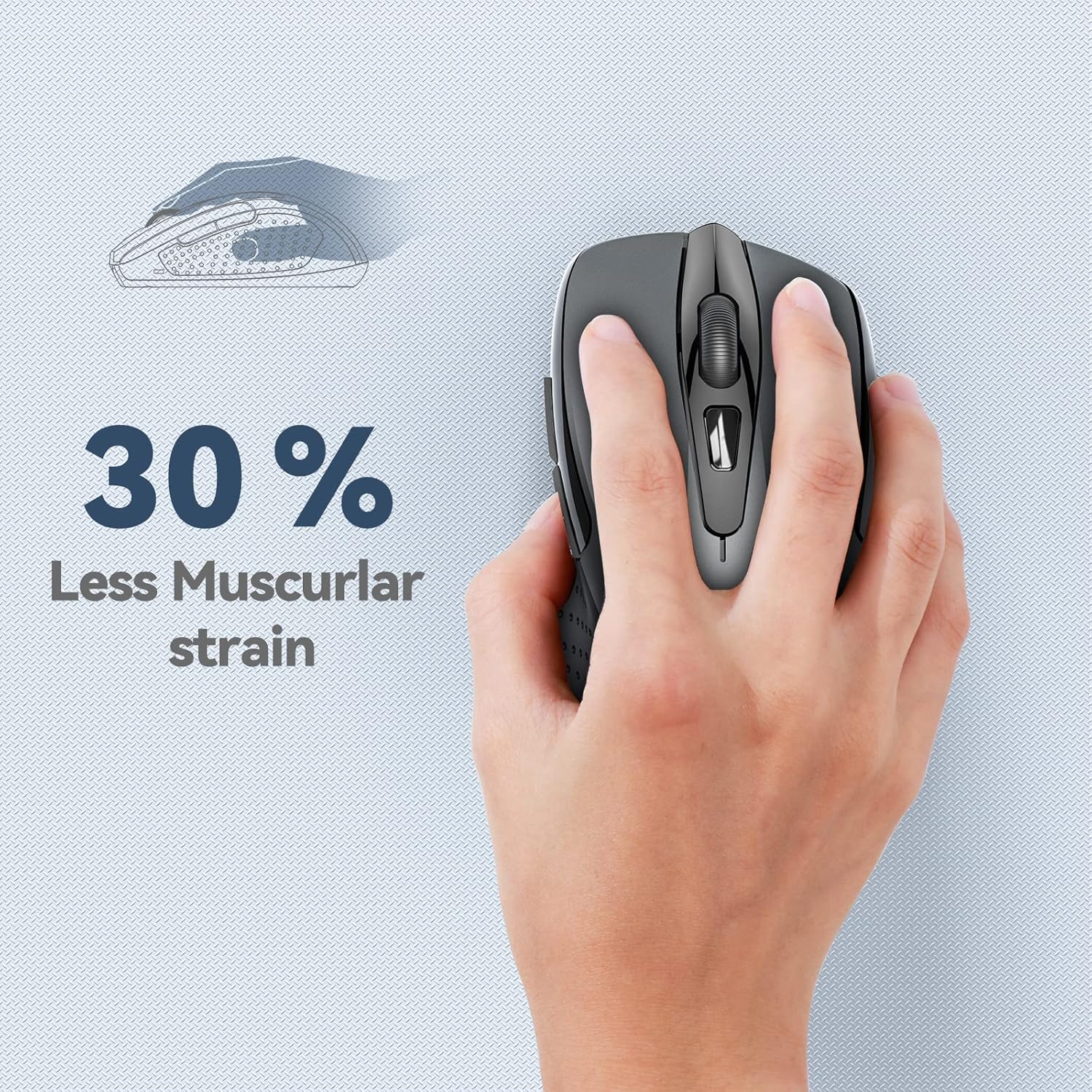
Figure 4: Ergonomic design reduces muscle strain during use.
5.2 การปรับ DPI
The mouse features 5 adjustable DPI (Dots Per Inch) levels, allowing you to customize cursor sensitivity for different tasks. Press the DPI switch button (located below the scroll wheel) to cycle through the following settings:
- 800 จุดต่อนิ้ว: Suitable for general web เรียกดู
- 1200 จุดต่อนิ้ว: Ideal for spreadsheet editing (e.g., Excel).
- 1600 จุดต่อนิ้ว: เหมาะสำหรับงานตัดต่อวิดีโอ
- 2000 จุดต่อนิ้ว: Useful for graphic design software (e.g., Photoshop).
- 2600 จุดต่อนิ้ว: High sensitivity for gaming or fast-paced tasks.

Figure 5: DPI levels and their recommended uses.
6. การบำรุงรักษา
6.1 การจัดการแบตเตอรี่
- The mouse requires two AAA batteries. For optimal performance, use high-quality alkaline batteries.
- The mouse features an automatic sleep mode to conserve power when not in use.
- Always turn off the mouse using the power switch on the bottom when transporting it or when it will not be used for an extended period.
- Expected battery life is up to 24 months, depending on usage.
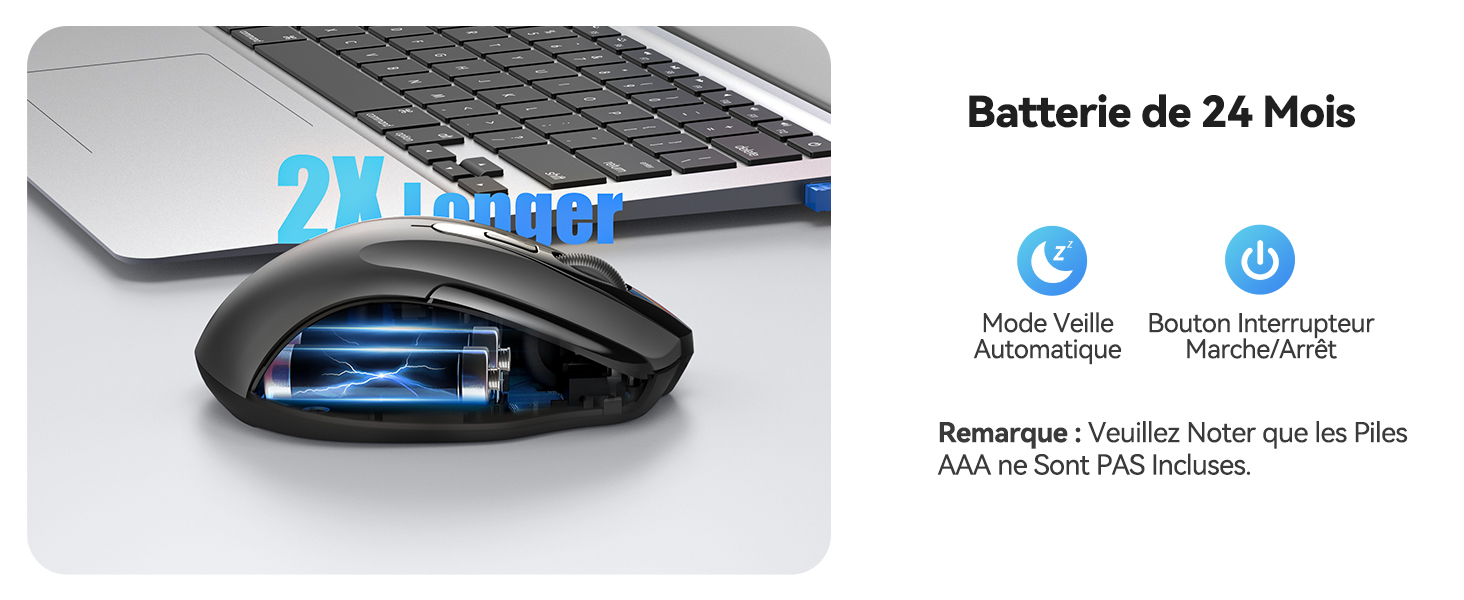
Figure 6: Battery saving features.
6.2 การทำความสะอาด
To clean your mouse, gently wipe it with a soft, damp ผ้า. หลีกเลี่ยงการใช้สารเคมีรุนแรงหรือวัสดุกัดกร่อน
7 การแก้ไขปัญหา
- เมาส์ไม่ตอบสนอง:
- ตรวจสอบให้แน่ใจว่าเมาส์เปิดอยู่
- ตรวจสอบว่าใส่แบตเตอรี่ถูกต้องและมีประจุเพียงพอหรือไม่ เปลี่ยนแบตเตอรี่หากจำเป็น
- ตรวจสอบให้แน่ใจว่าตัวรับสัญญาณ USB เสียบเข้ากับพอร์ต USB ที่ใช้งานได้บนคอมพิวเตอร์ของคุณอย่างแน่นหนา ลองใช้พอร์ต USB อื่นดู
- Move the mouse closer to the USB receiver to ensure it is within the 15-meter operating range.
- รีสตาร์ทเครื่องคอมพิวเตอร์ของคุณ
- การเคลื่อนไหวของเคอร์เซอร์ที่ไม่แน่นอน:
- ทำความสะอาดเซ็นเซอร์ออปติคอลที่ด้านล่างของเมาส์
- ตรวจสอบให้แน่ใจว่าคุณใช้เมาส์บนพื้นผิวที่เหมาะสม หลีกเลี่ยงพื้นผิวที่สะท้อนแสงหรือโปร่งใส
- หากเคอร์เซอร์เคลื่อนที่เร็วเกินไป ให้ปรับการตั้งค่า DPI ให้มีค่าความไวต่ำลง
- ปุ่มด้านข้างใช้งานไม่ได้บน Mac:
- The forward and backward side buttons are not supported on Mac OS. This is expected behavior.
8. ข้อมูลจำเพาะ
| คุณสมบัติ | ข้อมูลจำเพาะ |
|---|---|
| หมายเลขรุ่น | M003 |
| เทคโนโลยีการเชื่อมต่อ | ระบบไร้สาย 2.4G (ตัวรับสัญญาณ USB) |
| เทคโนโลยีตรวจจับการเคลื่อนไหว | ออฟติคอล |
| DPI ที่ปรับได้ | 800/1200/1600/2000/2600 |
| จำนวนปุ่ม | 6 |
| การวางแนวมือ | ถนัดทั้งสองมือ |
| ระยะการทำงาน | สูงสุด 15 เมตร |
| ประเภทแบตเตอรี่ | 2 x AAA (ไม่รวม) |
| อายุการใช้งานแบตเตอรี่โดยประมาณ | Up to 24 months (675 hours average) |
| ระบบปฏิบัติการที่รองรับ | Windows XP/Vista/7/8/10/11, Mac OS, Linux, Chromebook |
| น้ำหนักสินค้า | 100 กรัม |
| ขนาด (ยาว x กว้าง) | ขนาด 10.6L x 6.8W เซนติเมตร |
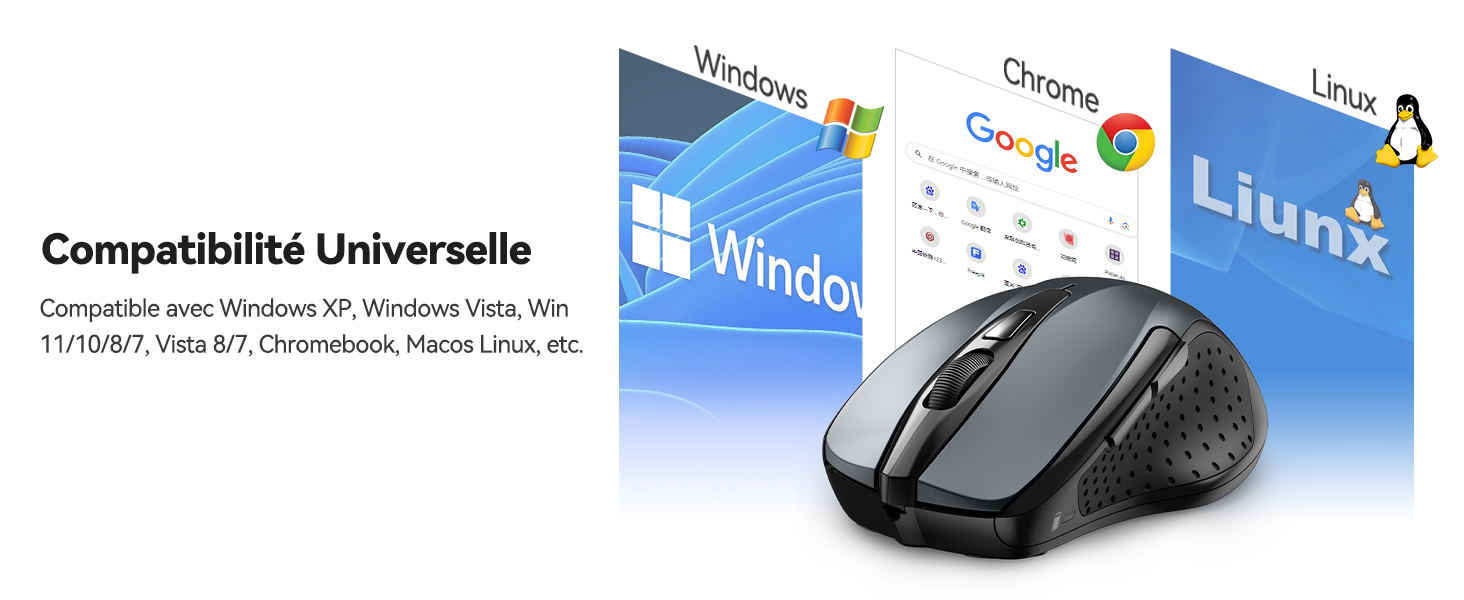
รูปที่ 7: ความเข้ากันได้แบบสากลกับระบบปฏิบัติการต่างๆ
9. การรับประกันและการสนับสนุน
The TECKNET M003 Wireless Optical Mouse comes with a รับประกัน 2 ปี ตั้งแต่วันที่ซื้อสินค้า
If you encounter any issues during product use, please contact the professional TECKNET customer service team for assistance. You can find contact information on the official TECKNET webเว็บไซต์หรือผ่านผู้ค้าปลีกของคุณ
10. วิดีโอผลิตภัณฑ์view
วิดีโอ 1: สรุปสั้นๆview of the TECKNET 2.4G Wireless Mouse, highlighting its features and ease of use.