
การแนะนำ
This instruction manual provides comprehensive guidance for the StarTech.com M.2 SATA External SSD Enclosure. This device allows you to convert a SATA M.2 solid-state drive into a portable, high-speed USB 3.0 (5Gbps) external drive with UASP support. Please read this manual carefully before installation and operation to ensure proper use and optimal performance.
เนื้อหาแพ็คเกจ
ตรวจสอบว่ามีส่วนประกอบทั้งหมดอยู่ในแพ็คเกจของคุณ:
- 1 x M.2 NGFF SATA Enclosure
- 1 x USB 3.0 Cable (USB-A to Micro-B)
- ไขควง 1 x ขนาดเล็ก
- 1 x SSD Screw Kit
- 1 x คู่มือการใช้งาน

Image: All components included in the package, such as the enclosure, USB cable, screwdriver, and screw kit.
ความเข้ากันได้
This enclosure is designed for specific M.2 SSD types. Please ensure your SSD meets the following criteria:
- อินเทอร์เฟซ: SATA M.2 SSDs only.
- ประเภทคีย์: Supports M.2 SATA Type with B Key Interface and B+M Key Interface.
- เข้ากันไม่ได้: M.2 NVMe or AHCI PCIe SSDs (M Key interface).
- ขนาดไดรฟ์: Supports common M.2 SSD lengths including 30mm (2230), 42mm (2242), 60mm (2260), and 80mm (2280).
- ระบบปฏิบัติการ: Compatible with any operating system, including Windows, macOS, Chrome OS, and Linux, without requiring additional drivers.

Image: Visual representation of compatible M.2 SATA B Key and B+M Key interfaces, and incompatible M Key NVMe/AHCI PCIe interfaces.

Image: Illustration of the various standard M.2 SATA drive sizes (2230, 2242, 2260, 2280) that fit into the enclosure.
การติดตั้งและการตั้งค่า
Follow these steps to install your M.2 SATA SSD into the enclosure:
- ถอดแผงหน้าปัด: Use the included screwdriver to remove the enclosure's faceplate and slide out the internal drive tray.
- Connect SSD: Carefully connect your M.2 SATA SSD to the M.2 port on the drive tray. Ensure it is seated firmly.
- SSD ที่ปลอดภัย: Press the drive down toward the standoff and secure it in place with the appropriate screw from the SSD screw kit.
- Reassemble Enclosure: Slide the drive tray back into the enclosure and re-secure the faceplate with the screw.
- เชื่อมต่อกับคอมพิวเตอร์: Attach the USB cable to the enclosure and then connect it to an available USB 3.0 port on your computer.
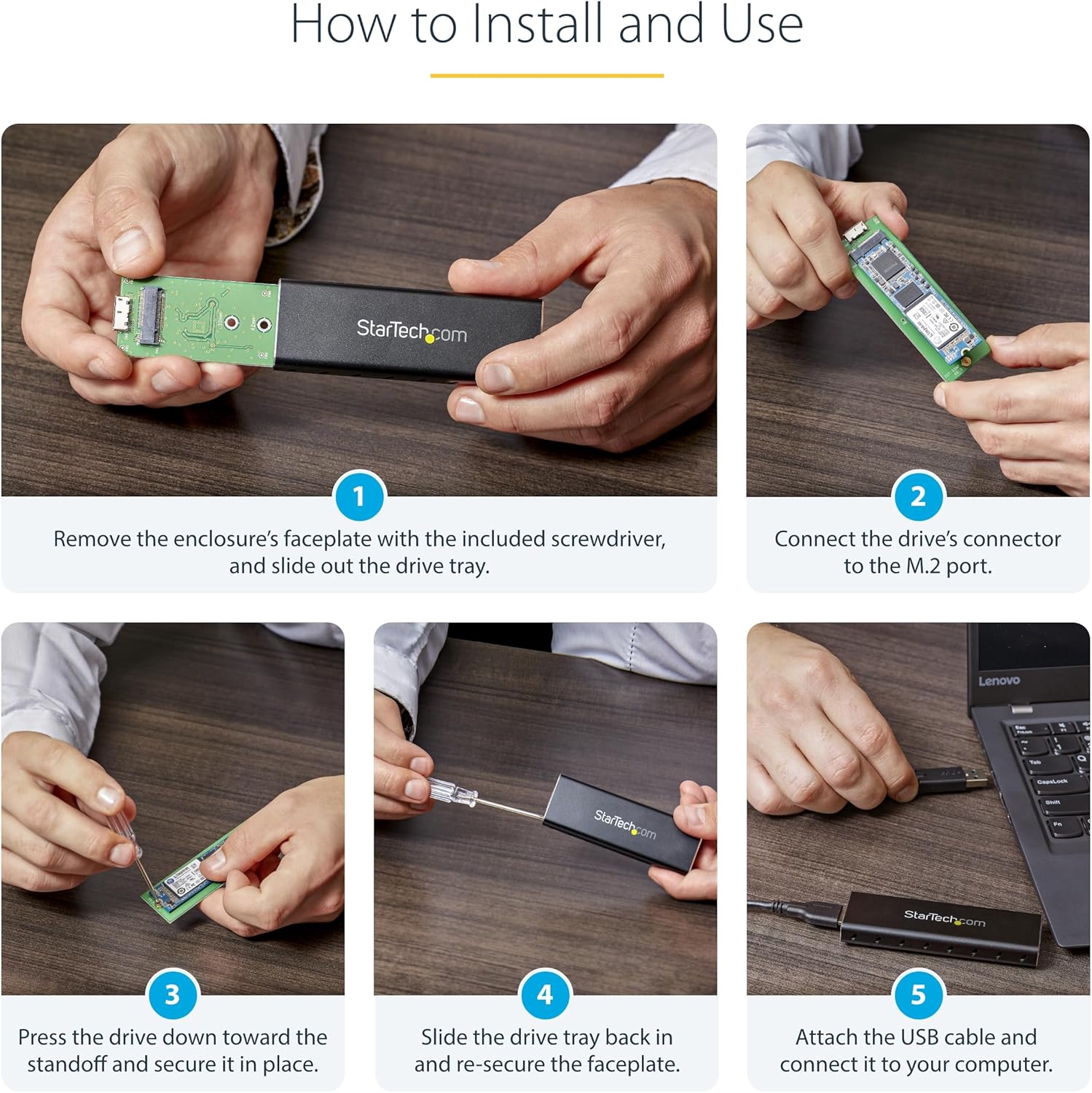
Image: A series of five images demonstrating the installation process: removing the faceplate, connecting the SSD, securing it, reassembling, and connecting to a computer.
คำแนะนำการใช้งาน
Once installed, the enclosure operates as a standard external USB drive.
- การทำงานแบบไร้คนขับ: The enclosure supports plug-and-play functionality across various operating systems, requiring no additional software or drivers.
- การสนับสนุน UASP: When connected to a UASP-enabled host computer, the enclosure can achieve up to 70% faster transfer speeds compared to traditional USB 3.0.
- พลัง: The enclosure is USB-powered and does not require an external power adapter.

Image: The M.2 SSD enclosure connected to a laptop, highlighting its compatibility with multiple operating systems without requiring drivers.

Image: The portable M.2 SATA enclosure connected to a laptop, demonstrating its use as an external drive.
การซ่อมบำรุง
เพื่อให้ตู้เลี้ยงสัตว์ของคุณมีอายุการใช้งานยาวนานและทำงานได้อย่างมีประสิทธิภาพสูงสุด:
- การทำความสะอาด: ใช้ผ้าแห้งเนื้อนุ่มเช็ดทำความสะอาดภายนอกของกล่อง หลีกเลี่ยงการใช้น้ำยาทำความสะอาดชนิดเหลว
- การกระจายความร้อน: The aluminum construction and ventilation holes are designed to dissipate heat. Ensure these vents are not obstructed during operation to maintain a cool environment for your SSD.
- การป้องกันทางกายภาพ: The durable aluminum construction protects your drive. Avoid dropping the enclosure or subjecting it to excessive force.

Image: The enclosure's durable aluminum body, highlighting its dimensions and ventilation holes designed for heat dissipation.
การแก้ไขปัญหา
If you encounter issues with your M.2 SATA External SSD Enclosure, refer to the following common problems and solutions:
- ไม่รู้จักไดรฟ์:
- Ensure the M.2 SSD is correctly seated and secured within the enclosure.
- Verify that your M.2 SSD is a SATA type (B Key or B+M Key) and not an NVMe/AHCI PCIe type (M Key).
- ลองเสียบเคสเข้ากับพอร์ต USB อื่นบนคอมพิวเตอร์ของคุณดู
- ตรวจสอบใน Disk Management (Windows) หรือ Disk Utility (macOS) เพื่อดูว่าตรวจพบไดรฟ์แล้วแต่ยังไม่ได้เริ่มต้นใช้งานหรือยังไม่ได้ฟอร์แมตหรือไม่
- ความเร็วในการถ่ายโอนข้อมูลช้า:
- Ensure the enclosure is connected to a USB 3.0 port on your computer. USB 2.0 ports will result in slower speeds.
- Confirm that your operating system and host controller support UASP for optimal performance.
- Check the health of your M.2 SSD.
- ตู้ครอบอุปกรณ์ร้อนเกินไป:
- Ensure the ventilation holes on the enclosure are not blocked.
- Avoid placing the enclosure in direct sunlight or confined spaces.
ข้อมูลจำเพาะ
| คุณสมบัติ | ข้อมูลจำเพาะ |
|---|---|
| ฮาร์ดแวร์อินเตอร์เฟซ | ยูเอสบี 3.0 |
| อัตราการถ่ายโอนข้อมูล | Up to 600 Megabits Per Second (5Gbps with UASP) |
| อุปกรณ์ที่รองรับ | พีซี, แมค |
| Supported Devices Quantity | 1 |
| วัสดุของตู้หุ้ม | อลูมิเนียม |
| สี | สีดำ |
| ขนาดสินค้า (กว้าง x ยาว x สูง) | 3.7" x 1.1" x 0.4" (98 มม. x 34 มม. x 12 มม.) |
| น้ำหนักสินค้า | 0.05 กิโลกรัม |
| ขนาด SSD M.2 ที่รองรับ | 2230, 2242, 2260, 2280 |
| M.2 Key Support | B Key, B+M Key (SATA) |
การรับประกัน
This StarTech.com M.2 SATA External SSD Enclosure is backed by a รับประกัน 2 ปี.
For detailed warranty terms and conditions, please refer to the official StarTech.com webเว็บไซต์หรือบัตรรับประกันที่รวมอยู่ในผลิตภัณฑ์ของคุณ
สนับสนุน
For technical support, troubleshooting assistance, or to access additional resources, please visit the official StarTech.com webเว็บไซต์:
You may also find helpful information in the FAQ section or by contacting their customer service directly.