
ดีลิงค์ DCS-8350LH
D-Link mydlink 2K Indoor WiFi Camera
Model: DCS-8350LH
คู่มือการใช้งาน
1. บทนำ
This manual provides detailed instructions for the setup, operation, maintenance, and troubleshooting of your D-Link mydlink 2K Indoor WiFi Camera (DCS-8350LH). Please read this manual thoroughly before using the device to ensure proper functionality and safety.
The DCS-8350LH is designed for indoor surveillance, offering 2K QHD (1440p) resolution, color night vision, AI-based person detection, two-way audio, and flexible recording options including microSD card and cloud storage. It integrates with smart home ecosystems like Amazon Alexa and Google Assistant.
2. เนื้อหาบรรจุภัณฑ์
ตรวจสอบว่ามีรายการทั้งหมดอยู่ในแพ็คเกจของคุณ:
- D-Link mydlink 2K Indoor WiFi Camera (DCS-8350LH)
- อะแดปเตอร์แปลงไฟ
- ฮาร์ดแวร์สำหรับติดตั้ง
- คู่มือการติดตั้งอย่างรวดเร็ว (QIG)
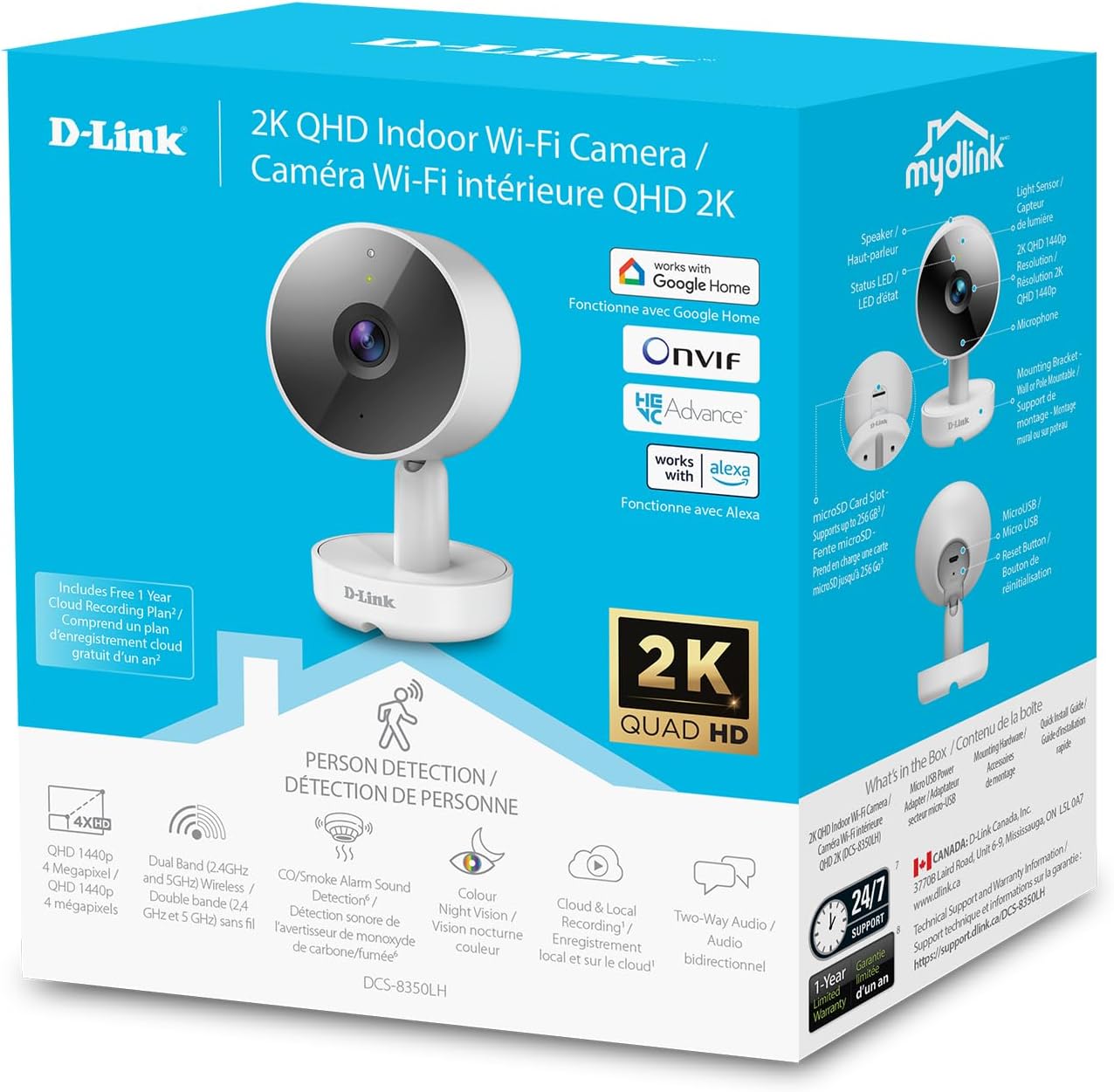
Image: The retail packaging for the D-Link mydlink 2K Indoor WiFi Camera, highlighting key features and included components.
3. สินค้าหมดview
ทำความคุ้นเคยกับส่วนประกอบของกล้อง:

Image: A detailed diagram illustrating the various parts of the D-Link DCS-8350LH camera, including the lens, status LED, speaker, microphone, microSD card slot, reset button, and power connector.
- เลนส์: จับภาพวิดีโอ footage.
- ไฟ LED แสดงสถานะ: Indicates camera status (e.g., power, connection, recording).
- ไฟ LED อินฟาเรด: Infrared emitters for night vision.
- ไมโครโฟน: บันทึกเสียงสำหรับการสื่อสารสองทางและการตรวจจับเสียง
- ผู้บรรยาย: ส่งสัญญาณเสียงเพื่อการสื่อสารสองทาง
- ช่องเสียบการ์ด MicroSD: For local video storage (supports up to 256 GB).
- ปุ่มรีเซ็ต: ใช้เพื่อคืนการตั้งค่าเริ่มต้นจากโรงงาน
- ตัวเชื่อมต่อกระแสไฟ: เชื่อมต่อกับอะแดปเตอร์ไฟฟ้าที่ให้มา
4. คำแนะนำในการตั้งค่า
- ดาวน์โหลดแอป mydlink: ค้นหา "mydlink" in the Apple App Store or Google Play Store and install the application on your smartphone or tablet.
- เปิดกล้อง: Connect the power adapter to the camera's power connector and plug it into a wall outlet. The status LED will begin to blink.
- เพิ่มอุปกรณ์ในแอป: Open the mydlink app, log in or create an account. Tap the menu icon (usually three lines or dots) and select "Add a Device." Follow the on-screen instructions to scan the QR code on your camera or its packaging.
- เชื่อมต่อกับ Wi-Fi: The app will guide you through connecting the camera to your home Wi-Fi network. Ensure your Wi-Fi network is 2.4 GHz or 5 GHz compatible.
- การจัดวาง: Position the camera in your desired indoor location. The camera can be placed on a flat surface or mounted to a wall using the included hardware. Ensure it has a clear line of sight to the area you wish to monitor.

Image: The D-Link mydlink 2K Indoor WiFi Camera, ready for setup and placement in your home.
5. คู่มือการใช้งาน
5.1. สด View และการติดตาม
Access the live video feed from your camera anytime through the mydlink app. Simply open the app and select your camera from the device list to view ฟูแบบเรียลไทม์tage.
5.2. เสียงสองทาง
The camera features a built-in microphone and speaker, enabling two-way communication. To use this function, tap the microphone icon in the live view screen of the mydlink app. Speak into your mobile device to transmit audio through the camera's speaker. Release the icon to listen.
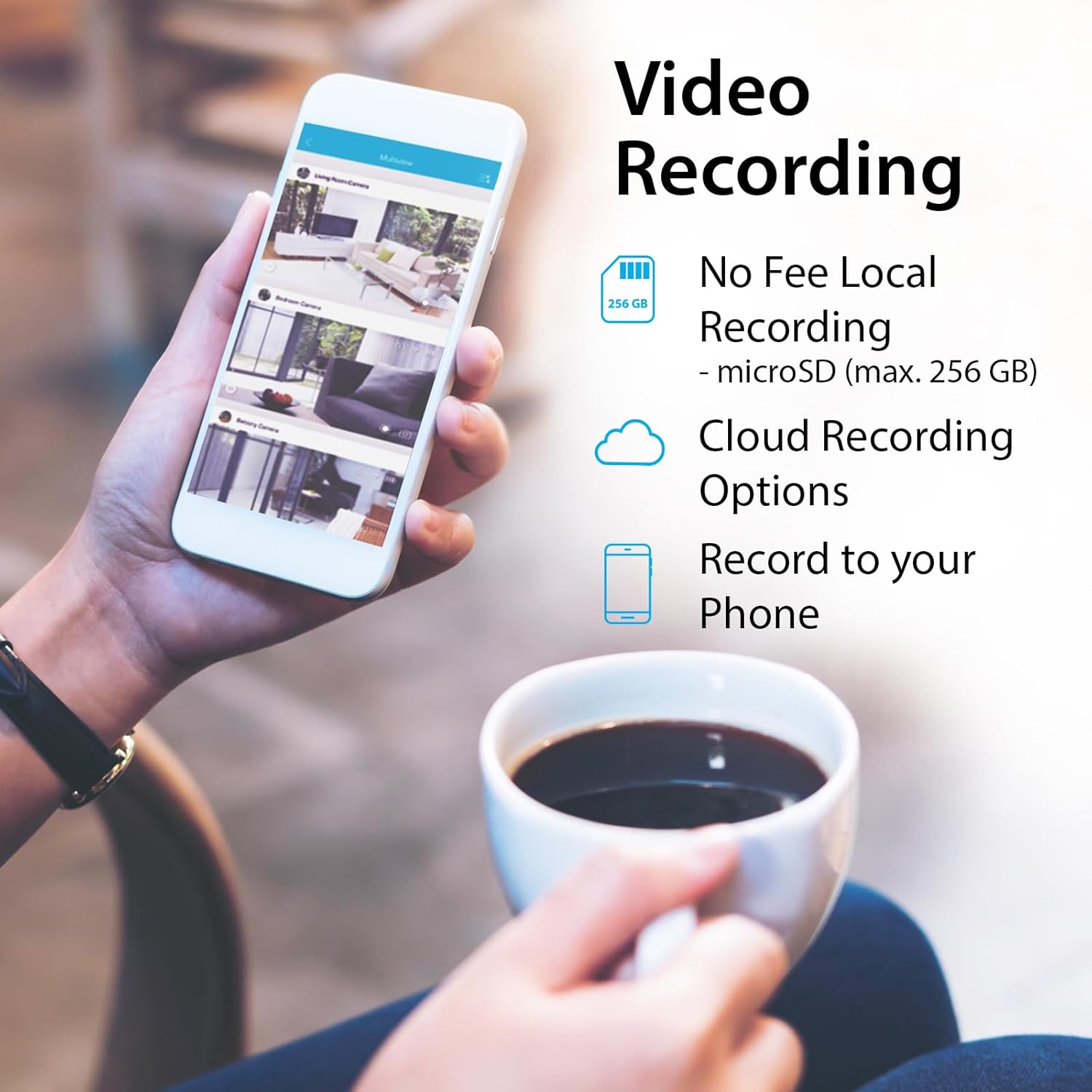
Image: An illustration of the two-way audio feature, showing the camera and a dog with a speech bubble, indicating remote communication.
5.3. Video Recording Options
The DCS-8350LH offers flexible recording solutions:
- การบันทึกข้อมูลลงการ์ด MicroSD: Insert a microSD card (up to 256 GB, not included) into the camera's slot for local storage of video footage. Configure recording settings (e.g., continuous, motion-triggered) within the mydlink app.
- การบันทึกบนคลาวด์: Subscribe to a mydlink Cloud Recording plan for secure off-site storage of video clips. Access your recordings from anywhere via the mydlink app.
- Record to Phone: Manually record live footage directly to your mobile device through the app.

Image: A smartphone screen showing the various video recording options available through the mydlink app, including local storage, cloud storage, and direct recording to the phone.
5.4. การมองเห็นในเวลากลางคืน
The camera is equipped with color night vision, allowing it to capture clear, vibrant images in low-light conditions up to 7 meters (23 feet). This provides enhanced detail compared to traditional black and white night vision.
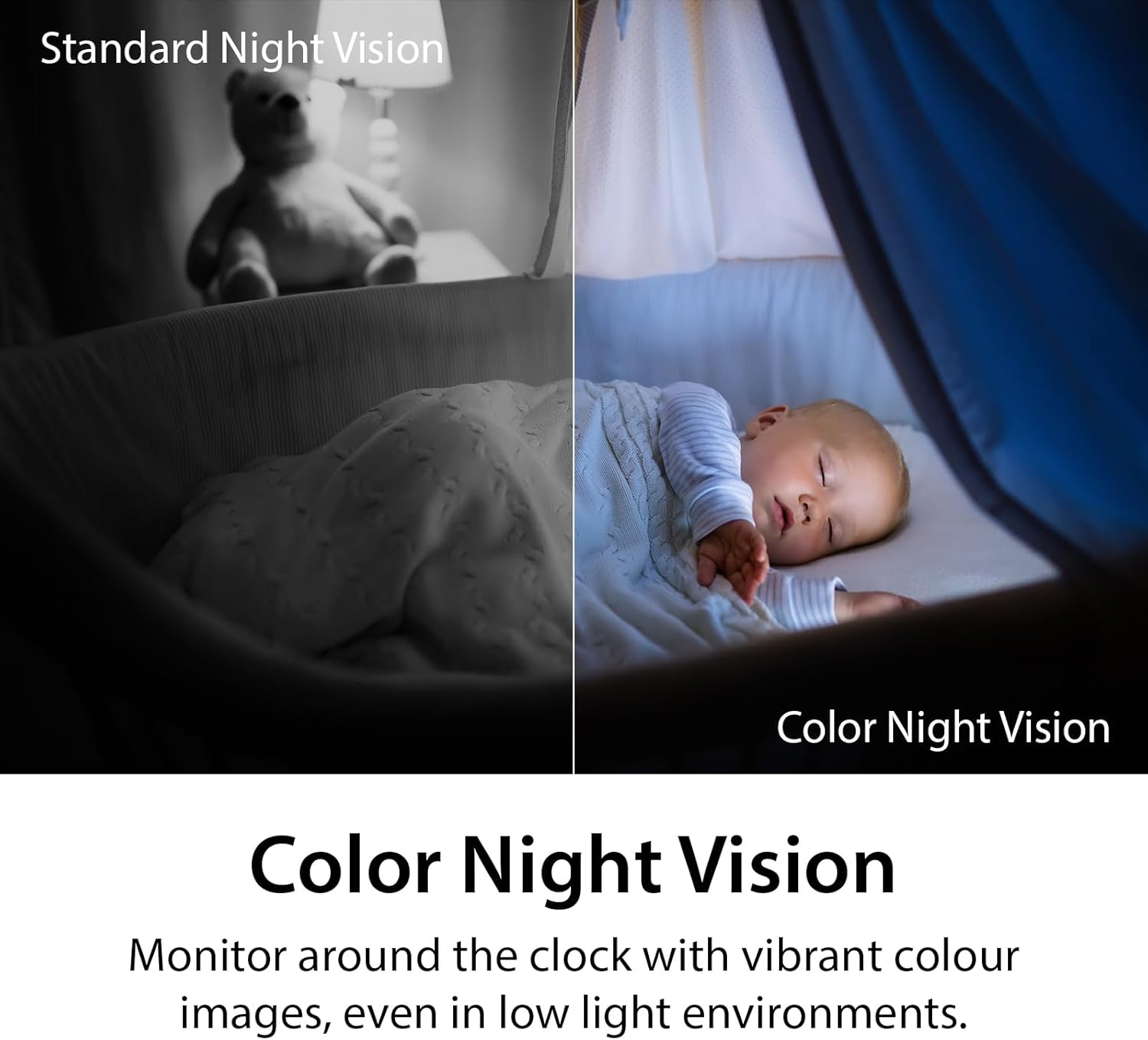
Image: A side-by-side comparison demonstrating the difference between standard monochrome night vision and the camera's color night vision, showing improved detail and color in low light.
5.5. AI Person Detection and Sound Detection
The camera utilizes AI-based person detection to minimize false alarms by distinguishing human movement from other motion. It also features sound detection for glass-break, carbon monoxide, and smoke alarms, sending alerts to your mobile device when these sounds are detected.

Image: A smartphone showing a notification from the mydlink app indicating an alarm has been detected, with a smoke detector in the background, illustrating the sound detection feature.
5.6. การบูรณาการการควบคุมด้วยเสียง
The DCS-8350LH is compatible with Amazon Alexa and Google Assistant. You can use voice commands to view your camera's live feed on compatible smart displays or TVs.
- สำหรับผู้ช่วยของ Google: Say, "Ok Google, show me the [camera name] on the [device name]."
- สำหรับอเมซอนอเล็กซ่า: Say, "Alexa, show me the [camera name]."

Image: Two scenes demonstrating voice control integration: one showing a user asking Google Assistant to display the camera feed on a tablet, and another showing a user asking Alexa to display a baby room feed on a TV.
6. การบำรุงรักษา
- การทำความสะอาด: ใช้ผ้านุ่มและแห้งเช็ดเลนส์และตัวกล้อง หลีกเลี่ยงน้ำยาทำความสะอาดหรือสารละลายที่มีฤทธิ์กัดกร่อน
- อัพเดตเฟิร์มแวร์: Regularly check for and install firmware updates through the mydlink app. Updates often include performance improvements and security enhancements.
- การจัดการการ์ด MicroSD: หากใช้การ์ด microSD ควรทำการรีเซ็ตเป็นระยะview and delete old footage to free up space, or configure the camera to overwrite older recordings automatically.
- ความเสถียรของเครือข่าย: Ensure your Wi-Fi network is stable and provides adequate bandwidth for optimal camera performance.
7 การแก้ไขปัญหา
| ปัญหา | วิธีแก้ปัญหาที่เป็นไปได้ |
|---|---|
| กล้องไม่เชื่อมต่อกับ Wi-Fi |
|
| คุณภาพวิดีโอไม่ดี |
|
| No recording to microSD card |
|
| AI Person Detection issues |
|
| Camera offline (Error 11102) |
|
8. ข้อมูลจำเพาะ
| คุณสมบัติ | รายละเอียด |
|---|---|
| หมายเลขรุ่น | DCS-8350LH |
| การใช้งานภายใน/ภายนอกอาคาร | ในร่ม |
| ความละเอียดในการจับภาพวิดีโอ | 1440p (2K QHD) |
| อัตราเฟรม | 30 เฟรมต่อวินาที |
| โปรโตคอลการเชื่อมต่อ | Wi-Fi (Dual Band) |
| เทคโนโลยีการสื่อสารไร้สาย | บลูทู ธ Wi-Fi |
| ช่วงการมองเห็นตอนกลางคืน | สูงสุด 7 เมตร (23 ฟุต) |
| คุณสมบัติพิเศษ | 2-Way Audio, Local Recording, Color Night Vision, AI Person Detection, Sound Triggered Recording |
| ตัวเลือกการจัดเก็บข้อมูล | MicroSD card (up to 256 GB), Cloud Recording |
| อุปกรณ์ที่รองรับ | สมาร์ทโฟน, อเมซอน อเล็กซา, กูเกิล แอสซิสต์ |
| แหล่งพลังงาน | สายไฟ |
| ขนาด (กว้าง x ยาว x สูง) | 2.54 x 2.6 x 4.35 นิ้ว |
| น้ำหนักสินค้า | 4 ออนซ์ (0.25 ปอนด์) |
| วัสดุ | พลาสติก |
| ได้มาตรฐาน ONVIF | Yes (ONVIF Profile S) |
9. การรับประกันและการสนับสนุน
The D-Link mydlink 2K Indoor WiFi Camera (DCS-8350LH) comes with a รับประกันจำกัด 1 ปี. For detailed warranty information, please refer to the warranty card included in your package or visit the official D-Link webเว็บไซต์.
For technical support, frequently asked questions, or to download the latest firmware and manuals, please visit the D-Link support webเว็บไซต์:
You can also contact D-Link customer service directly through the contact information provided on their support page.
Ask a question about this manual
Ask about setup, troubleshooting, compatibility, parts, safety, or missing instructions. Manuals+ will review the question and use this page’s manual context to help answer it.