
D-Link DCS-6501LH/E
D-Link DCS-6501LH/E Compact Full HD Pan & Tilt Wi-Fi Camera User Manual
Model: DCS-6501LH/E
การแนะนำ
This manual provides comprehensive instructions for the setup, operation, and maintenance of your D-Link DCS-6501LH/E Compact Full HD Pan & Tilt Wi-Fi Camera. This camera is designed to monitor large areas of your home or small office with its Full HD resolution and versatile pan and tilt functionality. It features integrated night vision for monitoring in low light, two-way audio for communication, and motion/sound detection for security alerts. The camera supports local recording to an SD card and cloud storage, and can be controlled via the mydlink app or voice commands with Amazon Alexa and Google Assistant.
เนื้อหาแพ็คเกจ
- D-Link DCS-6501LH/E Compact Full HD Pan & Tilt Wi-Fi Camera
- คู่มือเริ่มต้นอย่างรวดเร็ว
- สกรูยึด
- Micro USB Power Adapter
- Tripod/Mounting Base
การตั้งค่า
1. กล้องโอเวอร์view

ด้านหน้า view of the D-Link DCS-6501LH/E camera, showing the lens, status LED, and D-Link logo.

กลับ view of the D-Link DCS-6501LH/E camera, showing the speaker grille, micro USB power port, and reset button.
2. การเปิดกล้อง
Connect the micro USB power adapter to the camera's power port and plug it into a wall outlet. The camera's status LED will illuminate, indicating it is powering on.
3. Installing the mydlink App
Download the official mydlink app from the Apple App Store or Google Play Store on your smartphone or tablet. Create a mydlink account or log in if you already have one.
4. Adding the Camera to mydlink
- Open the mydlink app and tap the "Add a Device" icon.
- สแกนคิวอาร์โค้ดที่อยู่บนตัวกล้องหรือบรรจุภัณฑ์
- Follow the on-screen instructions to connect the camera to your Wi-Fi network. Ensure your Wi-Fi network is 2.4 GHz for optimal compatibility.
- Once connected, the camera's status LED will turn solid green.
5. การติดตั้งกล้อง
The camera can be placed on a flat surface using its integrated base or mounted to a wall or ceiling using the provided mounting screws and tripod/mounting base. Ensure the camera is positioned to cover the desired monitoring area.
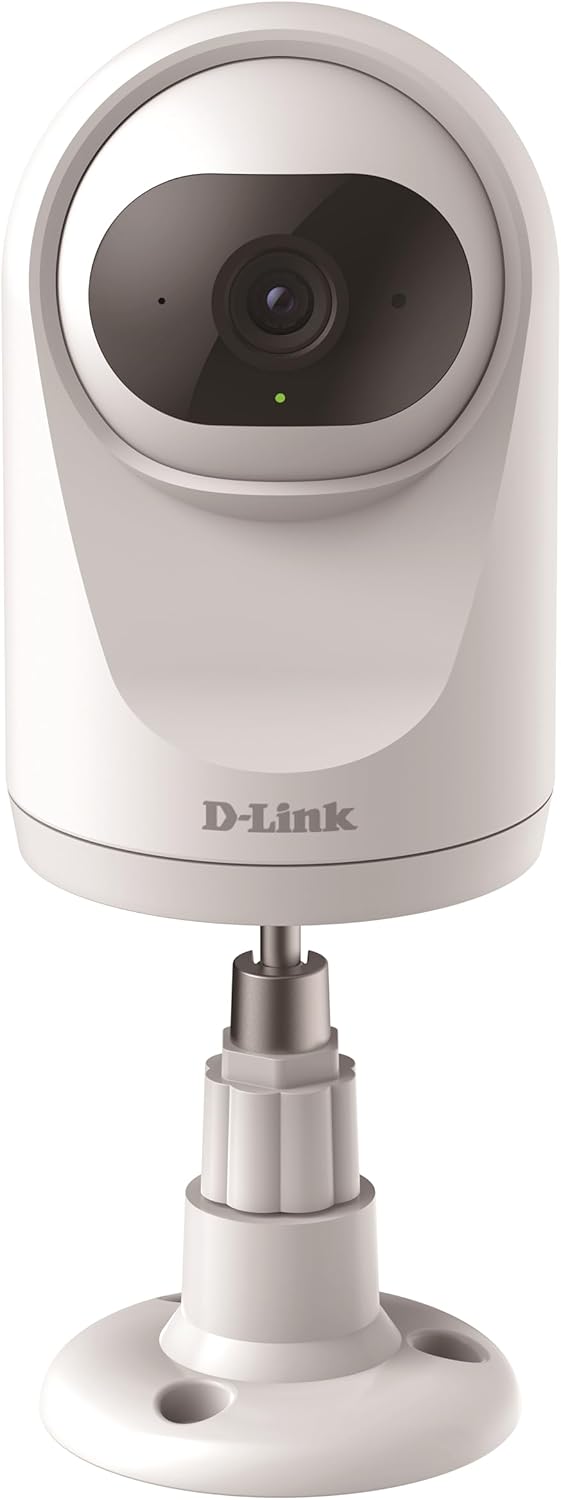
The camera can be placed on a flat surface using its included stand, providing stability and a clear view.

The camera can also be securely mounted to a wall or ceiling using the provided hardware for a fixed installation.
การใช้งานกล้อง
ฟังก์ชันแพนและเอียง
The DCS-6501LH/E features motorized pan (340°) and tilt (90°) capabilities, allowing you to remotely adjust the camera's viewing angle through the mydlink app. This enables comprehensive coverage of large areas.

The camera offers a wide 340-degree horizontal pan and 90-degree vertical tilt range for extensive area coverage.
Automatic Motion Tracking
When enabled, the camera can automatically detect and track moving objects within its field of view, ensuring that important events are captured. This feature utilizes the pan and tilt motors to follow the subject.

The camera's automatic motion tracking feature follows moving subjects, keeping them in frame.
การมองเห็นตอนกลางคืน
The integrated night vision allows the camera to capture clear video footage even in complete darkness, up to a range of 5 meters. This ensures 24/7 monitoring capabilities.
การตรวจจับการเคลื่อนไหวและเสียง
The camera is equipped with advanced motion and sound detection. When motion or sound is detected, the camera can automatically send push notifications to your mydlink app and begin recording video.
ระบบเสียงสองทาง
Utilize the built-in microphone and speaker for two-way communication. You can listen to what's happening in the camera's vicinity and speak through the camera from your smartphone.

The camera supports two-way audio, allowing users to listen and speak through the device.
การบันทึกและจัดเก็บวิดีโอ
The camera supports recording video locally to a microSD card (not included) or to the mydlink cloud. A 1-year free mydlink cloud subscription is included, allowing remote storage, playback, and download of recorded videos.
โหมดความเป็นส่วนตัว
For enhanced privacy, the camera features a physical privacy mode that rotates the lens to completely cover it, ensuring no video is captured when privacy is desired.

The camera's privacy mode physically covers the lens, ensuring complete privacy when needed.
การซ่อมบำรุง
- การทำความสะอาด: เช็ดเลนส์และตัวกล้องเบาๆ ด้วยผ้าแห้งเนื้อนุ่ม ห้ามใช้น้ำยาทำความสะอาดหรือวัสดุที่มีฤทธิ์กัดกร่อน
- อัพเดตเฟิร์มแวร์: Regularly check for and install firmware updates through the mydlink app to ensure optimal performance, security, and access to new features.
- การ์ด MicroSD: If using a microSD card, periodically check its status and format it if necessary to maintain recording performance.
การแก้ไขปัญหา
กล้องไม่เชื่อมต่อกับ Wi-Fi
- โปรดตรวจสอบให้แน่ใจว่าเครือข่าย Wi-Fi ของคุณเป็น 2.4 GHz กล้องไม่รองรับเครือข่าย 5 GHz
- ตรวจสอบว่ารหัสผ่าน Wi-Fi ถูกต้อง
- ขยับกล้องให้ใกล้กับเราเตอร์ Wi-Fi มากขึ้นเพื่อเพิ่มความแรงของสัญญาณ
- รีสตาร์ททั้งกล้องและเราเตอร์ Wi-Fi ของคุณ
- Perform a factory reset on the camera (refer to the Quick Start Guide for instructions) and try the setup process again.
คุณภาพวิดีโอไม่ดี
- ตรวจสอบความเร็วการเชื่อมต่ออินเทอร์เน็ตของคุณ การเชื่อมต่อที่เสถียรและรวดเร็วเป็นสิ่งจำเป็นสำหรับการสตรีมที่ดีที่สุด
- ตรวจสอบให้แน่ใจว่าเลนส์กล้องสะอาดและปราศจากฝุ่นหรือคราบสกปรก
- ปรับตำแหน่งกล้องเพื่อหลีกเลี่ยงแสงสะท้อนโดยตรงหรือแสงย้อนแสงที่แรง
Motion/Sound Detection Not Working
- Verify that motion and sound detection settings are enabled in the mydlink app.
- Adjust the sensitivity levels for detection in the app.
- ตรวจสอบให้แน่ใจว่าไม่มีสิ่งกีดขวางปิดกั้นกล้อง view.
ข้อมูลจำเพาะ
| คุณสมบัติ | รายละเอียด |
|---|---|
| หมายเลขรุ่น | DCS-6501LH/E |
| ปณิธาน | 1080p เต็ม HD |
| ช่วงแพน | 340 องศา |
| ช่วงความเอียง | 90 องศา |
| ช่วงการมองเห็นตอนกลางคืน | 5 เมตร |
| การเชื่อมต่อ | Wi-Fi (2.4 GHz) |
| การใช้พลังงาน | 4 วัตต์ |
| ขนาด (กว้าง x ยาว x สูง) | 7.7 x 7.7 x 12.1 ซม. |
| น้ำหนัก | 190 กรัม |
| คุณสมบัติพิเศษ | Two-Way Audio, Motion Detection, Sound Detection, Automatic Motion Tracking, Privacy Mode, SD Card/Cloud Recording |
| การใช้งานในร่ม/กลางแจ้ง | ในร่ม |
การรับประกันและการสนับสนุน
For warranty information and technical support, please refer to the D-Link official website or contact D-Link customer service. Keep your purchase receipt for warranty claims.
D-Link Official Webเว็บไซต์: www.dlink.com
Ask a question about this manual
Ask about setup, troubleshooting, compatibility, parts, safety, or missing instructions. Manuals+ will review the question and use this page’s manual context to help answer it.