
1. บทนำ
This manual provides instructions for the installation, configuration, and operation of the D-Link DGS-1210-28P Web Smart 24-Port Gigabit PoE Switch. This device is designed to provide a high-performance, cost-effective solution for small to medium-sized businesses, offering advanced management features and Power over Ethernet (PoE) capabilities.
2. ข้อมูลด้านความปลอดภัย
- ตรวจสอบให้แน่ใจว่ามีการระบายอากาศที่เหมาะสมรอบ ๆ สวิตช์เพื่อป้องกันความร้อนมากเกินไป
- Do not place the switch in areas with high humidity or extreme temperatures.
- ใช้เฉพาะอะแดปเตอร์แปลงไฟที่ให้มากับเครื่องเท่านั้น
- ตัดการเชื่อมต่อไฟฟ้าก่อนทำความสะอาดหรือดำเนินการบำรุงรักษา
- This device should be installed by qualified personnel in accordance with all local and national electrical codes.
3. เนื้อหาบรรจุภัณฑ์
ตรวจสอบว่าแพ็คเกจของคุณมีรายการต่อไปนี้:
- ดีจีเอส-1210-28P Web Smart 24-Port Gigabit PoE Switch
- สายไฟ
- ชุดติดตั้งบนแร็ค (ขายึดและสกรู)
- ขายาง (สำหรับติดตั้งบนเดสก์ท็อป)
- สายเคเบิลคอนโซล (RJ-45 ถึง DB-9)
- คู่มือการติดตั้งแบบด่วน
- CD-ROM (containing product documentation)
If any items are missing or damaged, please contact your local D-Link reseller for assistance.
4. Physical Description and Hardware Overview
The DGS-1210-28P switch features 24 Gigabit Ethernet ports with PoE support and 4 SFP slots for fiber optic connections. Below are diagrams illustrating the front and rear panels of the device.
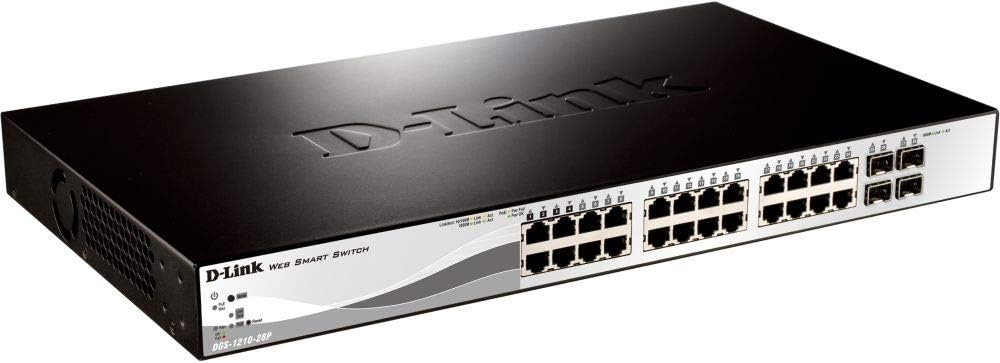
รูปที่ 4.1: แผงด้านหน้า View
This image displays the front panel of the DGS-1210-28P switch, showing 24 RJ-45 Gigabit Ethernet ports, each with LED indicators for link/activity and PoE status. To the right, there are 4 SFP (Small Form-Factor Pluggable) slots for fiber optic transceivers. The D-Link logo and model number are visible on the left side of the panel.

รูปที่ 4.2: แผงด้านหลัง View
This image shows the rear panel of the DGS-1210-28P switch. The primary feature visible is the AC power input connector on the right side, labeled "AC LINE" with voltage and current specifications (100-240VAC, 50/60Hz, 0.5 A MAX). The D-Link brand name is embossed on the top surface of the switch casing.
4.1 ไฟแสดงสถานะที่แผงด้านหน้า
- กำลังไฟ LED: ระบุสถานะพลังงานของสวิตช์
- ไฟ LED ระบบ: แสดงสถานะของระบบ
- ไฟ LED แสดงสถานะ Link/Act (ต่อพอร์ต): Green for Gigabit link/activity, Amber for 10/100 Mbps link/activity.
- PoE Status LEDs (per PoE port): ระบุสถานะการส่งพลังงาน PoE
4.2 ขั้วต่อแผงด้านหลัง
- อินพุตไฟ AC: เชื่อมต่อกับสายไฟที่ให้มา
5. การตั้งค่า
5.1 การติดตั้งเดสก์ท็อป
- ติดแผ่นยางรองที่ให้มาไว้ที่ด้านล่างของสวิตช์
- Place the switch on a flat, stable surface with adequate ventilation.
5.2 การติดตั้งแร็ค
- Attach the two rack-mounting brackets to the side grooves of the switch using the provided screws.
- ติดตั้งสวิตช์เข้ากับแร็คอุปกรณ์มาตรฐานขนาด 19 นิ้ว โดยใช้สกรูยึดแร็คที่เหมาะสม (ไม่ได้รวมอยู่ในชุด)
5.3 การเชื่อมต่อสวิตช์
- Connect your network devices (computers, servers, access points, IP cameras) to the RJ-45 ports on the front panel using standard Ethernet cables.
- For fiber optic connections, insert compatible SFP transceivers into the SFP slots and connect fiber optic cables.
- Connect the power cord to the AC power input on the rear panel of the switch and then to a suitable power outlet.
- Verify that the Power LED on the front panel illuminates.
6. การใช้งานสวิตช์
6.1 การเข้าถึงเบื้องต้น Webการจัดการตามหลัก
The DGS-1210-28P is a Web Smart switch, meaning it can be configured and managed via a web เบราว์เซอร์
- ตรวจสอบให้แน่ใจว่าคอมพิวเตอร์ของคุณเชื่อมต่ออยู่กับพอร์ตอีเธอร์เน็ตของสวิตช์แล้ว
- By default, the switch has a pre-configured IP address (e.g., 192.168.0.1). Refer to the Quick Installation Guide or product documentation for the exact default IP address.
- Configure your computer's IP address to be in the same subnet as the switch (e.g., if the switch is 192.168.0.1, set your computer to 192.168.0.10 with subnet mask 255.255.255.0).
- เปิด web browser (e.g., Chrome, Firefox, Edge) and enter the switch's default IP address in the address bar.
- You will be prompted for a username and password. The default credentials are typically "admin" for both username and password. Refer to the documentation for specific defaults.
- Upon successful login, you will access the switch's web management interface, where you can configure various network settings, VLANs, QoS, PoE settings, and more.
สำคัญ: For security reasons, it is highly recommended to change the default password immediately after initial login.
6.2 ฟังก์ชัน Power over Ethernet (PoE)
The DGS-1210-28P supports PoE, allowing it to deliver power to compatible devices (e.g., IP phones, wireless access points, IP cameras) over the Ethernet cable. This eliminates the need for separate power outlets for these devices.
- Connect PoE-compatible devices to any of the 24 Gigabit Ethernet ports.
- The switch will automatically detect and provide power to compliant devices.
- Monitor PoE status via the port LEDs or the web อินเทอร์เฟซการจัดการ
- The total power budget for the switch is 193 Watts. Ensure the total power consumption of connected PoE devices does not exceed this limit.
7. การบำรุงรักษา
- การทำความสะอาด: ใช้ผ้านุ่มและแห้งเช็ดทำความสะอาดภายนอกสวิตช์ ห้ามใช้น้ำยาทำความสะอาดชนิดน้ำหรือสเปรย์
- อัพเดตเฟิร์มแวร์: Periodically check the D-Link support website for firmware updates to ensure optimal performance and security. Follow the instructions provided with the firmware update package.
- การระบายอากาศ : Ensure that the ventilation openings on the switch are not blocked to prevent overheating.
- การกำหนดค่าการสำรองข้อมูล: Regularly back up your switch configuration settings through the web management interface to facilitate quick recovery in case of a reset or failure.
8 การแก้ไขปัญหา
| ปัญหา | สาเหตุที่เป็นไปได้ | สารละลาย |
|---|---|---|
| ไม่มีไฟ LED แสดงสถานะพลังงาน | สายไฟไม่ได้เชื่อมต่อหรือมีปัญหากับเต้ารับไฟฟ้า | Verify power cord connection to the switch and power outlet. Test the outlet with another device. |
| No Link/Act LED on a connected port | Faulty cable, incorrect cable type, or device not powered on. | Check the Ethernet cable for damage. Ensure the connected device is powered on and functioning correctly. Try a different port or cable. |
| ไม่สามารถเข้าถึงได้ web อินเทอร์เฟซการจัดการ | Incorrect IP address, subnet mismatch, or browser issue. | Verify the switch's IP address and your computer's IP settings. Ensure they are in the same subnet. Clear browser cache or try a different browser. Reset the switch to factory defaults if necessary (refer to documentation for procedure). |
| อุปกรณ์ PoE ไม่ได้รับพลังงาน | อุปกรณ์ไม่รองรับ PoE, สายเคเบิลมีปัญหา หรือใช้พลังงานเกินงบประมาณ | Ensure the device is PoE compliant. Check the Ethernet cable. Verify the total PoE power consumption in the web interface and ensure it does not exceed 193 Watts. |
9. ข้อมูลจำเพาะ
| แบบอย่าง | ดีจีเอส-1210-28P |
| พอร์ต | 24 x 10/100/1000BASE-T PoE Ports, 4 x Gigabit SFP Ports |
| PoE มาตรฐาน | IEEE 802.3af / at |
| งบประมาณด้านพลังงาน PoE ทั้งหมด | 193 วัตต์ |
| ความสามารถในการสลับ | 56 กิกะบิตต่อวินาที |
| อัตราการส่งต่อ | 41.67 ไมล์/วินาที |
| ขนาดตารางที่อยู่ MAC | 16K รายการ |
| จัมโบ้เฟรม | 10,000 ไบต์ |
| ขนาด (กว้าง x ลึก x สูง) | 440 x 210 x 44 มม. (17.32 x 8.27 x 1.73 นิ้ว) |
| น้ำหนัก | 3.63 กก. (8 ปอนด์) |
| กำลังไฟเข้า | 100-240 VAC, 50/60 Hz Internal Universal Power Supply |
| อุณหภูมิในการทำงาน | 0°C ถึง 50°C (32°F ถึง 122°F) |
| อุณหภูมิในการจัดเก็บ | -20°C ถึง 70°C (-4°F ถึง 158°F) |
| ความชื้นในการทำงาน | 0% ถึง 95% ไม่มีการควบแน่น |
10. การรับประกันและการสนับสนุน
D-Link provides a limited warranty for this product. For detailed warranty information, please refer to the warranty card included with your product or visit the official D-Link webเว็บไซต์.
For technical support, product documentation, and firmware updates, please visit the D-Link support portal:
You can also find additional resources and community forums on the D-Link webเว็บไซต์.