
1. บทนำ
The Brother DCP-J132W is a compact and versatile multifunction inkjet printer designed for home and small office use. It offers printing, scanning, and copying functionalities, along with wireless connectivity for convenient use from various devices. This manual provides essential information to help you get the most out of your printer.
2. ข้อมูลด้านความปลอดภัย
Please read these safety instructions carefully before using the printer to prevent injury and damage to the machine.
- Always place the printer on a flat, stable surface.
- ห้ามปิดกั้นหรือปิดบังช่องระบายอากาศ
- ใช้เฉพาะสายไฟที่มาพร้อมกับเครื่องพิมพ์เท่านั้น
- อย่าให้เครื่องพิมพ์โดนน้ำหรือความชื้นสูงเกินไป
- เก็บตลับหมึกให้พ้นมือเด็ก
- ถอดปลั๊กเครื่องพิมพ์ออกจากเต้าเสียบไฟก่อนทำความสะอาดหรือบำรุงรักษา
3. อะไรอยู่ในกล่อง
ตรวจสอบว่าบรรจุภัณฑ์มีส่วนประกอบทั้งหมด:
- Brother DCP-J132W Multifunction Printer
- Ink Cartridges (Starter Set)
- สายไฟ
- ซีดีรอมการติดตั้ง
- คู่มือการติดตั้งด่วน
Note: A USB cable is not typically included and may need to be purchased separately if you prefer a wired connection.
4. การตั้งค่า
4.1 การแกะกล่องและการวางตำแหน่งเริ่มต้น
- นำเครื่องพิมพ์ออกจากบรรจุภัณฑ์ และนำเทปกาวป้องกันและวัสดุบรรจุภัณฑ์ทั้งหมดออก
- Place the printer on a stable, level surface near a power outlet.
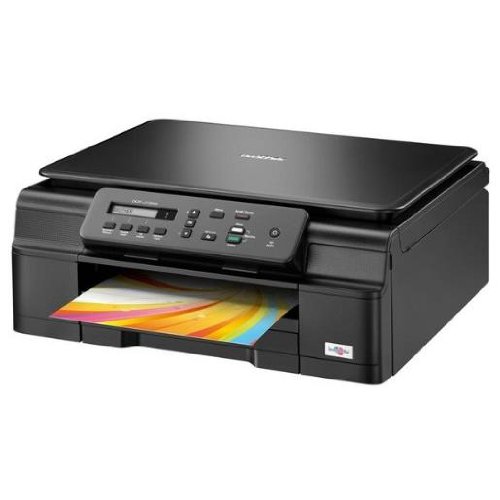
รูปที่ 4.1 : ด้านหน้า view of the Brother DCP-J132W printer, showing the paper output tray with a colorful document.
4.2 การติดตั้งตลับหมึก
- Open the ink cartridge cover located on the front of the printer.
- Unpack each ink cartridge (Black, Cyan, Magenta, Yellow).
- Insert each cartridge into its corresponding slot, pressing down until it clicks into place.
- ปิดฝาครอบตลับหมึก เครื่องพิมพ์จะเริ่มกระบวนการเติมหมึก
4.3 กำลังโหลดกระดาษ
- ดึงถาดกระดาษออกจากเครื่องพิมพ์จนสุด
- Adjust the paper guides to fit the paper size you are loading (e.g., A4).
- Load paper into the tray, print side down. Do not overfill.
- ค่อยๆ ดันถาดกระดาษกลับเข้าไปในเครื่องพิมพ์จนกระทั่งล็อคสนิท
4.4 การต่อสายไฟ
- ต่อสายไฟเข้ากับช่องเสียบสายไฟของเครื่องพิมพ์
- เสียบปลายสายไฟอีกด้านเข้ากับเต้ารับที่ผนัง
- กดปุ่มเปิดปิดเพื่อเปิดเครื่องพิมพ์
4.5 การติดตั้งซอฟต์แวร์และการเชื่อมต่อเครือข่าย
Install the printer drivers and software from the included CD-ROM or download the latest versions from the official Brother support webไซต์ ทำตามคำแนะนำบนหน้าจอเพื่อการติดตั้ง
- การตั้งค่าไร้สาย: During software installation, select the wireless connection option and follow the prompts to connect your printer to your Wi-Fi network. You may need your network SSID and password.
- การเชื่อมต่อ USB: If using a USB cable (not included), connect it to the printer and your computer when prompted by the installation software.

รูปที่ 4.2: มุม view of the Brother DCP-J132W printer, highlighting its compact design and control panel.
5. การใช้งานเครื่องพิมพ์
5.1 การพิมพ์เอกสาร
- เปิดเอกสารหรือรูปภาพที่คุณต้องการพิมพ์บนคอมพิวเตอร์หรืออุปกรณ์มือถือของคุณ
- เลือก "พิมพ์" จากเมนูของแอปพลิเคชัน
- Choose "Brother DCP-J132W" as your printer.
- Adjust print settings (e.g., paper size, color/grayscale, number of copies) as needed.
- คลิก "พิมพ์"
5.2 การสแกนเอกสาร
- Place the document face down on the scanner glass, aligning it with the guide marks.
- ปิดฝาสแกนเนอร์
- On your computer, open the Brother ControlCenter software or a scanning application.
- เลือก "สแกน" และเลือกการตั้งค่าการสแกนที่คุณต้องการ (เช่น ความละเอียด โหมดสี ปลายทาง)
- คลิก "สแกน" เพื่อเริ่มกระบวนการ
5.3 การคัดลอกเอกสาร
- วางเอกสารคว่ำหน้าลงบนกระจกสแกนเนอร์
- On the printer's control panel, press the "Copy" button.
- Use the arrow keys to select the number of copies or other settings (e.g., quality).
- Press "Start" (Color or Black & White) to begin copying.
6. การบำรุงรักษา
6.1 การเปลี่ยนตลับหมึก
When an ink cartridge is low or empty, a message will appear on the printer's display or your computer. Use genuine Brother LC121 or LC123 series ink cartridges for optimal performance.
- เปิดฝาครอบตลับหมึก
- กดคันโยกปลดล็อคสำหรับตลับหมึกเปล่าแล้วถอดออก
- Unpack a new cartridge and insert it firmly into the correct slot until it clicks.
- ปิดฝาครอบตลับหมึก
6.2 การทำความสะอาดหัวพิมพ์
If print quality declines (e.g., missing lines, streaking), perform a print head cleaning from the printer's control panel or through the printer driver software on your computer. Refer to the on-screen instructions for the cleaning procedure.
6.3 การทำความสะอาดกระจกสแกนเนอร์
To ensure clear scans and copies, regularly clean the scanner glass with a soft, lint-free cloth moistened with a non-abrasive glass cleaner. Avoid spraying cleaner directly onto the glass.
7 การแก้ไขปัญหา
This section addresses common issues you might encounter with your Brother DCP-J132W printer.
- เครื่องพิมพ์ไม่เปิด:
- ตรวจสอบให้แน่ใจว่าสายไฟเชื่อมต่อกับเครื่องพิมพ์และเต้ารับไฟฟ้าที่ใช้งานได้แน่นหนาแล้ว
- ลองเสียบอุปกรณ์อื่นเข้ากับเต้าเสียบเพื่อยืนยันว่ามีไฟอยู่
- กระดาษติด:
- Carefully open all covers and remove any jammed paper following the instructions on the printer's display or in the full user guide.
- ตรวจสอบให้แน่ใจว่าใส่กระดาษในถาดกระดาษอย่างถูกต้องและไม่ใส่กระดาษมากเกินไป
- คุณภาพการพิมพ์ไม่ดี:
- ตรวจสอบระดับหมึกและเปลี่ยนตลับหมึกที่เหลือน้อยหรือหมดแล้ว
- Perform a print head cleaning and alignment from the printer's maintenance menu.
- โปรดตรวจสอบให้แน่ใจว่าคุณใช้กระดาษที่เหมาะสมกับการตั้งค่าการพิมพ์ของคุณ
- ปัญหาการเชื่อมต่อไร้สาย:
- Verify that the printer is within range of your Wi-Fi router.
- รีสตาร์ทเราเตอร์ คอมพิวเตอร์ และเครื่องพิมพ์ของคุณ
- Re-run the wireless setup utility from the printer's control panel or the Brother software.
- ตรวจสอบให้แน่ใจว่าคุณป้อนรหัสผ่าน Wi-Fi ถูกต้อง
For more detailed troubleshooting, refer to the comprehensive user manual available on the Brother support webเว็บไซต์.
8. ข้อมูลจำเพาะ
| คุณสมบัติ | รายละเอียด |
|---|---|
| ยี่ห้อ | พี่ชาย |
| ชื่อรุ่น | DCPJ132W |
| เทคโนโลยีการเชื่อมต่อ | ไวไฟ, ยูเอสบี |
| เอาท์พุตเครื่องพิมพ์ | สี |
| ความเร็วในการพิมพ์สูงสุด (สี) | 27 หน้าต่อนาที |
| Max Print Speed (Black & White) | 27 หน้าต่อนาที |
| ความละเอียดการพิมพ์สูงสุด (สี) | 1200 x 1200 จุดต่อนิ้ว |
| ความละเอียดการพิมพ์สูงสุด (ขาวดำ) | 1200 x 1200 จุดต่อนิ้ว |
| ขนาดสินค้า (ลxกxส) | 16.1P x 41l x 16.1H ซม. |
| Max Supported Paper Size | A4 |
| Printing Media Support | Plain paper, Glossy photo paper, Transparencies |
| ประเภทสแกนเนอร์ | รถบรรทุกพื้นเรียบ |
| ความละเอียดของสแกนเนอร์ | 2400 จุดต่อนิ้ว |
| การพิมพ์สองหน้า | อัตโนมัติ |
| ตลับหมึกที่รองรับ | LC121BK/C/M/Y & LC123BK/C/M/Y |
| ความจุแผ่นอินพุตสูงสุด | 250 |
9. การรับประกันและการสนับสนุน
9.1 ข้อมูลการรับประกัน
The Brother DCP-J132W typically comes with a manufacturer's warranty. Please refer to the warranty card included with your product or visit the official Brother website for specific terms and conditions applicable in your region. The availability of spare parts in the EU is guaranteed for 1 year.
9.2 การสนับสนุนลูกค้า
For technical assistance, driver downloads, or further information, please visit the official Brother support webไซต์ คุณสามารถค้นหาคำถามที่พบบ่อย คำแนะนำในการแก้ไขปัญหา และข้อมูลติดต่อฝ่ายบริการลูกค้าได้
การสนับสนุนพี่ชาย Webเว็บไซต์: www.brother.eu/support