
1. บทนำ
The D-Link DIR-610 Wireless N150 Router is designed to provide a high-speed wireless network connection for your home or small office. This manual will guide you through the installation, configuration, and operation of your new router, ensuring a secure and efficient internet experience.
The DIR-610 supports the latest wireless security features to prevent unauthorized access to both the wireless network and the internet. It also includes Quality of Service (QoS) functionality, which, when enabled, allows for a better online experience by prioritizing network traffic.
2. เนื้อหาบรรจุภัณฑ์
โปรดตรวจสอบว่าแพ็คเกจของคุณมีรายการต่อไปนี้:
- 1 x D-Link DIR-610 Wireless N150 Router
- อะแดปเตอร์ไฟฟ้า 1 ตัว
- 1 x Ethernet Cable
- 1 x คู่มือการติดตั้ง
- 1 x คู่มือผู้ใช้ (เอกสารนี้)
If any items are missing or damaged, please contact your local D-Link reseller.
3. การตั้งค่า
Follow these steps to set up your D-Link DIR-610 Router:
- แกะกล่องเราเตอร์: ถอดเราเตอร์และอุปกรณ์เสริมทั้งหมดออกจากบรรจุภัณฑ์อย่างระมัดระวัง
- ตำแหน่งเราเตอร์: Place the router in a central location in your home or office, away from obstructions and devices that may cause interference (e.g., cordless phones, microwave ovens).
- เชื่อมต่อกับพลังงาน: Connect the power adapter to the router's power port and then plug the adapter into a wall outlet. Ensure the power LED on the router illuminates.
- เชื่อมต่อกับอินเทอร์เน็ต (WAN): Connect one end of the provided Ethernet cable to your modem's Ethernet port and the other end to the Internet (WAN) port on the DIR-610 router.
- Connect to Computer (LAN - Optional): For initial setup or wired connections, connect one end of another Ethernet cable (not included, or use the provided one if not connecting to modem yet) to one of the LAN ports on the router and the other end to your computer's Ethernet port. Alternatively, you can connect wirelessly using the default Wi-Fi name and password found on the router's label.
- Run D-Link Assistant: The D-Link Assistant allows users without technical knowledge to install the router and establish an internet connection in minutes by simply running the product CD. Insert the product CD into your computer and follow the on-screen instructions.
- เข้าถึง Web-based Setup: If not using the CD, open a web browser (e.g., Chrome, Firefox) on a connected computer and type
http://dlinkrouter.localorhttp://192.168.0.1into the address bar. Log in using the default username (usually แอดมิน) and password (often blank or แอดมิน). Refer to the router's label for default login credentials. - ทำตามตัวช่วยการตั้งค่า: Once logged in, the setup wizard will guide you through configuring your internet connection, wireless network name (SSID), and password.
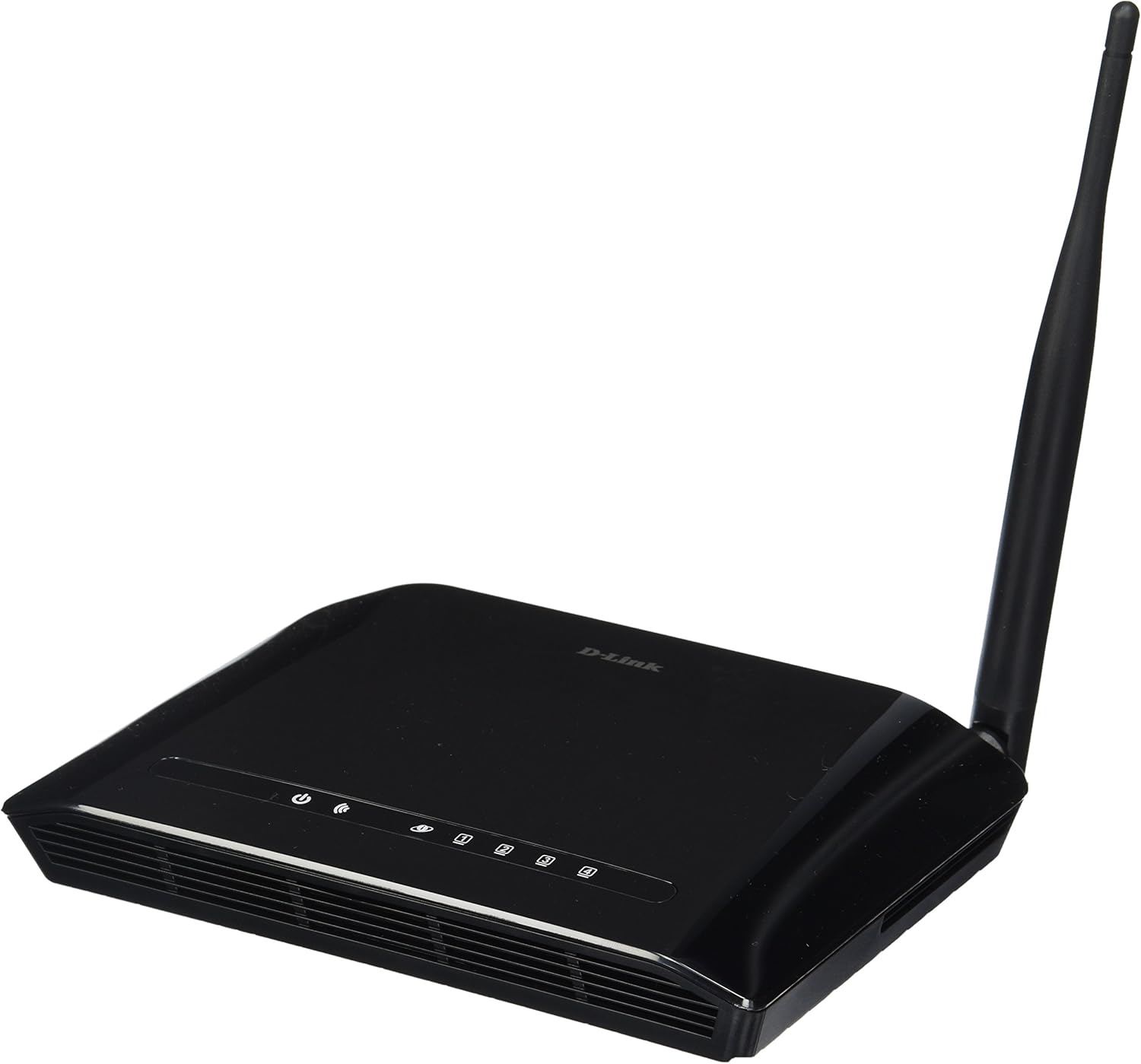
รูปที่ 3.1: ด้านหน้า view of the D-Link DIR-610 Wireless N150 Router. This image shows the compact black router with its single external antenna and LED indicators on the front panel for power, internet, and wireless status.
4. การใช้งานเราเตอร์
Once your D-Link DIR-610 router is set up, you can manage its various functions through the webอินเทอร์เฟซแบบอิง
4.1 การเชื่อมต่อแบบไร้สาย
The DIR-610 provides Wireless N150 connectivity, offering reliable wireless access for devices such as laptops, smartphones, and tablets. To connect a device:
- เปิดใช้งาน Wi-Fi บนอุปกรณ์ของคุณ
- ค้นหาเครือข่ายไร้สายที่ใช้งานได้
- Select your configured network name (SSID).
- Enter your wireless password (WPA/WPA2 key).
4.2 คุณสมบัติด้านความปลอดภัย
The DIR-610 incorporates advanced wireless security protocols to protect your network from unauthorized access. It supports WPA/WPA2 encryption. It is highly recommended to use WPA2-PSK (AES) encryption with a strong, unique password for your wireless network.
4.3 คุณภาพการบริการ (QoS)
The DIR-610 Router includes Quality of Service (QoS) functionality. QoS allows you to prioritize certain types of network traffic, such as online gaming or video streaming, over less time-sensitive activities like file downloads. This helps ensure a smoother and more responsive experience for critical applications. You can configure QoS settings through the router's web อินเทอร์เฟซ
5. การบำรุงรักษา
Regular maintenance helps ensure optimal performance and longevity of your D-Link DIR-610 router.
- อัพเดตเฟิร์มแวร์: Periodically check the D-Link support webเว็บไซต์สำหรับอัปเดตเฟิร์มแวร์ การอัปเดตเฟิร์มแวร์จะช่วยเพิ่มประสิทธิภาพ เพิ่มคุณสมบัติใหม่ และแก้ไขช่องโหว่ด้านความปลอดภัย
- รหัสผ่านที่ปลอดภัย: Regularly change your router's administrator password and your Wi-Fi password to strong, unique combinations.
- สภาพแวดล้อมทางกายภาพ: Keep the router in a well-ventilated area, free from dust and direct sunlight. Avoid placing heavy objects on top of the router.
- การรีบูต: หากคุณประสบปัญหาเกี่ยวกับเครือข่าย การรีบูตเราเตอร์อย่างง่าย (ถอดปลั๊กไฟออกประมาณ 10 วินาที แล้วเสียบกลับเข้าไปใหม่) มักจะช่วยแก้ไขปัญหาเล็กน้อยได้
6 การแก้ไขปัญหา
This section addresses common issues you might encounter with your D-Link DIR-610 router.
6.1 ไม่มีการเข้าถึงอินเทอร์เน็ต
- Check all cable connections: Ensure the Ethernet cable from your modem is securely connected to the router's Internet (WAN) port.
- Verify modem status: Ensure your modem is working correctly and has an active internet connection.
- Reboot devices: Power cycle your modem, then your router, and finally your computer/device.
- ตรวจสอบการตั้งค่าเราเตอร์: เข้าถึงการตั้งค่าเราเตอร์ web interface and verify your internet connection settings (e.g., PPPoE, DHCP, Static IP) are correct as provided by your Internet Service Provider (ISP).
6.2 ความเร็วไร้สายช้า
- การรบกวน: ย้ายเราเตอร์ให้ห่างจากอุปกรณ์อิเล็กทรอนิกส์อื่นๆ ที่อาจก่อให้เกิดการรบกวน
- การเลือกช่อง: In the router's wireless settings, try changing the wireless channel to a less congested one (e.g., 1, 6, or 11).
- ระยะทางและอุปสรรค: Ensure your device is within a reasonable range of the router and that there are no major physical obstructions (thick walls, metal objects) blocking the signal.
- การตั้งค่า QoS: If QoS is enabled, ensure it is configured correctly and not inadvertently prioritizing less important traffic.
6.3 ลืมรหัสผ่านผู้ดูแลระบบ
If you forget your router's administrator password, you will need to perform a factory reset. Locate the reset button (usually a small pinhole button) on the router. With the router powered on, use a paperclip to press and hold the reset button for about 10 seconds. The router will reboot with factory default settings, and you can then log in using the default credentials (e.g., username แอดมิน, password blank or แอดมิน).
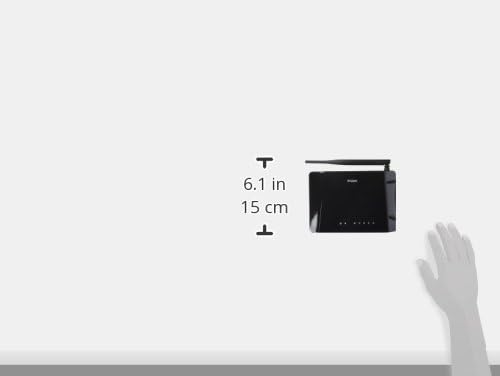
รูปที่ 6.1: Diagram illustrating the approximate dimensions of the D-Link DIR-610 Router. The image shows the router's height of approximately 6.1 inches (15 cm).
7. ข้อมูลจำเพาะ
| คุณสมบัติ | ข้อมูลจำเพาะ |
|---|---|
| ยี่ห้อ | ดีลิงค์ |
| ผู้ผลิต | ดีลิงค์ |
| ชุด | 97200GL |
| สี | สีดำ |
| ความสูงของสินค้า | 14.75 เซนติเมตร |
| ความกว้างของผลิตภัณฑ์ | 3.15 เซนติเมตร |
| ปณิธาน | pixels Pixels |
| รวมแบตเตอรี่ | เลขที่ |
| ขนาดสินค้า | 11.32 x 3.15 x 14.75 ซม.; 200 กรัม |
| หมายเลขรุ่นผลิตภัณฑ์ | DIR-610 |
| ASIN | B00CLMOR4U |
| วันที่พร้อมใช้งานครั้งแรก | 15 พฤศจิกายน 2012 |
| ส่วนประกอบที่รวมอยู่ | 1 DIR-610 Router, Power Adapter, Ethernet Cable, Installation Guide, User Manual |
| เทคโนโลยีการเชื่อมต่อ | ไร้สาย |
| น้ำหนักผลิตภัณฑ์ | 200 กรัม |
| วิธีการควบคุม | Application (referring to web อินเตอร์เฟซ) |
| แบนด์วิดท์พอร์ต LAN | 10/100 เมกะบิตต่อวินาที |
| ยูพีซี | 790069377822, 790069377808, 790069377891 |
| หมายเลขสินค้าการค้าสากล (GTIN) | 00790069377891 |
8. ข้อมูลด้านความปลอดภัย
โปรดอ่านและปฏิบัติตามคำแนะนำด้านความปลอดภัยทั้งหมดเพื่อป้องกันการบาดเจ็บหรือความเสียหายต่ออุปกรณ์:
- อย่าเปิดอุปกรณ์casing.
- อย่าให้เครื่องสัมผัสกับน้ำ ความชื้น หรืออุณหภูมิที่สูงหรือต่ำเกินไป
- ใช้เฉพาะอะแดปเตอร์จ่ายไฟที่มาพร้อมกับอุปกรณ์เท่านั้น
- เก็บอุปกรณ์ให้ห่างจากแหล่งความร้อนและแสงแดดโดยตรง
- ตรวจสอบให้แน่ใจว่ามีการระบายอากาศที่เหมาะสมรอบๆ อุปกรณ์
9. การรับประกันและการสนับสนุน
For warranty information, please refer to the warranty card included with your product or visit the official D-Link website for your region. D-Link provides technical support for its products. For assistance, please visit your local D-Link support webเว็บไซต์หรือติดต่อฝ่ายบริการลูกค้าของพวกเขา
ดีลิงค์ Webเว็บไซต์: www.dlink.com