
1. บทนำ
This manual provides essential information for the proper setup, operation, and maintenance of your Honeywell 7580G Genesis USB Kit Barcode Scanner. Please read this guide thoroughly before using the device to ensure optimal performance and longevity.
2. การตั้งค่า
2.1 การแกะกล่อง
นำส่วนประกอบทั้งหมดออกจากบรรจุภัณฑ์อย่างระมัดระวัง ตรวจสอบให้แน่ใจว่ามีส่วนประกอบต่อไปนี้:
- Honeywell 7580G Genesis Barcode Scanner
- USB Type A 3M Cable (CBL-500-300-S00)
- เอกสารประกอบ
2.2 การเชื่อมต่อเครื่องสแกนเนอร์
The Honeywell 7580G Genesis scanner connects to your host device (desktop or laptop) via a standard USB cable. No external power adapter is typically required as the scanner draws power directly from the USB port.
- Connect the smaller end of the USB cable to the USB port located at the base of the Honeywell 7580G Genesis scanner.
- Connect the larger USB Type A end of the cable to an available USB port on your computer.
- Upon successful connection, the scanner will typically emit a power-on beep and its indicator lights will activate, signaling it is ready for use. Most operating systems will automatically detect and install the necessary drivers for the scanner to function as a keyboard wedge (HID-POS).
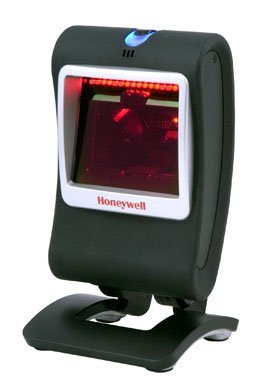
Image: The Honeywell 7580G Genesis barcode scanner shown with its USB cable connected, ready for integration with a computer system.
3. คู่มือการใช้งาน
3.1 การสแกนพื้นฐาน
The 7580G Genesis is designed for intuitive, hands-free scanning. It can also be picked up for handheld operation.
- การวางตำแหน่ง: Place the item with the barcode facing the scanner's window. For optimal performance, ensure the barcode is within the scanner's field of view.
- การสแกน: The scanner will automatically detect and read the barcode. A successful scan is typically indicated by an audible beep and/or a visual confirmation light.
- การส่งผ่านข้อมูล: The decoded barcode data will be transmitted to your computer as if it were typed on a keyboard, appearing in any active text field.
3.2 สัญลักษณ์ที่รองรับ
The Honeywell 7580G Genesis scanner supports a wide range of 1D, PDF417, and 2D barcode symbologies, including but not limited to:
- บาร์โค้ด 1 มิติ: UPC/EAN, Code 39, Code 128, Interleaved 2 of 5 เป็นต้น
- PDF417: Standard PDF417 codes.
- บาร์โค้ด 2 มิติ: Data Matrix, QR Code, Aztec, etc.
3.3 Scanning Feedback
The scanner provides feedback to indicate its status and successful scans:
- เสียงบี๊บ: A short beep typically indicates a successful barcode read.
- ตัวบ่งชี้ภาพ: The scanner may have LED indicators that change color or flash to confirm a successful scan or indicate an error. Refer to the full product documentation for specific indicator patterns.
4. การบำรุงรักษา
4.1 การทำความสะอาดสแกนเนอร์
การทำความสะอาดเป็นประจำช่วยรักษาประสิทธิภาพการสแกนให้เหมาะสมที่สุด
- ภายนอก: ใช้ผ้านุ่มสะอาดเช็ดampened with water or a mild cleaning solution to wipe the exterior of the scanner. Avoid abrasive cleaners or solvents.
- หน้าต่างสแกน: Gently wipe the scan window with a soft, lint-free cloth. Do not use harsh chemicals or scratch the window, as this can impair scanning accuracy.
4.2 พื้นที่จัดเก็บ
เมื่อไม่ใช้งาน ควรเก็บเครื่องสแกนไว้ในที่สะอาดและแห้ง หลีกเลี่ยงอุณหภูมิที่สูงหรือต่ำเกินไป และแสงแดดโดยตรง
5 การแก้ไขปัญหา
If you encounter issues with your Honeywell 7580G Genesis scanner, refer to the following common problems and solutions:
| ปัญหา | สาเหตุที่เป็นไปได้ | สารละลาย |
|---|---|---|
| เครื่องสแกนเนอร์ไม่สามารถเปิดเครื่องได้ | สาย USB ไม่ได้เชื่อมต่ออย่างถูกต้องหรือพอร์ต USB ชำรุด | ตรวจสอบให้แน่ใจว่าสาย USB เชื่อมต่อกับทั้งเครื่องสแกนเนอร์และคอมพิวเตอร์อย่างแน่นหนา ลองใช้พอร์ต USB อื่นบนคอมพิวเตอร์ของคุณ |
| เครื่องสแกนไม่สามารถอ่านบาร์โค้ดได้ | Barcode damaged, incorrect symbology enabled, or scanner window dirty. | Ensure the barcode is not damaged. Verify the barcode type is supported. Clean the scanner window as described in Section 4.1. |
| ข้อมูลที่สแกนแสดงผลไม่ถูกต้อง | การตั้งค่าเค้าโครงแป้นพิมพ์บนคอมพิวเตอร์ไม่ถูกต้อง | Ensure your computer's keyboard layout matches the region settings for the scanner (if applicable). |
| เครื่องสแกนส่งเสียงดัง แต่ไม่มีการส่งข้อมูลใดๆ | แอปพลิเคชันไม่อยู่ในโหมดโฟกัสหรือไม่รับข้อมูลป้อนเข้า | Ensure the cursor is in the desired text field of your application. Test with a simple text editor like Notepad. |
6. ข้อมูลจำเพาะ
Key technical specifications for the Honeywell 7580G Genesis Barcode Scanner:
| คุณสมบัติ | รายละเอียด |
|---|---|
| หมายเลขรุ่น | 7580G-2 |
| หมายเลขชิ้นส่วนของผู้ผลิต | MK7580-30B38-12-A |
| ยี่ห้อ | ฮันนี่เวลล์ |
| เทคโนโลยีการเชื่อมต่อ | สาย USB |
| แหล่งพลังงาน | สายไฟไฟฟ้า (ขับเคลื่อนด้วย USB) |
| อุปกรณ์ที่รองรับ | เดสก์ท็อป, โน๊ตบุ๊ก |
| น้ำหนักสินค้า | 16 ออนซ์ |
| บาร์โค้ดที่รองรับ | 1D, PDF417, 2D |
7. ข้อมูลการรับประกัน
Honeywell products are manufactured to high-quality standards and are covered by a manufacturer's warranty. For specific warranty terms and conditions, please refer to the warranty card included with your product or visit the official Honeywell webไซต์นี้ โปรดเก็บหลักฐานการซื้อไว้เพื่อใช้ยืนยันการรับประกัน
8. การสนับสนุน
For technical assistance, product inquiries, or service, please contact Honeywell customer support. Support contact information can typically be found on the Honeywell webไซต์หรือในเอกสารที่มาพร้อมกับสแกนเนอร์ของคุณ