
1. สินค้าหมดview
The D-Link AC1200 Wi-Fi Router (DIR-850L) delivers next-generation wireless speed and coverage to all your Wi-Fi devices. With wireless dual-band speeds of 300 Mbps (2.4 GHz) and 867 Mbps (5 GHz), the DIR-850L avoids interference to deliver fast wireless speeds, improved coverage, and reliable connections. This router is ideal for streaming HD video, gaming, connecting multiple devices, and watching shows on your TV simultaneously. The DIR-850L is also backward compatible with existing wireless 802.11a/g/n devices for seamless connectivity. D-Link’s free mobile apps provide easy setup, remote monitoring, and access to content from anywhere on your smartphone or tablet.
คุณสมบัติหลัก:
- Next Generation Wireless Technology: Wireless AC1200 for optimized performance and reliable coverage, delivering high-quality HD video streaming, gaming, and file การโอนย้าย
- ความเข้ากันได้แบบย้อนกลับ: Compatible with wireless 802.11a/g/n devices.
- การเชื่อมต่อหลายอุปกรณ์: Connect more devices with four Gigabit Ethernet ports.
- การแบ่งปันสื่อ: Stream and share files using the USB Share Port and free mobile app.
- ตั้งค่าได้ง่าย: Intelligent browser wizard and Quick Router Setup Mobile app for simplified installation.
- การรักษาความปลอดภัยขั้นสูง: Preset security with advanced WPA2 encryption.
2. เนื้อหาบรรจุภัณฑ์
Ensure all items are present in your D-Link DIR-850L package:
- D-Link Wireless AC 1200 Dual-Band Gigabit Router (DIR-850L)
- อะแดปเตอร์แปลงไฟ
- สายเคเบิลอีเทอร์เน็ต
- คู่มือการติดตั้งแบบด่วน
If any items are missing or damaged, please contact your retailer or D-Link support.
3. ฮาร์ดแวร์โอเวอร์view
Familiarize yourself with the physical components and indicators of your DIR-850L router.

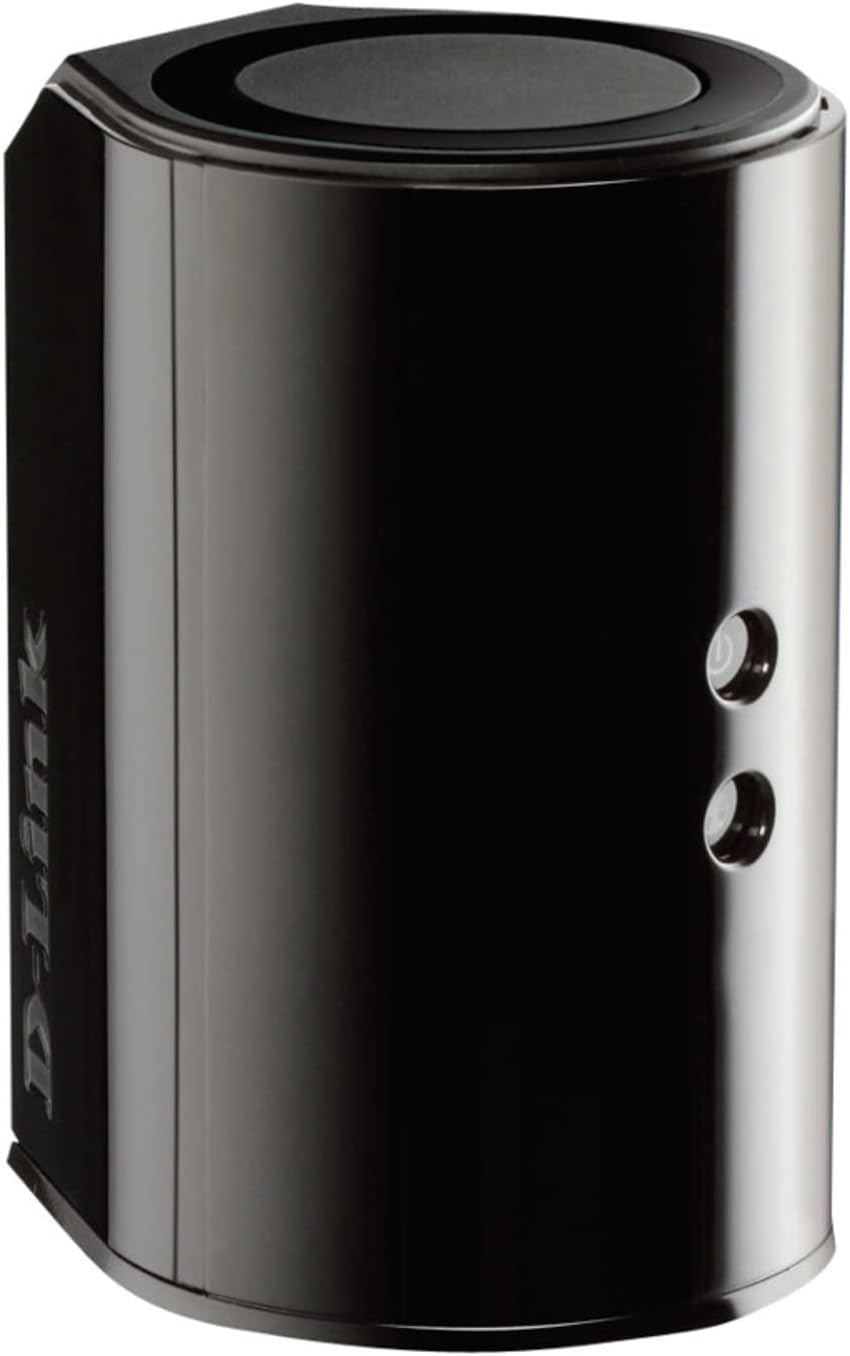
รูปที่ 3.1 : ด้านหน้า View. Shows the cylindrical design of the router with the D-Link logo and LED indicators for Power and Internet status.

รูปที่ 3.2: ด้านข้าง View. Illustrates the side of the router, highlighting the USB port for storage sharing and the Wi-Fi Protected Setup (WPS) button.
รูปที่ 3.3: ด้านหลัง View. Displays the back panel of the router, featuring the WAN (Internet) port, four LAN (Ethernet) ports, and the power input connector.
ไฟ LED แสดงสถานะ:
- กำลังไฟ LED: Solid green indicates the router is powered on. Blinking green indicates a firmware upgrade or reset.
- ไฟ LED อินเทอร์เน็ต: Solid green indicates a successful connection to the internet. Blinking green indicates data activity. Amber indicates no internet connection.
พอร์ตและปุ่ม:
- WAN (Internet) Port: เชื่อมต่อกับโมเด็มของคุณเพื่อเข้าถึงอินเทอร์เน็ต
- พอร์ตแลน (1-4): Connect wired devices such as computers, gaming consoles, or network storage.
- พอร์ต USB: Connect a USB storage device for network sharing.
- ตัวเชื่อมต่อกระแสไฟ: เชื่อมต่อกับอะแดปเตอร์ไฟฟ้าที่ให้มา
- ปุ่มรีเซ็ต: กดค้างไว้ 10 วินาที เพื่อคืนการตั้งค่าเริ่มต้นจากโรงงาน
- ปุ่ม WPS: Initiates Wi-Fi Protected Setup for easy wireless connection of compatible devices.
4. การตั้งค่า
Follow these steps to set up your D-Link DIR-850L router:
- ตำแหน่งเราเตอร์: Place your router in a central location in your home, away from obstructions and devices that may cause interference (e.g., cordless phones, microwaves).
- เชื่อมต่อกับโมเด็ม:
- ปิดโมเด็มของคุณ
- Connect one end of the provided Ethernet cable to the WAN (Internet) port on your DIR-850L router.
- ต่อปลายอีกด้านของสายอีเธอร์เน็ตเข้ากับพอร์ตอีเธอร์เน็ตบนโมเด็มของคุณ
- เปิดเครื่อง:
- Power on your modem and wait for its indicator lights to stabilize (usually indicating an active internet connection).
- Connect the power adapter to the power connector on your DIR-850L router and plug it into a power outlet.
- Wait for the Power LED on the router to turn solid green. The Internet LED should also turn green, indicating a successful connection.
- เชื่อมต่ออุปกรณ์:
- การเชื่อมต่อแบบมีสาย: Connect an Ethernet cable from one of the LAN ports (1-4) on the router to your computer's Ethernet port.
- การเชื่อมต่อแบบไร้สาย: On your Wi-Fi enabled device (laptop, smartphone, tablet), search for available Wi-Fi networks. Select the network name (SSID) found on the Wi-Fi Configuration Card (usually a sticker on the bottom of the router) and enter the Wi-Fi password.
- เรียกใช้ตัวช่วยการตั้งค่า:
- เปิด web browser (e.g., Chrome, Firefox) on the connected device.
- พิมพ์
http://dlinkrouter.localor192.168.0.1ในแถบที่อยู่แล้วกด Enter - Follow the on-screen instructions of the D-Link Setup Wizard to configure your internet connection and personalize your Wi-Fi network name (SSID) and password.
Setup Video (General D-Link Router Overview):
Video 4.1: D-Link Wireless AC 1200 Mbps Home Cloud App-Enabled Dual-Band Gigabit Router Overview. วิดีโอนี้ให้ข้อมูลทั่วไปเกี่ยวกับview of D-Link routers, including the DIR-850L, and highlights their features and target users. While not a step-by-step setup guide, it offers insights into the router's capabilities.
5. คู่มือการใช้งาน
Once your D-Link DIR-850L router is set up, you can manage and optimize your network.
อุปกรณ์เชื่อมต่อ:
- ไร้สาย: Use the Wi-Fi network name (SSID) and password you configured during setup to connect your wireless devices. The router supports both 2.4 GHz and 5 GHz bands.
- มีสาย: Connect devices directly to the LAN ports using Ethernet cables for a stable, high-speed connection.
Accessing Router Settings:
หากต้องการเข้าถึงการตั้งค่าขั้นสูง ให้เปิด... web เบราว์เซอร์และนำทางไปที่ http://dlinkrouter.local or 192.168.0.1. Log in with the administrator password you set during the initial setup. From here, you can:
- เปลี่ยนการตั้งค่า Wi-Fi (SSID, รหัสผ่าน, ประเภทความปลอดภัย)
- Configure guest Wi-Fi networks.
- ตั้งค่าการควบคุมโดยผู้ปกครอง
- จัดการอุปกรณ์ที่เชื่อมต่อ
- อัปเดตเฟิร์มแวร์
Using the USB Share Port:
Plug a USB storage device (e.g., flash drive, external hard drive) into the USB port on the router. You can then access and share files on this storage device across your network using the D-Link SharePort Mobile app or through network shares on your computer.
6. การบำรุงรักษา
การบำรุงรักษาตามปกติจะช่วยให้มั่นใจได้ถึงประสิทธิภาพสูงสุดและอายุการใช้งานที่ยาวนานของเราเตอร์ของคุณ
- การรีบูต: Periodically reboot your router (unplug from power for 10 seconds, then plug back in) to clear its memory and refresh network connections. This can resolve minor performance issues.
- อัพเดตเฟิร์มแวร์: Check the D-Link support website for firmware updates. Firmware updates can improve performance, add new features, and fix security vulnerabilities. Follow the instructions provided by D-Link carefully when performing updates.
- การทำความสะอาด: Keep the router clean and free from dust. Use a soft, dry cloth to wipe the exterior. Do not use liquid cleaners or aerosols. Ensure ventilation openings are not blocked.
- ความปลอดภัย: Regularly change your Wi-Fi password and router administrator password to enhance network security.
7 การแก้ไขปัญหา
If you encounter issues with your D-Link DIR-850L router, refer to the following common problems and solutions:
ไม่มีการเชื่อมต่ออินเทอร์เน็ต:
- ตรวจสอบสายเคเบิล: ตรวจสอบให้แน่ใจว่าสายเคเบิลอีเทอร์เน็ตทั้งหมดเชื่อมต่อกับเราเตอร์และโมเด็มอย่างแน่นหนา
- สถานะโมเด็ม: ตรวจสอบว่าโมเด็มของคุณทำงานถูกต้องและมีการเชื่อมต่ออินเทอร์เน็ตที่ใช้งานได้
- ลำดับการรีบูต: Power off your modem, then your router. Wait 30 seconds, then power on the modem first. Once the modem is fully online, power on the router.
- ติดต่อ ISP: If the issue persists, contact your Internet Service Provider (ISP) to confirm service status.
ความเร็ว Wi-Fi ช้า:
- ตำแหน่งการวางเราเตอร์: ย้ายเราเตอร์ไปไว้ในตำแหน่งที่อยู่ตรงกลางมากขึ้น และห่างจากสิ่งกีดขวางและแหล่งกำเนิดสัญญาณรบกวน
- การรบกวนช่องสัญญาณ: เข้าสู่ระบบของเราเตอร์ web interface and try changing the Wi-Fi channel for both 2.4 GHz and 5 GHz bands to a less congested one.
- อุปกรณ์ที่เชื่อมต่อ: Disconnect unused devices from your network.
- เฟิร์มแวร์: ตรวจสอบให้แน่ใจว่าเฟิร์มแวร์ของเราเตอร์ของคุณเป็นเวอร์ชันล่าสุด
ไม่สามารถเชื่อมต่อกับ Wi-Fi ได้:
- รหัสผ่านที่ถูกต้อง: Double-check that you are entering the correct Wi-Fi password (case-sensitive).
- การออกอากาศ SSID: Ensure the router is broadcasting its Wi-Fi network name (SSID).
- WPS: If your device supports WPS, try using the WPS button on the router to connect.
- รีเซ็ตเราเตอร์: As a last resort, perform a factory reset (see Hardware Overview) and reconfigure the router.
8. ข้อมูลจำเพาะ
| คุณสมบัติ | คำอธิบาย |
|---|---|
| ชื่อรุ่น | ดีไออาร์-850แอล |
| ประเภทไร้สาย | 802.11ac (backward compatible with 802.11a/b/g/n) |
| ระดับย่านความถี่ | ดูอัลแบนด์ (2.4 GHz และ 5 GHz) |
| ความเร็วไร้สาย | สูงสุด 300 Mbps (2.4 GHz), สูงสุด 867 Mbps (5 GHz) |
| พอร์ตอีเทอร์เน็ต | 4 x พอร์ต LAN ระดับกิกะบิต, 1 x พอร์ต WAN ระดับกิกะบิต |
| พอร์ต USB | 1 x USB 2.0 (for SharePort) |
| ประเภทเสาอากาศ | ภายใน |
| ความเข้ากันได้ของระบบปฏิบัติการ | Windows® 8, 7, Vista®, XP SP2, or Mac OS® X (v10.4 or higher) |
| ขนาด (กxยxส) | 4.45 x 3.43 x 5.72 นิ้ว |
| น้ำหนักสินค้า | 9.9 ออนซ์ (0.62 ปอนด์) |
| สี | สีดำ |
9. การรับประกันและการสนับสนุน
D-Link products are backed by a limited warranty. For specific warranty terms and conditions, please refer to the warranty information included with your product or visit the official D-Link webเว็บไซต์.
For technical support, product registration, and access to the latest drivers, firmware, and user manuals, please visit the D-Link support portal:
การสนับสนุน D-Link Webเว็บไซต์: www.dlink.com/support
You may also find helpful resources and community forums on the D-Link webเว็บไซต์.