
1. สินค้าหมดview
The Sitecom WLA-5100 N600 Wi-Fi Dual Band USB Adapter provides wireless connectivity for your computer. It supports Wi-Fi 4 (802.11n) standards and operates on dual bands (2.4 GHz and 5 GHz) for optimal performance. This adapter connects via a USB interface, offering a convenient solution for adding or upgrading Wi-Fi capabilities to desktop or laptop computers.

Image 1: The Sitecom WLA-5100 N600 Wi-Fi Dual Band USB Adapter. This image shows the compact black USB adapter with the Sitecom logo, featuring a removable cap for the USB connector.
2. เนื้อหาบรรจุภัณฑ์
- 1 x Sitecom WLA-5100 N600 Wi-Fi Dual Band USB Adapter
- 1 x Quick Installation Guide (may vary by region)
- 1 x Driver CD (drivers may also be available for download online)
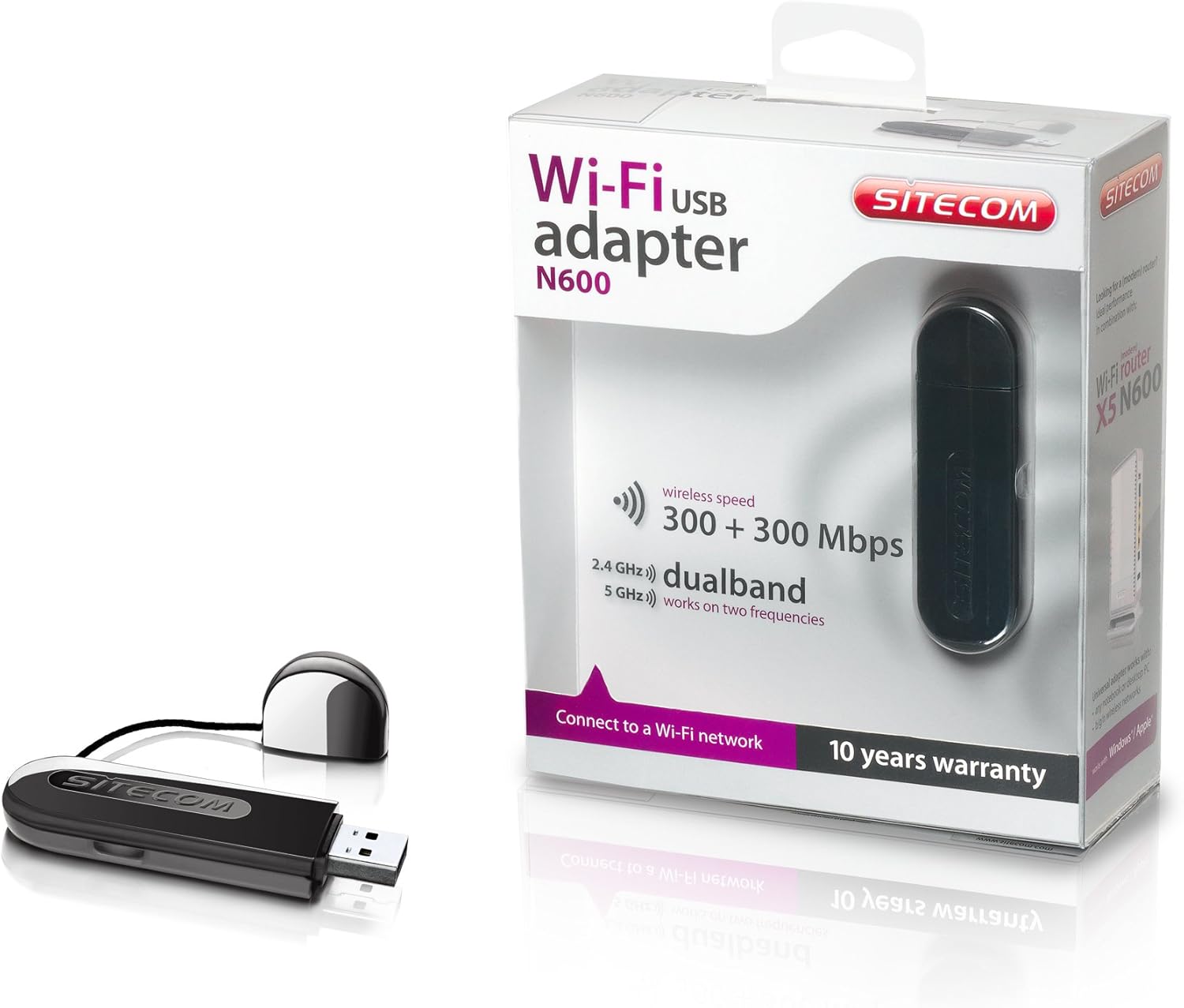
Image 2: The Sitecom WLA-5100 N600 Wi-Fi Dual Band USB Adapter shown alongside its retail packaging. The packaging highlights features such as wireless speed (300 + 300 Mbps) and dual-band functionality (2.4 GHz and 5 GHz).
3. ข้อกำหนดของระบบ
- Available USB port (USB 2.0 or higher recommended)
- Operating System: Compatible with Windows and Mac OS X (e.g., Mac OS X 10.8 Mountain Lion and later versions).
- Internet connection for driver download (if not using the included CD).
4. การตั้งค่า
4.1 การติดตั้งไดรเวอร์
- Before inserting the adapter, it is recommended to install the necessary drivers.
- Insert the included Driver CD into your computer's optical drive, or download the latest drivers from the official Sitecom support webเว็บไซต์.
- ปฏิบัติตามคำแนะนำบนหน้าจอเพื่อดำเนินการติดตั้งไดรเวอร์ให้เสร็จสิ้น
4.2 การติดตั้งฮาร์ดแวร์
- Carefully insert the Sitecom WLA-5100 USB adapter into an available USB port on your desktop or laptop computer.
- Ensure the adapter is fully seated in the USB port. The operating system should detect the new hardware.
4.3 การเชื่อมต่อกับเครือข่าย Wi-Fi
- Once the drivers are installed and the adapter is connected, your computer should detect available wireless networks.
- Access your operating system's network settings (e.g., Wi-Fi icon in the system tray for Windows, Wi-Fi menu bar item for macOS).
- Select your desired Wi-Fi network (SSID) from the list of available networks.
- ป้อนรหัสความปลอดภัยของเครือข่าย (รหัสผ่าน) หากระบบแจ้งให้ป้อน จากนั้นคลิก 'เชื่อมต่อ'
- ตอนนี้คอมพิวเตอร์ของคุณควรเชื่อมต่อกับเครือข่าย Wi-Fi แล้ว
5. ปฏิบัติการ
The WLA-5100 adapter supports dual-band operation, allowing connection to both 2.4 GHz and 5 GHz Wi-Fi networks. The 2.4 GHz band offers wider coverage and better penetration through obstacles, while the 5 GHz band provides faster speeds and less interference, making it ideal for activities like online gaming and high-definition video streaming.
Your computer's operating system will automatically detect and display available networks on both bands. You can choose which band to connect to based on your proximity to the router and your performance needs. For optimal performance, connect to a 5 GHz network if available and you are in close range to your router.
6. การบำรุงรักษา
- รักษาอะแดปเตอร์ให้สะอาดและปราศจากฝุ่น ใช้ผ้านุ่มและแห้งเช็ดทำความสะอาด
- ควรหลีกเลี่ยงการวางอะแดปเตอร์ไว้ในที่ที่มีอุณหภูมิสูงหรือต่ำเกินไป แสงแดดโดยตรง หรือความชื้น
- ห้ามถอดประกอบหรือดัดแปลงอุปกรณ์ เนื่องจากจะทำให้การรับประกันเป็นโมฆะและอาจทำให้เกิดความเสียหายได้
- When not in use, store the adapter in a safe place to prevent physical damage.
7 การแก้ไขปัญหา
7.1 ไม่มีการเชื่อมต่อ Wi-Fi
- ตรวจสอบการเชื่อมต่ออะแดปเตอร์: Ensure the adapter is securely plugged into a functional USB port. Try a different USB port.
- ตรวจสอบการติดตั้งไดรเวอร์: Confirm that the drivers are correctly installed. Check your computer's Device Manager (Windows) or System Information (macOS) to see if the adapter is listed without errors. Reinstall drivers if necessary.
- สถานะเราเตอร์: ตรวจสอบให้แน่ใจว่าเราเตอร์ Wi-Fi ของคุณเปิดอยู่และกำลังส่งสัญญาณอยู่
- Network Range: Make sure your computer is within range of your Wi-Fi network.
- รีสตาร์ทคอมพิวเตอร์: บางครั้งการรีสตาร์ทง่ายๆ ก็สามารถแก้ไขปัญหาการเชื่อมต่อได้
7.2 ความเร็วในการเชื่อมต่อช้า
- การเลือกวงดนตรี: If available, connect to the 5 GHz network for faster speeds, especially if you are close to the router.
- การรบกวน: Move the adapter or computer away from potential sources of interference (e.g., microwaves, cordless phones, Bluetooth devices).
- อัพเดตไดรเวอร์: โปรดตรวจสอบให้แน่ใจว่าได้ติดตั้งไดรเวอร์เวอร์ชั่นล่าสุดสำหรับอะแดปเตอร์แล้ว
- ประสิทธิภาพของเราเตอร์: Check your router's settings and ensure it is operating optimally.
7.3 ไม่รู้จักอะแดปเตอร์
- พอร์ต USB: ลองเสียบอะแดปเตอร์เข้ากับพอร์ต USB อื่นบนคอมพิวเตอร์ของคุณ
- ติดตั้งไดรเวอร์อีกครั้ง: Uninstall existing drivers and perform a clean reinstallation.
- การอัปเดตระบบปฏิบัติการ: ตรวจสอบให้แน่ใจว่าระบบปฏิบัติการของคุณเป็นเวอร์ชันล่าสุด
8. ข้อมูลจำเพาะ
| คุณสมบัติ | รายละเอียด |
|---|---|
| ยี่ห้อ | ไซต์คอม |
| แบบอย่าง | ดับเบิ้ลยูเอ-5100 |
| เทคโนโลยีการเชื่อมต่อ | ไร้สาย |
| อินเตอร์เฟซโฮสต์ | ยูเอสบี |
| ไร้มาตรฐาน | IEEE 802.11a, 802.11b, 802.11g, 802.11n (Wi-Fi 4) |
| ความเร็วไร้สาย | ความเร็วสูงสุด 300 Mbps (2.4 GHz) + 300 Mbps (5 GHz) |
| ย่านความถี่ | รองรับคลื่นความถี่คู่ (2.4 GHz และ 5 GHz) |
| สี | สีดำ |
| ขนาด (กว้าง x ยาว x สูง) | ขนาด 7.5 x 2.5 x 1 ซม. (โดยประมาณ) |
| น้ำหนัก | 10 กรัม |
| แหล่งพลังงาน | ขับเคลื่อนด้วย USB |
| อุปกรณ์ที่รองรับ | Desktop computer, Laptop computer |
| หมายเลขสินค้าการค้าสากล (GTIN) | 08716502026821 |
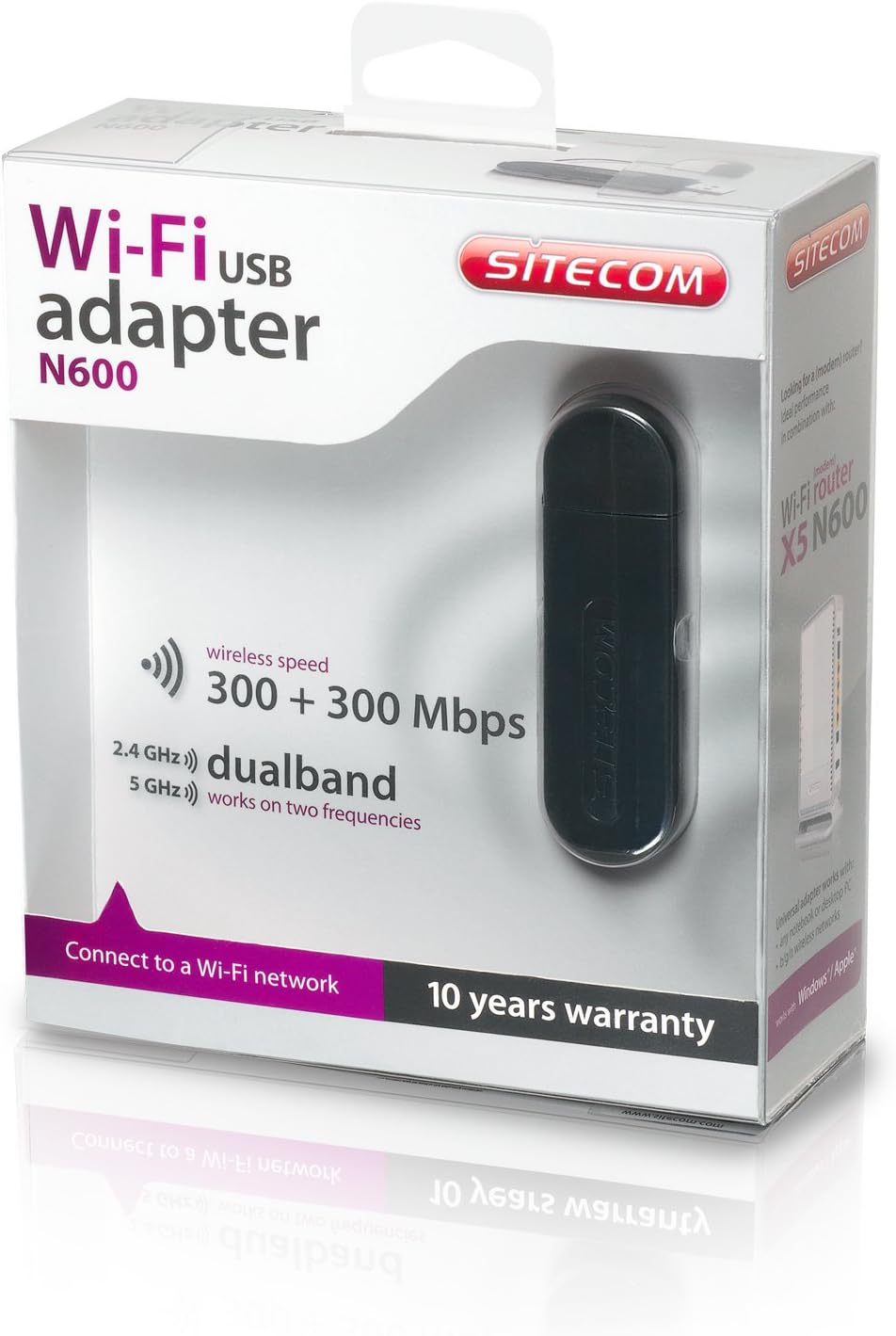
Image 3: The retail packaging for the Sitecom WLA-5100 N600 Wi-Fi Dual Band USB Adapter. The box prominently displays the product name, N600 rating, wireless speed, and dual-band capabilities.
9. การรับประกันและการสนับสนุน
The Sitecom WLA-5100 N600 Wi-Fi Dual Band USB Adapter typically comes with a รับประกัน 10 ปีตามที่ระบุไว้บนบรรจุภัณฑ์ของผลิตภัณฑ์ โปรดเก็บหลักฐานการซื้อไว้เพื่อใช้ในการเคลมประกัน
For technical support, driver downloads, frequently asked questions, or further assistance, please visit the official Sitecom website or contact their customer support. Refer to the packaging or the Sitecom webไซต์สำหรับข้อมูลติดต่อฝ่ายสนับสนุนล่าสุด