
1. บทนำ
The Sitecom CN-070 USB 3.0 4-Port Hub is designed to expand the connectivity of your desktop PC or notebook by adding four additional USB 3.0 ports. This hub utilizes the USB 3.0 standard, offering data transfer speeds up to 5 Gigabits per second (Gbps), which is significantly faster than USB 2.0. It also provides increased bandwidth, allowing for simultaneous data transmission and reception.
2. เนื้อหาบรรจุภัณฑ์
โปรดตรวจสอบว่าแพ็คเกจของคุณมีรายการต่อไปนี้:
- ฮับ USB 3.0 4 พอร์ต Sitecom CN-070
- สายเชื่อมต่อ USB 3.0
- คู่มือการติดตั้งฉบับย่อ (ถ้ามี)
3. สินค้าหมดview
The Sitecom CN-070 hub features a compact design with four USB 3.0 ports, allowing you to connect multiple USB devices simultaneously. Its high-quality finish and modern design complement various computer setups.
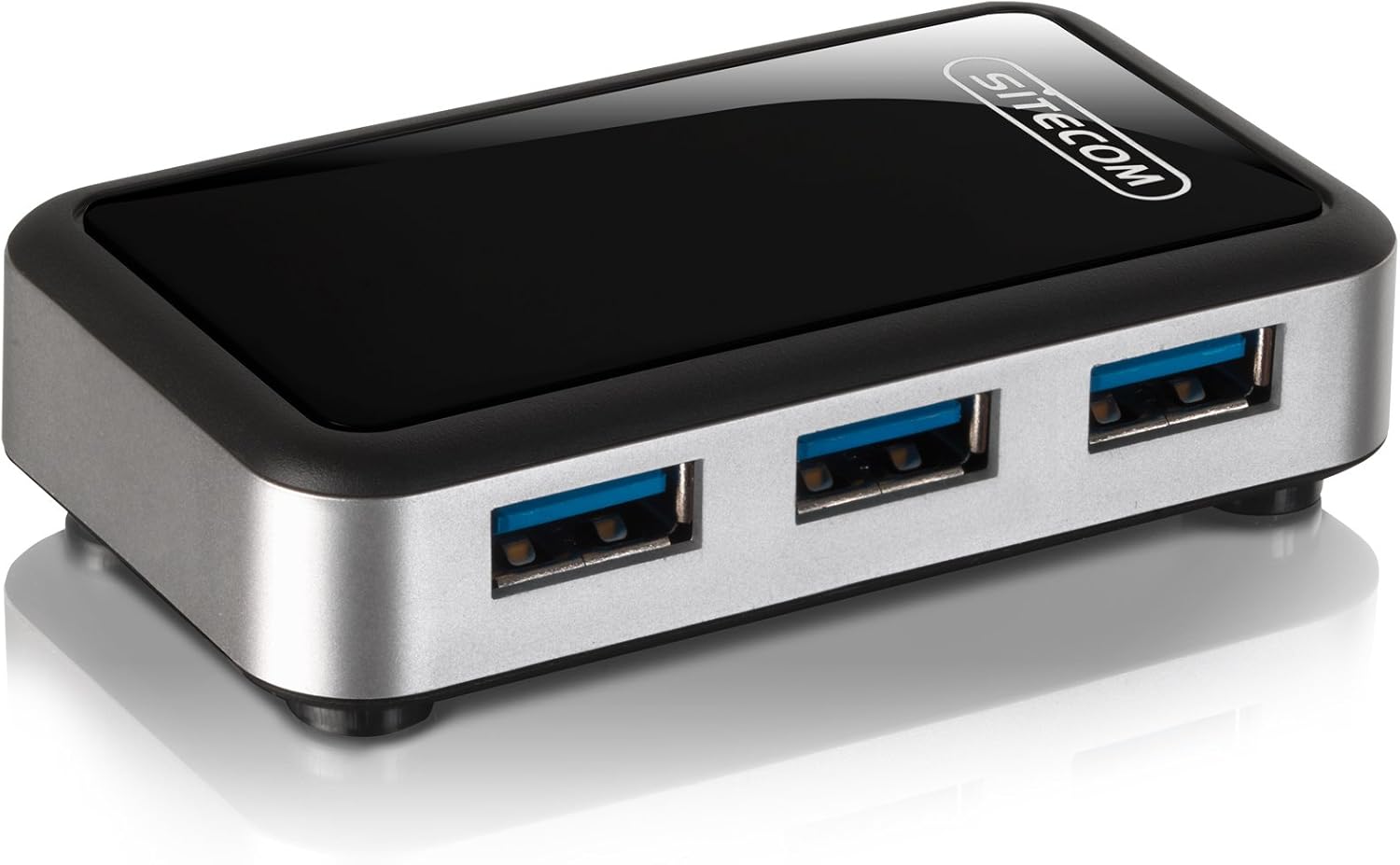
ภาพที่ 3.1: The Sitecom CN-070 USB 3.0 4-Port Hub, showcasing its sleek black and silver design with four blue-accented USB 3.0 ports.
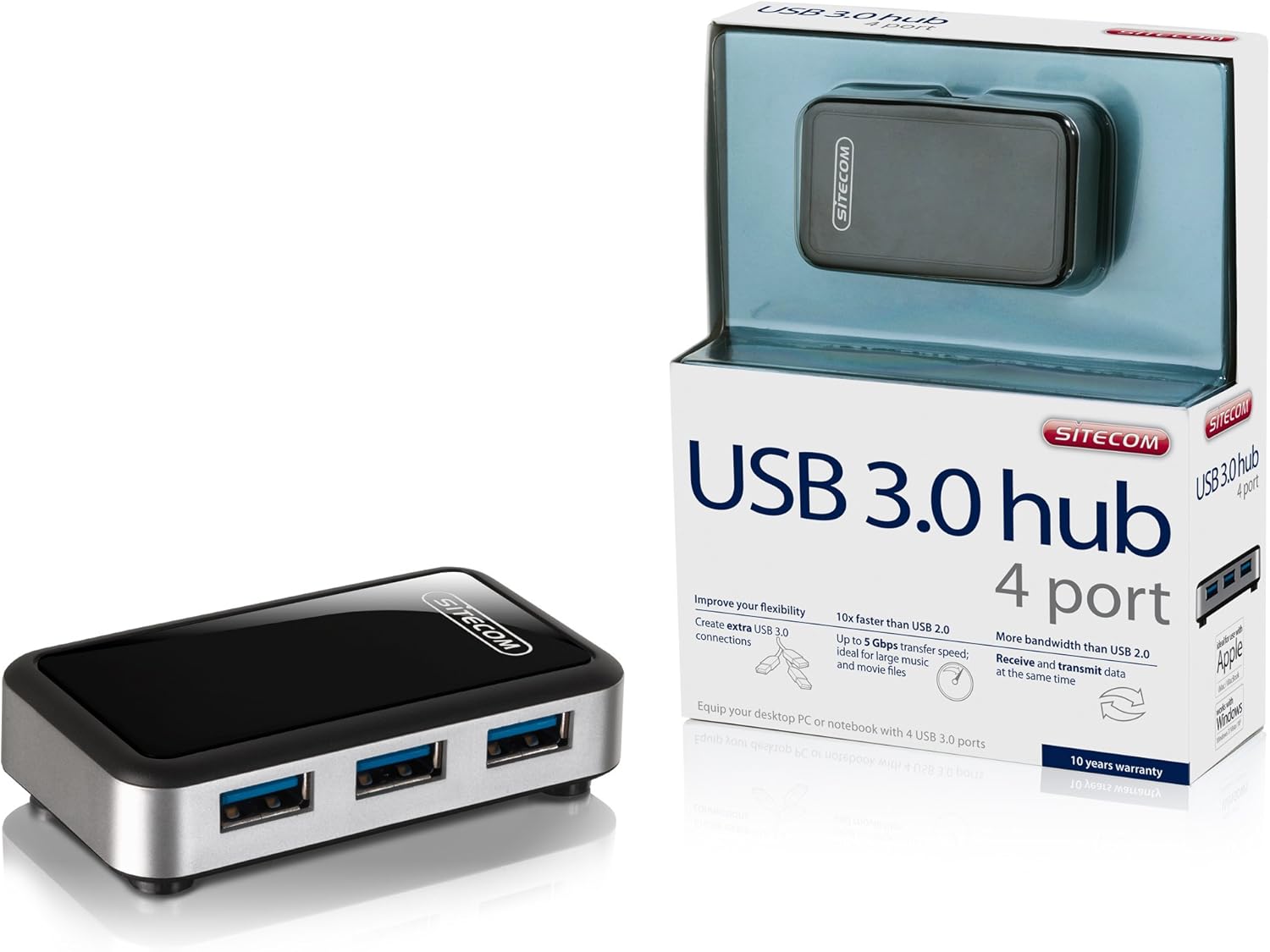
ภาพที่ 3.2: The Sitecom CN-070 USB 3.0 Hub displayed alongside its retail packaging, highlighting the product's presentation.
4. คำแนะนำในการตั้งค่า
Follow these steps to set up your Sitecom CN-070 USB 3.0 Hub:
- เชื่อมต่อฮับ: Take the provided USB 3.0 connection cable. Connect one end of the cable to the USB 3.0 input port on the Sitecom CN-070 hub.
- เชื่อมต่อกับคอมพิวเตอร์: Plug the other end of the USB 3.0 cable into an available USB 3.0 port on your desktop PC or notebook. USB 3.0 ports are typically blue internally.
- การจดจำระบบ: Your operating system (Windows, macOS, Linux) should automatically detect and install the necessary drivers for the hub. This process usually takes a few moments. No additional software installation is typically required.
- พร้อมใช้งาน: Once the hub is recognized, it is ready to connect your USB devices.
5. การดำเนินงานของศูนย์กลาง
Using the Sitecom CN-070 USB 3.0 Hub is straightforward:
- อุปกรณ์เชื่อมต่อ: Insert your USB devices (e.g., external hard drives, USB flash drives, keyboards, mice) into any of the four available USB 3.0 ports on the hub.
- การถ่ายโอนข้อมูลความเร็วสูง: When connecting USB 3.0 compatible devices to the hub, you will benefit from data transfer speeds of up to 5 Gbps. This is ideal for transferring large files such as HD movies or extensive music libraries quickly.
- Simultaneous Data Flow: The USB 3.0 standard allows for increased bandwidth, enabling the hub to send and receive data simultaneously, optimizing performance for multiple connected devices.
- ความเข้ากันได้แบบย้อนกลับ: The hub is fully backward compatible with USB 2.0 and USB 1.1 devices. Older USB devices will function correctly, though at their respective maximum speeds (e.g., USB 2.0 devices will operate at USB 2.0 speeds).
- ลดการใช้พลังงาน: The design of the hub incorporates reduced power consumption, making it efficient for everyday use.
6. การบำรุงรักษาและการดูแล
To ensure the longevity and optimal performance of your Sitecom CN-070 USB 3.0 Hub, follow these simple maintenance guidelines:
- การทำความสะอาด: Use a soft, dry, lint-free cloth to clean the exterior of the hub. Avoid using liquid cleaners, aerosols, or solvents, as these can damage the finish or internal components.
- พื้นที่จัดเก็บ: เมื่อไม่ได้ใช้งาน ให้เก็บฮับไว้ในที่แห้งและเย็น หลีกเลี่ยงแสงแดดโดยตรงและอุณหภูมิที่สูงหรือต่ำเกินไป
- สภาพแวดล้อม : Avoid exposing the hub to moisture, dust, or corrosive environments. Do not place heavy objects on top of the hub.
- การจัดการ: จับดุมล้อด้วยความระมัดระวัง หลีกเลี่ยงการทำตกหรือกระแทกแรงๆ
7 การแก้ไขปัญหา
If you encounter issues with your Sitecom CN-070 USB 3.0 Hub, please refer to the following troubleshooting tips:
- คอมพิวเตอร์ไม่รู้จักฮับ:
- Ensure the USB 3.0 cable is securely connected to both the hub and a functioning USB 3.0 port on your computer.
- Try connecting the hub to a different USB 3.0 port on your computer.
- Restart your computer and try connecting the hub again.
- Verify that your computer's USB 3.0 drivers are up to date. Most operating systems handle this automatically, but manual updates may be necessary in some cases.
- Connected Devices Not Working or Recognized:
- Ensure the device is properly inserted into one of the hub's ports.
- ลองเสียบอุปกรณ์เข้ากับพอร์ตอื่นบนฮับดู
- Connect the device directly to your computer's USB port to confirm it is functioning independently.
- If the device requires significant power, ensure your computer's USB port can supply sufficient power to the hub and connected devices.
- ความเร็วในการถ่ายโอนข้อมูลช้า:
- Confirm that both the connected device and the computer's port are USB 3.0 compatible. If either is USB 2.0, speeds will be limited to USB 2.0 rates.
- หลีกเลี่ยงการเชื่อมต่ออุปกรณ์แบนด์วิดท์สูงหลายเครื่องพร้อมกันหากคุณพบว่ามีการทำงานช้าลง
8. ข้อมูลจำเพาะ
| คุณสมบัติ | คำอธิบาย |
|---|---|
| ยี่ห้อ | ไซต์คอม |
| หมายเลขรุ่น | CN-ฮิต |
| อินเทอร์เฟซ | ยูเอสบี 3.0 |
| พอร์ต USB รวม | 4 (ยูเอสบี 3.0) |
| อัตราการถ่ายโอนข้อมูล | สูงสุดถึง 5 Gbps |
| ความเข้ากันได้แบบย้อนกลับ | ยูเอสบี 2.0, ยูเอสบี 1.1 |
| สี | สีดำ/เงิน |
| อุปกรณ์ที่รองรับ | Desktop computers, external hard drives, and other USB devices |
9. ข้อมูลการรับประกัน
The Sitecom CN-070 USB 3.0 Hub comes with an extended รับประกัน 10 ปี. To activate this extended warranty, you must register your product within a few weeks of purchase. Please refer to the official Sitecom website or the product packaging for specific registration instructions and terms.
10. การสนับสนุน
For further assistance, updated drivers, or additional product information, please visit the official Sitecom webเว็บไซต์นี้โดยทั่วไปคุณจะพบแหล่งข้อมูลสนับสนุน คำถามที่พบบ่อย และข้อมูลติดต่อได้ที่นั่น
Webเว็บไซต์: www.sitecom.com (Please note: This is a generic placeholder. Refer to your product packaging or official documentation for the exact support URL.)