
ดีลิงค์ DIR-636L
D-Link Wireless N 300 Mbps Home Cloud App-Enabled Gigabit Router (DIR-636L) User Manual
Model: DIR-636L
การแนะนำ
This manual provides comprehensive instructions for setting up, operating, and maintaining your D-Link Wireless N 300 Mbps Home Cloud App-Enabled Gigabit Router (DIR-636L). Please read this manual thoroughly before using the device to ensure optimal performance and safety.
มีอะไรอยู่ในกล่อง
- D-Link Cloud Router 1200 (DIR-636L)
- สายอีเทอร์เน็ต
- อะแดปเตอร์แปลงไฟ
- คู่มือการติดตั้งด่วน
สินค้าเกินview


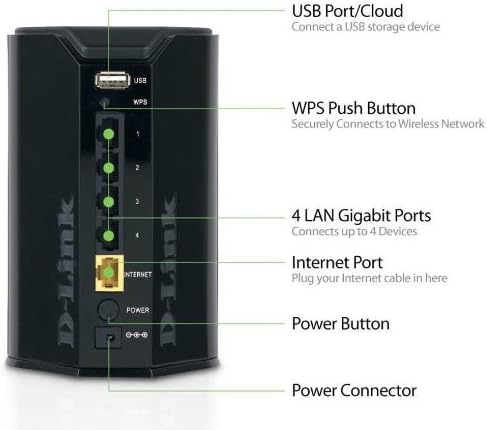
The D-Link DIR-636L Cloud Router is designed for high-performance wireless connectivity and network management. It features a compact, vertical design with indicator lights on the front and all connectivity ports on the rear for efficient cable management.
การตั้งค่า
การติดตั้งเบื้องต้น
- แกะกล่องเราเตอร์: นำส่วนประกอบทั้งหมดออกจากกล่องอย่างระมัดระวัง
- ตำแหน่งเราเตอร์: Place the router in a central location in your home for optimal wireless coverage. Avoid placing it near large metal objects or other electronic devices that may cause interference.
- เชื่อมต่อโมเด็ม: Connect one end of the provided Ethernet cable to the Internet port (yellow) on the back of the DIR-636L router and the other end to your modem's Ethernet port.
- เชื่อมต่อพลังงาน: Plug the power adapter into the router's power connector and then into a wall outlet. The power LED on the front of the router should illuminate.
- เปิดเครื่อง: Press the power button on the back of the router. Wait for the Internet LED to turn solid green, indicating a successful connection.
การกำหนดค่าผ่าน Web เบราว์เซอร์
- เชื่อมต่อกับเราเตอร์: Connect your computer to one of the LAN Gigabit ports (1-4) on the router using an Ethernet cable, or connect wirelessly to the default Wi-Fi network (SSID and password are on a label on the router).
- เข้าถึงตัวช่วยตั้งค่า: เปิด web เบราว์เซอร์และประเภท http://dlinkrouter.local or http://192.168.0.1 ลงในแถบที่อยู่
- ทำตามคำแนะนำบนหน้าจอ: The D-Link Setup Wizard will guide you through configuring your Internet connection, wireless network name (SSID), and password.
Configuration via QRS Mobile App
For quick setup using your smartphone or tablet, download the free D-Link QRS Mobile app from your device's app store. The app will guide you through the setup process step-by-step.
การใช้งานเราเตอร์
การเชื่อมต่อแบบไร้สาย
The DIR-636L provides wireless speeds up to 300 Mbps, ideal for video streaming and web surfing. Its built-in high-powered amplifier ensures wall-to-wall coverage throughout your home.
การเชื่อมต่ออุปกรณ์แบบไร้สาย:
- การเชื่อมต่อมาตรฐาน: On your device, select your Wi-Fi network name (SSID) and enter the password you configured during setup.
- WPS (การตั้งค่าป้องกัน Wi-Fi): Press the WPS button on the back of the router (labeled "WPS") and then activate WPS on your wireless device within two minutes to establish a secure connection without entering a password.
การเชื่อมต่อแบบมีสาย
The router features four Gigabit Ethernet ports for blazing fast wired connections. These are ideal for gaming consoles, smart TVs, desktop computers, and other devices requiring stable, high-speed connections.
SharePort Mobile App
Utilize the free D-Link SharePort Mobile app to wirelessly access media files (videos, music, photos) stored on a USB drive connected to the router's USB 2.0 port. This allows you to stream content directly to your iPhone, iPad, or Android device.
Official D-Link video demonstrating the features of the Wireless-N300 Dual-Band Gigabit Cloud Router, including wireless file sharing and network monitoring capabilities.
mydlink Cloud Services
The mydlink app allows you to monitor and manage your home network remotely from your iPhone, iPad, or Android device. You can view web browsing history, see connected and blocked devices in real-time, and receive automatic email alerts for unauthorized connections.
การซ่อมบำรุง
- รีบูตปกติ: Periodically rebooting your router (unplugging and replugging the power) can help clear its memory and improve performance. A monthly reboot is generally sufficient.
- อัพเดตเฟิร์มแวร์: Check the D-Link support webเว็บไซต์สำหรับอัปเดตเฟิร์มแวร์ การอัปเดตเฟิร์มแวร์เราเตอร์ให้เป็นเวอร์ชันล่าสุดจะช่วยให้มั่นใจได้ถึงประสิทธิภาพสูงสุด ความปลอดภัย และการเข้าถึงคุณสมบัติใหม่ๆ
- การทำความสะอาดทางกายภาพ: Keep the router clean and free of dust to prevent overheating. Use a soft, dry cloth.
- ความปลอดภัย: Regularly change your Wi-Fi password and router login credentials. Use strong, unique passwords.
การแก้ไขปัญหา
ไม่มีการเชื่อมต่ออินเตอร์เน็ต
- ตรวจสอบสายเคเบิล: ตรวจสอบให้แน่ใจว่าสายอีเธอร์เน็ตทั้งหมดเชื่อมต่อกับพอร์ตที่ถูกต้องบนเราเตอร์และโมเด็มอย่างแน่นหนาแล้ว
- รีบูตอุปกรณ์: Power cycle your modem first, wait 30 seconds, then power cycle your router. Wait for all indicator lights to stabilize.
- ปัญหา ISP: ติดต่อผู้ให้บริการอินเทอร์เน็ต (ISP) ของคุณเพื่อยืนยันว่าไม่มีบริการใด ๆtagอยู่ในพื้นที่ของคุณ
Slow Wireless Speed or Poor Coverage
- ตำแหน่งการวางเราเตอร์: Move the router to a more central location, away from obstructions like thick walls, large metal objects, or other electronics.
- การรบกวน: Other wireless devices (cordless phones, microwaves) can cause interference. Try changing your Wi-Fi channel in the router settings.
- มีอุปกรณ์มากเกินไป: If many devices are connected, consider upgrading to a higher-speed router or optimizing network usage.
ไม่สามารถเข้าถึงหน้าการตั้งค่าเราเตอร์ได้
- ที่อยู่ IP: ตรวจสอบให้แน่ใจว่าคอมพิวเตอร์ของคุณตั้งค่าให้รับที่อยู่ IP โดยอัตโนมัติ (DHCP)
- ที่อยู่ที่ถูกต้อง: Double-check that you are typing the correct address (http://dlinkrouter.local or http://192.168.0.1).
- ไฟร์วอลล์/โปรแกรมป้องกันไวรัส: ปิดใช้งานไฟร์วอลล์หรือซอฟต์แวร์ป้องกันไวรัสบนคอมพิวเตอร์ของคุณชั่วคราว ซึ่งอาจบล็อกการเข้าถึงอยู่
- รีเซ็ตเป็นค่าเริ่มต้นจากโรงงาน: As a last resort, perform a factory reset by pressing and holding the reset button on the router for 10 seconds. หมายเหตุ: การดำเนินการนี้จะลบการตั้งค่าแบบกำหนดเองของคุณทั้งหมด
ข้อมูลจำเพาะ
| คุณสมบัติ | รายละเอียด |
|---|---|
| ชื่อรุ่น | ดีไออาร์-636แอล |
| ประเภทไร้สาย | 802.11bgn |
| ความเร็วไร้สาย | สูงสุดถึง 300 Mbps |
| พอร์ตอีเทอร์เน็ต | 4x กิกะบิตอีเทอร์เน็ต |
| พอร์ต USB | พอร์ต USB 1 จำนวน 2.0 พอร์ต |
| ความปลอดภัย | Wi-Fi Protected Access (WPA/WPA2), WPS |
| IPv6 Certified | ใช่ |
| ขนาด (กxยxส) | 4.5 x 3.8 x 5.5 นิ้ว |
| น้ำหนักสินค้า | 9.9 ออนซ์ |
| ระบบปฏิบัติการที่รองรับ | Windows 7, Windows Vista, Windows XP SP2, Mac OS X (v10.4) |
การรับประกันและการสนับสนุน
The D-Link Wireless N 300 Mbps Home Cloud App-Enabled Gigabit Router (DIR-636L) comes with a รับประกันจำกัด 1 ปี. D-Link also provides 24/7 basic installation support.
For further assistance, technical support, or to check for the latest firmware updates, please visit the official D-Link support webเว็บไซต์หรือติดต่อฝ่ายบริการลูกค้าของพวกเขา
Note: Warranty terms may vary by region. Please refer to the warranty card included with your product or the D-Link webเว็บไซต์สำหรับรายละเอียดเฉพาะ
Ask a question about this manual
Ask about setup, troubleshooting, compatibility, parts, safety, or missing instructions. Manuals+ will review the question and use this page’s manual context to help answer it.