
การแนะนำ
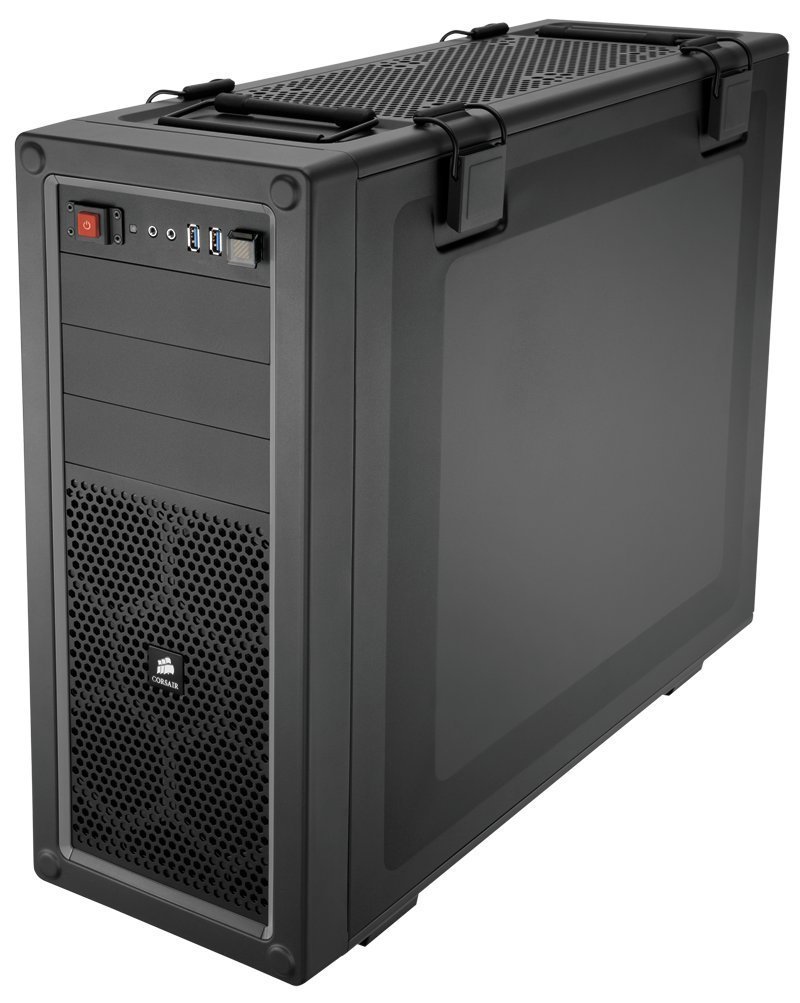
This manual provides detailed instructions for the installation, operation, and maintenance of your CORSAIR VENGEANCE C70 Mid-Tower Case. Designed for durability and extensive cooling, the C70 offers a robust platform for your PC build.
การติดตั้งและการตั้งค่า
Follow these steps to set up your CORSAIR VENGEANCE C70 Mid-Tower Case.
1. การเตรียมคดี
The CORSAIR VENGEANCE C70 features quick-release side panels for easy access. To open, locate the latches on the top rear of each side panel and flip them open. Gently pull the panels away from the chassis.
ภาพ: ภายใน view of the Corsair Vengeance C70 Mid-Tower Case, showcasing the spacious interior with a motherboard, CPU cooler, graphics cards, power supply, and drive bays installed. Note the cable management and fan placements.
2. การติดตั้งเมนบอร์ด
- The C70 supports ATX and mATX motherboards.
- ติดตั้งแผงป้องกัน I/O ลงในช่องเปิดด้านหลังของเคส
- Align your motherboard with the pre-installed standoffs. Secure the motherboard using the provided screws. Ensure all mounting points are utilized for stability.
3. การติดตั้งพาวเวอร์ซัพพลาย
- The case supports ATX power supplies, mounted at the bottom.
- Slide the power supply into its designated bay at the bottom rear of the case.
- Secure it with screws from the rear of the chassis.
4. การติดตั้งไดรฟ์
- 5.25" Optical Drives: The case features three 5.25" external drive bays. Remove the front bezel cover, slide the drive in, and secure it using the tool-less locking mechanism.
- 3.5"/2.5" Hard Drives/SSDs: The case includes six 3.5"/2.5" drive caddies. These caddies support both 3.5" HDDs and 2.5" SSDs. Slide your drive into a caddy and then slide the caddy into one of the internal drive bays until it clicks into place. The drive cages are removable for increased space or custom cooling solutions.
5. Expansion Cards
- The C70 provides eight expansion slots.
- Remove the necessary slot covers, insert your expansion card (e.g., graphics card), and secure it with the provided screws or tool-less clips.
6. ระบบระบายความร้อน
- The case comes with two 120mm intake fans and one 120mm exhaust fan pre-installed.
- Additional fan mounting locations are available for enhanced airflow, supporting up to 10 fans. These include locations on the top, bottom, and side panel.
- The case also supports 240mm radiators for liquid cooling solutions in the top, front (with drive cage removal), or bottom (with drive cage removal).
7. การจัดการสายเคเบิล
Utilize the routing holes and tie-down points behind the motherboard tray to organize cables. This improves airflow and maintains a clean internal appearance.
การดำเนินการ
แผง I/O ด้านหน้า
แผง I/O ด้านหน้าช่วยให้เข้าถึงพอร์ตและการควบคุมที่จำเป็นได้อย่างสะดวก:
- ปุ่มเปิด/ปิด: Located on the top front, used to power on/off the system.
- ปุ่มรีเซ็ต: Located near the USB ports, often protected by a clear cover to prevent accidental presses. Press to restart the system.
- พอร์ต USB 3.0 (x2): สำหรับการถ่ายโอนข้อมูลความเร็วสูงกับอุปกรณ์ที่รองรับ
- ช่องเสียบหูฟัง (x1): สำหรับเอาต์พุตเสียง
- Microphone Jack (x1): สำหรับอินพุตเสียง
การซ่อมบำรุง
การบำรุงรักษาตามปกติจะช่วยให้มั่นใจได้ถึงประสิทธิภาพสูงสุดและอายุการใช้งานที่ยาวนานของส่วนประกอบพีซีของคุณ
- การทำความสะอาดตัวกรองฝุ่น: The C70 includes dust filters to prevent dust buildup. Regularly check and clean these filters. The bottom filter is easily accessible. The front filter may require removing the front panel for thorough cleaning.
- การทำความสะอาดภายใน: Periodically open the side panels and use compressed air to remove dust from internal components, especially fans, heatsinks, and radiators.
- การทำความสะอาดภายนอก: เช็ดภายนอกเคสด้วยผ้านุ่มๆamp ผ้า. หลีกเลี่ยงสารเคมีรุนแรงที่อาจสร้างความเสียหายให้กับผิวเคลือบ
การแก้ไขปัญหา
หัวข้อนี้จะกล่าวถึงปัญหาทั่วไปที่คุณอาจพบเจอ
- ระบบไม่เปิดเครื่อง:
- Ensure the power supply is properly connected to the wall outlet and the power switch on the PSU is in the 'ON' position.
- Verify all power cables (24-pin ATX, 8-pin CPU, PCIe for GPU) are securely connected to the motherboard and components.
- Check the front panel power switch connector on the motherboard.
- เสียงดังเกินไป:
- Inspect all fans (CPU, GPU, case fans) for obstructions or loose mounting.
- ตรวจสอบให้แน่ใจว่าสายไฟไม่ไปกีดขวางใบพัดของพัดลม
- Check for vibrations from loose components or side panels. The C70 side panel latches should be firmly closed.
- การไหลเวียนของอากาศไม่ดี/อุณหภูมิสูง:
- ทำความสะอาดตัวกรองฝุ่นและส่วนประกอบภายในทั้งหมดตามที่อธิบายไว้ในส่วนการบำรุงรักษา
- Verify that fans are oriented correctly (intake vs. exhaust).
- Ensure proper cable management to avoid obstructing airflow.
ข้อมูลจำเพาะ
| ยี่ห้อ | คอร์แซร์ |
| ชื่อรุ่น | ซี70 |
| หมายเลขรุ่น | CC-9011016-WW |
| ประเภทเคส | มิดทาวเวอร์ |
| วัสดุ | เหล็กอัลลอยด์ |
| สี | สีดำปืนเมทัล |
| ความเข้ากันได้ของเมนบอร์ด | ATX, mATX |
| ช่องไดรฟ์ | (x3) 5.25", (x6) 3.5"/2.5" Drive Caddies |
| ช่องเสียบขยาย | 8 |
| Cooling (Included) | (x2) 120mm Intake fans, (x1) 120mm Exhaust Fan |
| สถานที่ติดตั้งพัดลม | สูงถึง 10 |
| พอร์ต I/O ด้านหน้า | (x2) USB 3.0, (x1) Headphone, (x1) Mic |
| ประเภทแหล่งจ่ายไฟ | ATX (ไม่รวม) |
| น้ำหนักสินค้า | 18.3 ปอนด์ |
ข้อมูลการรับประกัน
The CORSAIR VENGEANCE C70 Mid-Tower Case comes with a รับประกัน 2 ปี นับจากวันที่ซื้อ โปรดเก็บหลักฐานการซื้อไว้เพื่อใช้ในการเรียกร้องการรับประกัน การรับประกันนี้ครอบคลุมถึงข้อบกพร่องในวัสดุและฝีมือการผลิตภายใต้การใช้งานปกติ
สนับสนุน
For technical assistance or customer service, please contact Corsair support:
- โทรศัพท์: 1-888-222-4346 opt. 1
- Webเว็บไซต์: เยี่ยมชม Corsair อย่างเป็นทางการ website for additional resources, FAQs, and support tickets.