
1. บทนำ
This manual provides instructions for the installation, operation, and maintenance of your D-Link DWA-123 Wireless N 150 USB Adapter. This device allows you to connect your desktop or notebook computer to a wireless network with speeds up to 150 Mbps, ideal for web เรียกดู file sharing, and streaming.
2. สินค้าหมดview
The D-Link DWA-123 is a compact USB adapter designed for easy integration into your computer system. It supports Wireless N 150 technology, offering enhanced speed and range compared to older wireless standards.
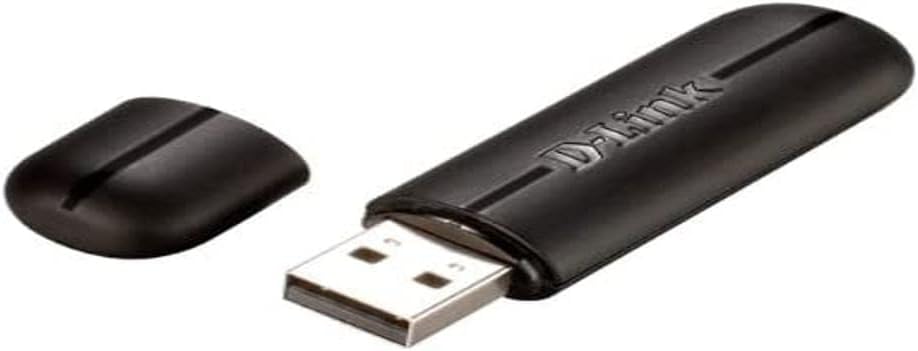
Figure 2.1: The D-Link DWA-123 Wireless N 150 USB Adapter. This image shows the adapter with its protective cap removed, revealing the standard USB Type-A connector. The D-Link logo is visible on the adapter's body.
คุณสมบัติที่สำคัญ ได้แก่:
- Wireless N 150 Technology: Provides faster wireless speeds and better coverage.
- Up to 150 Mbps Data Rate: Suitable for various internet activities.
- WPS External Button Design: ช่วยให้การตั้งค่าการเชื่อมต่อไร้สายที่ปลอดภัยง่ายขึ้น
- การรักษาความปลอดภัยขั้นสูง: Supports WPA/WPA2 (PSK, AES, TKIP) and 128/64-bit WEP for secure network access.
- ความถี่ในการใช้งาน : 2.4 GHz ถึง 2.48 GHz
- มาตรฐาน: IEEE 802.11 b/g/n compliant.

รูปที่ 2.2: ระยะใกล้ view of the D-Link DWA-123 adapter. This image highlights a small indicator light, typically used to show network activity or connection status.
รูปที่ 2.3: รายละเอียด view of the D-Link DWA-123 adapter's casing. This image focuses on the textured surface and design elements of the adapter's black plastic housing.
3. คำแนะนำในการตั้งค่า
Follow these steps to install your D-Link DWA-123 Wireless N 150 USB Adapter:
- ใส่อะแดปเตอร์: Plug the DWA-123 USB adapter into an available USB port on your desktop or notebook computer. Ensure it is fully seated.
- การติดตั้งไดร์เวอร์:
- Automatic Installation (Windows): In most modern Windows operating systems, the necessary drivers may install automatically. Wait for a notification indicating that the device is ready for use.
- การติดตั้งด้วยตนเอง: If drivers do not install automatically, you may need to use the included driver CD (if provided) or download the latest drivers from the official D-Link support webไปที่เว็บไซต์ ทำตามคำแนะนำบนหน้าจอระหว่างขั้นตอนการติดตั้งไดรเวอร์
- ตรวจสอบการติดตั้ง: After driver installation, check your computer's Device Manager (Windows) or System Information (macOS) to confirm that the DWA-123 adapter is recognized and functioning correctly.
4. คู่มือการใช้งาน
Once the DWA-123 adapter is installed, you can connect to a wireless network:
- เข้าถึงการตั้งค่าไร้สาย:
- หน้าต่าง: Click the wireless network icon in the system tray (usually in the bottom-right corner of the screen).
- MacOS: Click the Wi-Fi icon in the menu bar (usually in the top-right corner of the screen).
- เลือกเครือข่าย: รายชื่อเครือข่ายไร้สายที่ใช้งานได้จะปรากฏขึ้น เลือกเครือข่าย (SSID) ที่คุณต้องการ
- เชื่อมต่อ:
- การเชื่อมต่อด้วยตนเอง: Enter the network security key or passphrase when prompted.
- WPS (การตั้งค่าป้องกัน Wi-Fi): If your router supports WPS and has a WPS button, you can press the WPS button on your router and then press the WPS button on the DWA-123 adapter (if available, or follow software prompts) within two minutes to establish a secure connection automatically.
- ตรวจสอบการเชื่อมต่อ: Once connected, the wireless network icon will indicate a successful connection, and you should be able to access the internet.
5. การบำรุงรักษา
To ensure optimal performance and longevity of your D-Link DWA-123 adapter:
- รักษาความสะอาด: ค่อยๆ เช็ดอะแดปเตอร์ด้วยผ้าแห้งเนื้อนุ่มเพื่อกำจัดฝุ่น หลีกเลี่ยงการใช้น้ำยาทำความสะอาดหรือสารละลาย
- ป้องกันขั้วต่อ USB: When not in use, keep the protective cap on the USB connector to prevent dust and damage.
- หลีกเลี่ยงเงื่อนไขที่รุนแรง: อย่าให้อะแดปเตอร์สัมผัสกับอุณหภูมิที่สูงหรือความชื้นสูง หรือโดนแสงแดดโดยตรง
- การอัปเดตไดรเวอร์: Periodically check the D-Link support webเว็บไซต์นี้เป็นแหล่งอัปเดตไดรเวอร์เพื่อให้มั่นใจได้ถึงความเข้ากันได้และประสิทธิภาพที่ดีขึ้น
6 การแก้ไขปัญหา
If you encounter issues with your DWA-123 adapter, consider the following:
- ไม่พบเครือข่ายไร้สาย:
- ตรวจสอบให้แน่ใจว่าเสียบอะแดปเตอร์เข้ากับพอร์ต USB อย่างถูกต้องแล้ว
- Verify that the drivers are correctly installed.
- ตรวจสอบว่าเราเตอร์ไร้สายของคุณเปิดใช้งานอยู่และกำลังส่งสัญญาณหรือไม่
- Try moving closer to the wireless router.
- ไม่สามารถเชื่อมต่อกับเครือข่ายได้:
- Double-check the network security key or passphrase. It is case-sensitive.
- รีสตาร์ทคอมพิวเตอร์และเราเตอร์ไร้สายของคุณ
- Ensure your network is not configured to block new devices (e.g., MAC address filtering).
- ความเร็วการเชื่อมต่อช้า:
- Ensure you are within optimal range of your wireless router.
- ตรวจสอบสัญญาณรบกวนจากอุปกรณ์อิเล็กทรอนิกส์อื่นๆ (เช่น ไมโครเวฟ โทรศัพท์ไร้สาย)
- อัปเดตไดรเวอร์ของอะแดปเตอร์ให้เป็นเวอร์ชันล่าสุด
- Verify that your router is configured for Wireless N mode if you expect 150 Mbps speeds.
7. ข้อมูลจำเพาะทางเทคนิค
| คุณสมบัติ | รายละเอียด |
|---|---|
| หมายเลขรุ่น | ดีดับเบิ้ลยูเอ-123 |
| ไร้มาตรฐาน | IEEE802.11b/g/n ไร้สาย |
| ความเร็วไร้สาย | Up to 150 Mbps (Wireless N 150) |
| ช่วงความถี่ | 2.4 GHz - 2.48 GHz |
| ความปลอดภัย | WPA/WPA2 (PSK, AES, TKIP), 128/64-bit WEP, WPS |
| อินเทอร์เฟซ | ยูเอสบี 2.0 |
| ปฏิบัติการฉบับที่tage | กระแสตรง 5 โวลต์ |
| ขนาด | Approximately 25.02 x 12.54 x 16.38 cm (Product dimensions from data, likely packaging) |
| น้ำหนัก | ประมาณ 100 กรัม |
| อุปกรณ์ที่รองรับ | Desktop computers (and notebooks) |
8. การรับประกันและการสนับสนุน
For warranty information and technical support, please refer to the documentation included with your product or visit the official D-Link website. D-Link provides various support resources, including FAQs, driver downloads, and contact information for technical assistance.
การสนับสนุนทางออนไลน์: www.dlink.com/support