
1. บทนำ
The D-Link DHP-1320 Wireless-N PowerLine Router combines wireless networking with PowerLine AV technology, allowing you to extend your network using your home's existing electrical wiring. This device provides both Wi-Fi and wired connectivity for various devices.

Figure 1: D-Link DHP-1320 Wireless-N PowerLine Router
ภาพนี้แสดงด้านหน้า view of the D-Link DHP-1320 Wireless-N PowerLine Router, highlighting its compact design and external antennas.
คุณสมบัติหลัก:
- IEEE 802.11n and 802.11g Compliant for Wi-Fi connectivity.
- Up to 300 Mbps throughput for Wi-Fi networks.
- Up to 200 Mbps throughput for PowerLine AV networks.
- Utilizes your home’s existing electrical wiring for network extension.
- Three 10/100 Mbps Fast Ethernet switch ports for wired connections.
- Supports WPA, WPA2, and WPS security protocols.
2. การตั้งค่าและการติดตั้ง
Follow these steps to set up your D-Link DHP-1320 Wireless-N PowerLine Router.
2.1 เนื้อหาบรรจุภัณฑ์
- D-Link DHP-1320 Wireless-N PowerLine Router
- สายเคเบิลอีเทอร์เน็ต
- อะแดปเตอร์แปลงไฟ
- คู่มือการติดตั้งฉบับย่อ (โปรดดูคู่มือฉบับนี้สำหรับคำแนะนำโดยละเอียด)
2.2 การเชื่อมต่อเราเตอร์
- เชื่อมต่อกับพลังงาน: Plug the power adapter into the router's AC IN port and then into a standard electrical outlet.
- เชื่อมต่อแหล่งที่มาทางอินเทอร์เน็ต: Connect an Ethernet cable from your modem or existing router's LAN port to the อินเทอร์เน็ต port (WAN) on the DHP-1320.
- Connect Wired Devices: For wired devices (e.g., computers, gaming consoles), connect an Ethernet cable from the device to any of the three แลน ports (1, 2, or 3) on the DHP-1320.
- เปิดเครื่อง: กดปุ่ม เปิด/ปิด button to power on the router.

รูปที่ 2: การเชื่อมต่อแผงด้านหลัง
This image illustrates the rear panel of the DHP-1320, showing the Internet port, LAN ports, Reset button, USB port, ON/OFF switch, and AC IN port. The AP/RT switch is also visible.
2.3 PowerLine AV Pairing
To establish a secure PowerLine network with other D-Link PowerLine AV adapters, follow these steps:
- Ensure all PowerLine AV devices, including the DHP-1320, are plugged into electrical outlets.
- ค้นหาตำแหน่ง PowerLine Sync Connection (ENY) Button on the side of the DHP-1320.
- Press and hold the ENY button on the DHP-1320 for 1-3 seconds. The PowerLine AV LED on the front panel should begin to flash.
- Within two minutes, press and hold the corresponding sync button on your other PowerLine AV adapter for 1-3 seconds.
- The PowerLine AV LEDs on both devices should turn solid, indicating a successful secure connection.

รูปที่ 3: ด้านข้าง View with PowerLine Sync Button
This image shows the side of the DHP-1320, highlighting the PowerLine Sync Connection (ENY) button, which is used for pairing with other PowerLine AV devices.
2.4 การกำหนดค่า Wi-Fi
The DHP-1320 comes with a default Wi-Fi network name (SSID) and password, usually found on a label on the device.
- To connect to Wi-Fi, search for the default SSID on your wireless device and enter the default password.
- For advanced settings, access the router's web-based configuration utility by typing its default IP address (e.g., 192.168.0.1) into a web browser. Refer to the Quick Installation Guide for default login credentials.
3. การดำเนินการ
Understanding the router's indicators and modes of operation.
3.1 ไฟแสดงสถานะ LED
The front panel LEDs provide status information about the router's operation.
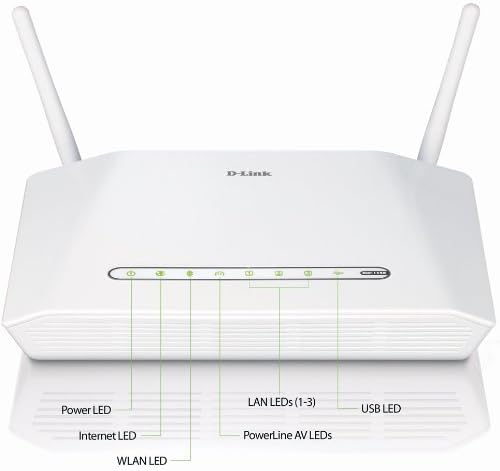
รูปที่ 4: ไฟ LED ที่แผงด้านหน้า
This image displays the front panel of the DHP-1320, with labels pointing to the Power LED, Internet LED, WLAN LED, LAN LEDs (1-3), PowerLine AV LEDs, and USB LED, indicating their respective statuses.
| นำ | สถานะ | คำอธิบาย |
|---|---|---|
| พลัง | สีเขียวทึบ | อุปกรณ์เปิดอยู่ |
| อินเทอร์เน็ต | สีเขียวทึบ | เชื่อมต่ออินเตอร์เน็ต |
| ไฟกระพริบสีเขียว | Data activity on the Internet port. | |
| ไว-แลน | สีเขียวทึบ | เครือข่ายไร้สายทำงานอยู่ |
| ไฟกระพริบสีเขียว | กิจกรรมข้อมูลไร้สาย | |
| แลน (1-3) | สีเขียวทึบ | Device connected to corresponding LAN port. |
| ไฟกระพริบสีเขียว | Data activity on corresponding LAN port. | |
| PowerLine AV | สีเขียวทึบ | PowerLine AV network is active and connected. |
| ไฟกระพริบสีเขียว | PowerLine AV data activity or pairing mode. | |
| ยูเอสบี | สีเขียวทึบ | USB device connected and recognized. |
3.2 Router Modes (AP/RT Switch)
The DHP-1320 features an AP/RT switch on its rear panel, allowing you to select its operational mode:
- RT (Router) Mode: In this mode, the DHP-1320 acts as a primary router, providing network address translation (NAT) and DHCP services. Connect your modem to the Internet port.
- โหมด AP (Access Point): In this mode, the DHP-1320 functions as a wireless access point, extending an existing network. Connect it to a LAN port of your main router.
Note: Change the AP/RT switch position only when the device is powered off to prevent potential configuration issues.
4. การบำรุงรักษา
Proper maintenance ensures optimal performance and longevity of your DHP-1320 router.
4.1 การทำความสะอาด
- ตรวจสอบให้แน่ใจว่าอุปกรณ์ปิดอยู่และถอดปลั๊กออกก่อนทำความสะอาด
- ใช้ผ้าแห้งนุ่มเช็ดทำความสะอาดภายนอกเราเตอร์
- ห้ามใช้น้ำยาทำความสะอาดหรือสเปรย์แอโรซอล เพราะอาจทำให้เครื่องเสียหายได้
- Keep ventilation openings clear of dust and obstructions.
การอัปเดตเฟิร์มแวร์ 4.2 รายการ
Periodically check the D-Link support website for firmware updates. Firmware updates can improve performance, add new features, and fix bugs. Refer to the D-Link website for instructions on how to update the firmware.
4.3 การรีเซ็ตเราเตอร์
If you encounter persistent issues or forget your login credentials, you may need to reset the router to its factory default settings.
- เมื่อเราเตอร์เปิดอยู่ ให้ค้นหา รีเซ็ต button on the rear panel (refer to Figure 2).
- Use a paperclip or a similar pointed object to press and hold the RESET button for approximately 10 seconds.
- Release the button when the Power LED begins to flash or all LEDs briefly illuminate.
- The router will reboot with factory default settings. You will need to reconfigure your network settings.
5 การแก้ไขปัญหา
This section addresses common issues you might encounter with your DHP-1320 router.
5.1 ไม่มีการเชื่อมต่ออินเทอร์เน็ต
- ตรวจสอบสายเคเบิล: Ensure the Ethernet cable from your modem is securely connected to the DHP-1320's อินเทอร์เน็ต ท่าเรือ.
- สถานะโมเด็ม: ตรวจสอบว่าโมเด็มของคุณทำงานถูกต้องและมีการเชื่อมต่ออินเทอร์เน็ตที่ใช้งานได้
- โหมดเราเตอร์: Confirm the AP/RT switch is set to RT (Router) mode if the DHP-1320 is your primary router.
- รีบูตอุปกรณ์: Power cycle your modem, then the DHP-1320, and then your connected devices.
- ไฟ LED อินเทอร์เน็ต: Check if the Internet LED on the front panel is solid green. If not, there might be an issue with your internet service provider or modem connection.
5.2 ปัญหาการเชื่อมต่อ Wi-Fi
- ไฟ LED แบบไร้สาย: Ensure the WLAN LED is solid or flashing green. If off, Wi-Fi may be disabled.
- SSID และรหัสผ่าน: โปรดตรวจสอบให้แน่ใจว่าคุณเชื่อมต่อกับเครือข่าย Wi-Fi (SSID) ที่ถูกต้องและป้อนรหัสผ่านที่ถูกต้อง
- ความแรงของสัญญาณ: ลองขยับเข้าไปใกล้เราเตอร์มากขึ้นเพื่อตรวจสอบว่าความแรงของสัญญาณเป็นปัญหาหรือไม่
- การรบกวน: Other wireless devices or appliances can cause interference. Try changing the Wi-Fi channel in the router's settings.
5.3 PowerLine AV Network Not Connecting
- PowerLine AV LED: Check if the PowerLine AV LED on both devices is solid green. If not, they are not paired or connected.
- Electrical Outlets: Ensure both PowerLine devices are plugged directly into wall outlets, not power strips or surge protectors.
- กระบวนการจับคู่: Re-attempt the PowerLine AV pairing process as described in Section 2.3.
- วงจรไฟฟ้า: PowerLine devices work best when on the same electrical circuit. Large appliances or circuit breakers can affect performance.
5.4 Router Requires Frequent Resets
If your router frequently requires reboots or resets to restore functionality, consider the following:
- เฟิร์มแวร์: ตรวจสอบให้แน่ใจว่าเฟิร์มแวร์ของเราเตอร์ของคุณเป็นเวอร์ชันล่าสุด
- ความร้อนสูงเกินไป: Ensure the router has adequate ventilation and is not placed in an enclosed space.
- แหล่งจ่ายไฟ: Verify the power adapter is the original D-Link adapter and is functioning correctly.
- โหลดเครือข่าย: Excessive network traffic or too many connected devices might strain the router.
- รีเซ็ตเป็นค่าเริ่มต้นจากโรงงาน: As a last resort, perform a factory reset (Section 4.3) and reconfigure the settings carefully.
6. ข้อมูลจำเพาะ
Detailed technical specifications for the D-Link DHP-1320 Wireless-N PowerLine Router.

รูปที่ 5: ข้อมูลจำเพาะทางเทคนิคview
ภาพนี้แสดงให้เห็นภาพรวมview of the DHP-1320's technical specifications and a diagram illustrating a typical network setup using PowerLine AV technology.
| คุณสมบัติ | คำอธิบาย |
|---|---|
| ยี่ห้อ | ดีลิงค์ |
| ชื่อรุ่น | ดีเอชพี-1320 |
| ไร้มาตรฐาน | 802.11g/n (Wi-Fi 4) |
| ย่านความถี่ | แบนด์เดียว (2.4 GHz) |
| Wi-Fi Throughput | สูงสุดถึง 300 Mbps |
| PowerLine AV Throughput | สูงสุดถึง 200 Mbps |
| เทคโนโลยีการเชื่อมต่อ | Wireless, Wired (Ethernet, HomePlug) |
| พอร์ตอีเทอร์เน็ต | 3 x 10/100 Mbps LAN, 1 x 10/100 Mbps WAN (Internet) |
| พอร์ต USB | 1 x USB (for printer or storage device) |
| โปรโตคอลความปลอดภัย | WPA, WPA2, WPS, 128-bit AES Encryption (PowerLine) |
| อุปกรณ์ที่รองรับ | Gaming Console, Laptop, Personal Computer |
| การใช้ที่แนะนำ | Gaming, Home, Office |
| ระบบปฏิบัติการ | D-Link OS |
| น้ำหนักสินค้า | 1.02 ปอนด์ (ประมาณ 0.46 กก.) |
| Is Modem Compatible | No (Functions as a router, requires a separate modem) |
| ผู้ผลิต | ดี-ลิงค์ ซิสเต็มส์ อิงค์ |
| Model Number (Mfr Part Number) | ดีเอชพี-1320 |
| UPC / GTIN | 115971261906, 163120603176, 790069339219 |
7. ข้อมูลการรับประกัน
The D-Link DHP-1320 Wireless-N PowerLine Router comes with a รับประกันจำกัด 1 ปี.
For detailed terms and conditions of the warranty, please refer to the warranty card included with your product or visit the official D-Link website. This warranty covers defects in materials and workmanship under normal use.
8. การสนับสนุนด้านเทคนิค
If you require further assistance or encounter issues not covered in this manual, please contact D-Link Technical Support.
- การสนับสนุนทางออนไลน์: Visit the official D-Link support website for FAQs, troubleshooting guides, firmware downloads, and contact information.
- Webเว็บไซต์: www.dlink.com
Please have your product model number (DHP-1320) and serial number ready when contacting support.