
1. บทนำ
Thank you for choosing the LiteOn eSAU108-97 External Recording DVD Drive. This portable optical drive offers reliable DVD and CD reading and writing capabilities, powered conveniently via a single USB connection. It is designed for use with laptops and other compatible devices, providing a compact and efficient solution for your optical media needs.
โปรดอ่านคู่มือนี้อย่างละเอียดก่อนใช้งานอุปกรณ์ เพื่อให้มั่นใจได้ว่าอุปกรณ์จะทำงานได้อย่างถูกต้องและยืดอายุการใช้งานให้ยาวนานที่สุด
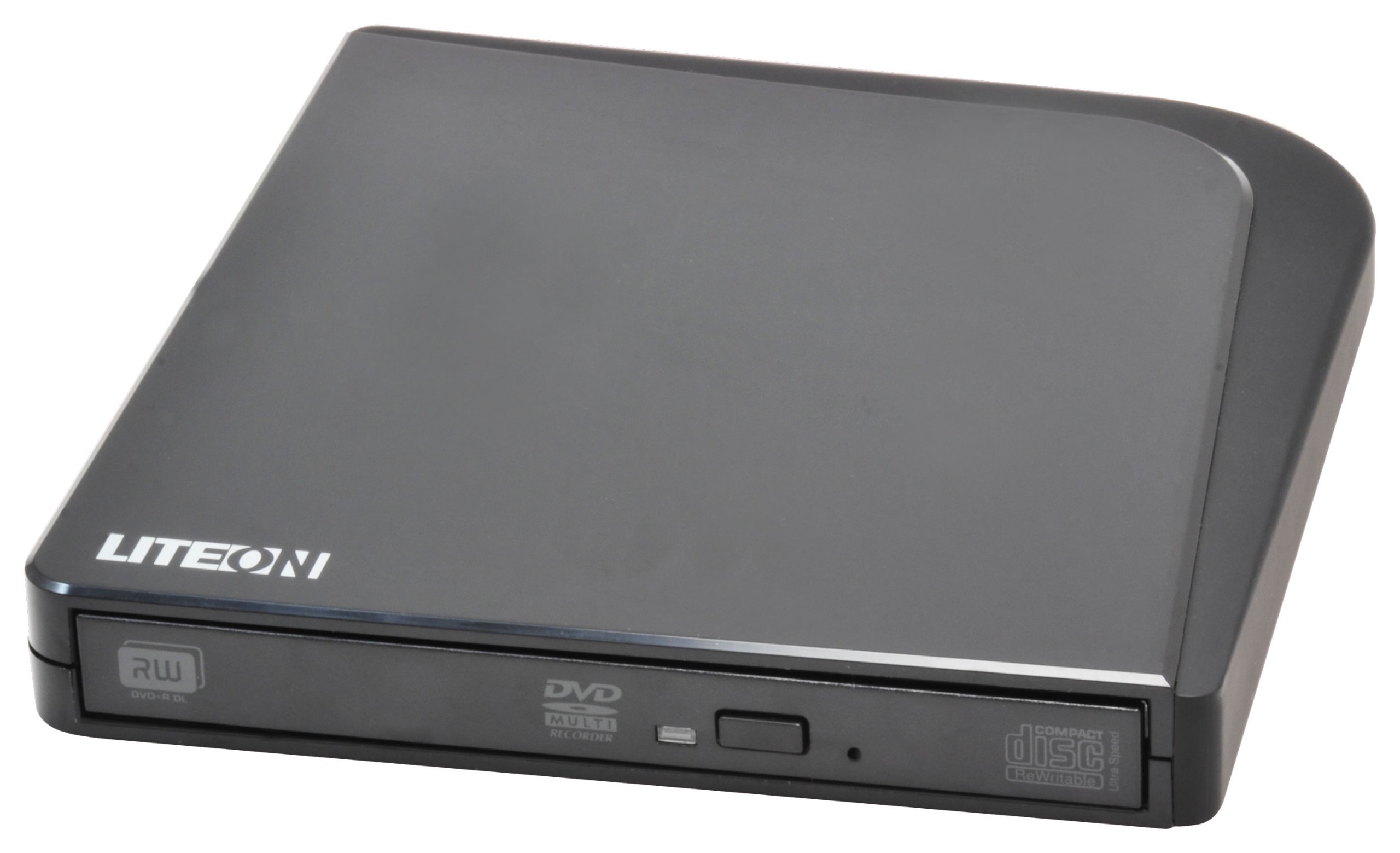
รูปที่ 1: LiteOn eSAU108-97 External Recording DVD Drive. This image displays the compact, black external DVD drive, highlighting its sleek design and the USB port for connectivity.
2. เนื้อหาบรรจุภัณฑ์
โปรดตรวจสอบสิ่งของภายในบรรจุภัณฑ์อย่างละเอียด หากมีสินค้าใดสูญหายหรือเสียหาย โปรดติดต่อผู้ค้าปลีกของคุณทันที
- LiteOn eSAU108-97 External Recording DVD Drive
- USB Data/Power Cable
- คู่มือการเริ่มต้นฉบับย่อ (คู่มือนี้)
3. การตั้งค่า
3.1 ข้อกำหนดของระบบ
- Operating System: Windows XP/Vista/7/8/10/11, macOS 10.x or later, Linux (kernel 2.6 or later)
- มีพอร์ต USB 2.0 หรือ 3.0 ให้เลือกใช้
- RAM ขั้นต่ำ 512MB
- Minimum 10GB free hard disk space (for disc burning software and temporary files)
3.2 การเชื่อมต่อไดรฟ์
- Locate an available USB port on your laptop or computer.
- Connect the smaller end of the provided USB cable to the USB port on the LiteOn eSAU108-97 drive.
- เสียบปลายสาย USB ด้านที่ใหญ่กว่าเข้ากับพอร์ต USB บนคอมพิวเตอร์ของคุณ
- The drive is bus-powered, meaning it draws power directly from the USB port. No external power adapter is required.
- ระบบปฏิบัติการของคุณควรตรวจจับและติดตั้งไดรเวอร์ที่จำเป็นโดยอัตโนมัติ กระบวนการนี้อาจใช้เวลาสักครู่
3.3 การติดตั้งไดรเวอร์
The LiteOn eSAU108-97 is a plug-and-play device. Most modern operating systems will automatically install the required drivers upon connection. No manual driver installation is typically needed. If the drive is not recognized, try connecting it to a different USB port or restarting your computer.
4. การใช้งานไดรฟ์
4.1 Loading a Disc
- กดปุ่มดีดแผ่นที่ด้านหน้าของไดรฟ์เพื่อเปิดถาดใส่แผ่น
- Carefully place a CD or DVD onto the tray with the label side facing up. Ensure the disc is centered on the spindle.
- ค่อยๆ ดันถาดใส่แผ่นดิสก์กลับเข้าไปในไดรฟ์จนกระทั่งปิดสนิท อย่าฝืนดันถาดใส่แผ่นดิสก์
4.2 Playing/Reading Discs
Once a disc is loaded, your operating system may automatically prompt you to choose an action (e.g., play a movie, open files). If not, navigate to 'My Computer' or 'This PC' (Windows) or 'Finder' (macOS), locate the optical drive icon, and double-click it to access the disc's contents.
4.3 Recording/Burning Discs
To record data, music, or video onto a blank CD-R/RW or DVD-R/RW disc, you will need compatible disc burning software (e.g., Windows Media Player, Nero, Roxio, or built-in macOS utilities). Follow the instructions provided with your chosen software to perform burning operations.
4.4 การดีดแผ่นดิสก์ออก
- การดีดซอฟต์แวร์: Right-click on the drive icon in 'My Computer'/'This PC' or 'Finder' and select 'Eject'.
- การดีดออกด้วยมือ: กดปุ่มดีดแผ่นที่ด้านหน้าของไดรฟ์
- การดีดตัวฉุกเฉิน: In case of power failure or if the eject button does not work, locate the small pinhole on the front of the drive. Insert a straightened paperclip into the pinhole and push gently until the tray partially opens. Then, pull the tray out manually.
5. การบำรุงรักษา
5.1 การทำความสะอาดไดรฟ์
Keep the drive clean and free from dust. Use a soft, dry, lint-free cloth to wipe the exterior. Do not use liquid cleaners or abrasive materials. Avoid opening the drive casing, as this can damage internal components and void your warranty.
5.2 แผ่นทำความสะอาด
Always handle discs by their edges. If a disc is dirty, gently wipe it from the center outwards with a soft, lint-free cloth. Do not use circular motions, as this can cause scratches. For stubborn smudges, use a specialized disc cleaning solution.
5.3 พื้นที่จัดเก็บ
When not in use, store the drive in a cool, dry place, away from direct sunlight, extreme temperatures, and high humidity. Keep it protected from dust and physical impact.
6 การแก้ไขปัญหา
| ปัญหา | สาเหตุที่เป็นไปได้ | สารละลาย |
|---|---|---|
| คอมพิวเตอร์ไม่รู้จักไดรฟ์ | Loose USB connection, insufficient power, driver issue, faulty USB port. | Ensure USB cable is securely connected. Try a different USB port. Restart your computer. Check Device Manager (Windows) or System Information (macOS) for the drive. |
| Disc not reading/writing | Dirty or scratched disc, incorrect disc type, faulty disc, drive lens dirty, incompatible software. | Clean the disc. Try a different disc. Ensure the disc type is compatible (CD-R/RW, DVD-R/RW). Use appropriate burning software. |
| ถาดใส่แผ่นดิสก์ไม่เปิด/ปิด | Obstruction, mechanical issue, power issue. | Check for obstructions. Ensure the drive is powered (connected via USB). Use the emergency eject hole if necessary. |
| ประสิทธิภาพการทำงานช้า | USB 1.1 port, background processes, fragmented hard drive. | Connect to a USB 2.0 or 3.0 port. Close unnecessary applications. Ensure your computer meets system requirements. |
7. ข้อมูลจำเพาะ
- แบบอย่าง: eSAU108-97
- อินเทอร์เฟซ: ยูเอสบี 2.0 (เข้ากันได้กับยูเอสบี 3.0)
- พิมพ์: External Portable DVD Drive
- แพลตฟอร์มฮาร์ดแวร์: แล็ปท็อป
- น้ำหนักสินค้า: ประมาณ 1.2 ปอนด์ (0.54 กก.)
- ขนาดแพ็คเกจ: 8.27 x 7.72 x 2.87 นิ้ว (21 x 19.6 x 7.3 ซม.)
- สี: สีดำ
- ขนาดแคช: 2MB
- พลัง: ใช้พลังงานจากบัส USB
- รูปแบบดิสก์ที่รองรับ: DVD-ROM, DVD-R, DVD-RW, DVD+R, DVD+RW, CD-ROM, CD-R, CD-RW
8. การรับประกันและการสนับสนุน
LiteOn products are designed and manufactured to the highest quality standards. This product is covered by a limited warranty from the date of purchase. Please refer to the warranty card included in your package or visit the official LiteOn webเว็บไซต์สำหรับข้อกำหนดและเงื่อนไขการรับประกันโดยละเอียด
For technical support, troubleshooting assistance, or service inquiries, please visit the LiteOn support website or contact their customer service department. Contact information can typically be found on the official LiteOn webไซต์หรือในบรรจุภัณฑ์ผลิตภัณฑ์ของคุณ