
1. บทนำ
This manual provides essential instructions for the safe and efficient use of your FSP ATX-300PA 300W ATX Power Supply. Please read this manual thoroughly before installation and operation to ensure proper functionality and to prevent damage to the unit or other components. Keep this manual for future reference.
2. ข้อมูลด้านความปลอดภัย
ปฏิบัติตามข้อควรระวังด้านความปลอดภัยต่อไปนี้เพื่อป้องกันการบาดเจ็บหรือความเสียหาย:
- Always disconnect the power cord from the wall outlet before installing, removing, or servicing the power supply.
- ห้ามเปิดแหล่งจ่ายไฟ casinก. ปริมาตรสูงtage components are present inside, which can cause electric shock. There are no user-serviceable parts within.
- Ensure proper ventilation around the power supply to prevent overheating. Do not block any ventilation openings.
- Use the power supply only in dry environments. Avoid exposure to moisture, humidity, or liquids.
- This product is designed for internal computer use only. Do not use it for any other purpose.
- Ensure the power supply is compatible with your system's motherboard and components before installation.
3. การตั้งค่าและการติดตั้ง
Follow these steps to install the FSP ATX-300PA power supply into your computer system:
- เตรียมระบบของคุณ: ปิดคอมพิวเตอร์และถอดสายไฟออกจากเต้ารับ เปิดเคสคอมพิวเตอร์ของคุณ
- ถอดแหล่งจ่ายไฟเก่าออก (ถ้ามี): Disconnect all power cables from the motherboard, graphics card, and other components. Unscrew and remove the old power supply from the case.
- ติดตั้งแหล่งจ่ายไฟใหม่: Carefully place the FSP ATX-300PA into the power supply bay of your computer case. Ensure the fan is oriented correctly for optimal airflow (typically facing downwards or inwards, depending on case design). Secure the power supply with screws provided with your computer case.
- เชื่อมต่อพลังงานเมนบอร์ด: Connect the main 20+4 pin ATX power connector to the corresponding socket on your motherboard. Ensure it clicks into place.
- เชื่อมต่อพลังงาน CPU: Connect the 4-pin (or 4+4 pin) CPU power connector to the CPU power socket on your motherboard.
- เชื่อมต่อแหล่งจ่ายไฟอุปกรณ์ต่อพ่วง: Connect SATA power connectors to your hard drives, SSDs, and optical drives. Connect Molex connectors to any other peripherals that require them.
- เชื่อมต่อสายไฟของการ์ดจอ (ถ้ามี): If your graphics card requires additional power, connect the appropriate PCIe power connectors from the power supply.
- การจัดการสายเคเบิล: Route cables neatly to improve airflow and aesthetics within the case.
- ปิดเคสและเชื่อมต่อพลังงาน: Close your computer case. Connect the AC power cord to the power supply's input socket and then to a wall outlet or surge protector.
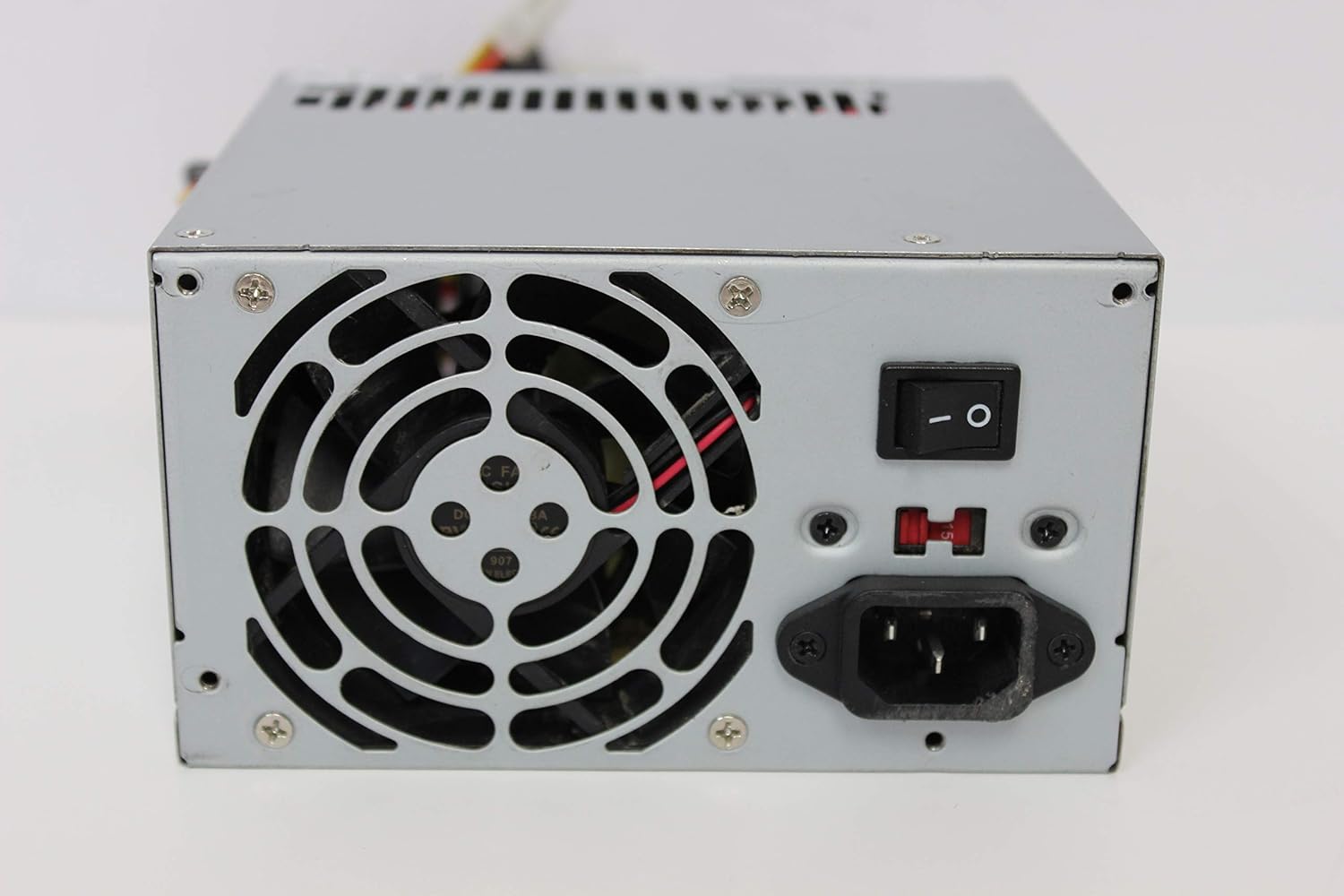
ภาพ: ด้านหลัง view of the FSP ATX-300PA power supply. This image displays the rear panel of the FSP ATX-300PA power supply. Visible components include the AC power input socket, the main power on/off switch, and the exhaust fan grille. A fuse holder is also present.

Image: Power connectors of the FSP ATX-300PA. This image shows a selection of power cables and connectors extending from the FSP ATX-300PA power supply. The prominent connector is the 20+4 pin ATX motherboard power connector, alongside several peripheral power connectors (e.g., Molex, SATA, 4-pin CPU).
4. คู่มือการใช้งาน
Once the power supply is correctly installed and all connections are secure:
- Ensure the power switch on the rear of the power supply is in the "ON" (I) position.
- กดปุ่มเปิด/ปิดบนเคสคอมพิวเตอร์ของคุณเพื่อเริ่มระบบ
- The power supply will provide stable power to all connected components.
5. การบำรุงรักษา
การบำรุงรักษาตามปกติจะช่วยให้แหล่งจ่ายไฟของคุณมีอายุการใช้งานยาวนานและมีประสิทธิภาพเหมาะสมที่สุด:
- การทำความสะอาดฝุ่น: Periodically (e.g., every 6-12 months), disconnect the power supply from the wall outlet and open your computer case. Use compressed air to gently remove dust buildup from the power supply's fan and vents. Hold the fan blades to prevent them from spinning excessively during cleaning.
- การตรวจสอบพัดลม: Check the power supply fan for any obstructions or unusual noises. A clean, unobstructed fan is crucial for effective cooling.
- ตรวจสอบสายเคเบิล: Ensure all power cables remain securely connected to their respective components.
คำเตือน: Do not attempt to lubricate or disassemble the power supply fan. Do not open the power supply casing ด้วยเหตุผลใดก็ตาม
6 การแก้ไขปัญหา
If you encounter issues with your FSP ATX-300PA power supply, consider the following troubleshooting steps:
- ไม่มีไฟเข้าระบบ:
- ตรวจสอบให้แน่ใจว่าสายไฟ AC เชื่อมต่อกับแหล่งจ่ายไฟและเต้ารับที่ผนังอย่างแน่นหนา
- Verify that the power switch on the rear of the power supply is in the "ON" (I) position.
- ตรวจสอบว่าปลั๊กไฟใช้งานได้หรือไม่โดยลองเสียบอุปกรณ์อื่นเข้าไป
- Confirm all internal power connectors (20+4 pin ATX, CPU, peripherals) are firmly seated.
- ระบบไม่เสถียรหรือปิดเครื่องเองโดยไม่ทราบสาเหตุ:
- ตรวจสอบให้แน่ใจว่าแหล่งจ่ายไฟมีการระบายอากาศที่เพียงพอและไม่เกิดความร้อนสูงเกินไป
- Verify that the total power draw of your components does not exceed the power supply's 300W capacity.
- Check for loose connections to any components.
- เสียงที่ผิดปกติ:
- If you hear grinding or rattling, it may indicate a fan issue. Disconnect power and inspect the fan for obstructions. Do not attempt to repair the fan yourself.
If issues persist after performing these checks, it may indicate a faulty power supply or another component. Consider professional diagnosis.
7. ข้อมูลจำเพาะ
| ยี่ห้อ | FSP |
| หมายเลขรุ่น | ATX-300PA |
| เอาท์พุต วัดtage | 300 วัตต์ |
| ฟอร์มแฟกเตอร์ | เอทีเอ็กซ์ |
| ประเภทขั้วต่อ | เอทีเอ็กซ์ |
| ยูพีซี | 754031288653 |
| ผู้ผลิต | FSP GROUP INC. |
8. การรับประกันและการสนับสนุน
For detailed warranty information, technical support, or service inquiries regarding your FSP ATX-300PA power supply, please refer to the official FSP Group INC. webเยี่ยมชมเว็บไซต์หรือติดต่อฝ่ายบริการลูกค้าโดยตรง เงื่อนไขการรับประกันอาจแตกต่างกันไปตามภูมิภาคและวันที่ซื้อ