
1. บทนำ
This manual provides detailed instructions for the proper setup, operation, and maintenance of your Veho VMS-004 Discovery Deluxe USB Microscope. Please read this manual thoroughly before using the device to ensure optimal performance and longevity.
The Veho VMS-004 is a versatile USB microscope designed for detailed observation and digital capture of magnified images and videos. It features up to 400x magnification, a 2.0 Megapixel CMOS lens, and adjustable LED illumination, making it suitable for various applications including educational, hobbyist, and professional use.
2. ข้อมูลด้านความปลอดภัย
- อย่าถอดแยกชิ้นส่วน: Attempting to disassemble or modify the microscope may cause damage and void the warranty.
- หลีกเลี่ยงแสงแดดโดยตรง: Do not expose the microscope to direct sunlight or high temperatures.
- จัดการด้วยความระมัดระวัง: The lens and internal components are delicate. Avoid dropping or subjecting the device to strong impacts.
- ให้แห้ง: อุปกรณ์นี้ไม่กันน้ำ โปรดหลีกเลี่ยงการสัมผัสน้ำหรือความชื้นสูง
- แหล่งพลังงาน : Use only the specified USB power source.
- เด็ก: Keep out of reach of small children. Adult supervision is recommended during use.
3. เนื้อหาบรรจุภัณฑ์
ตรวจสอบว่ามีรายการทั้งหมดอยู่ในแพ็คเกจของคุณ:
- Veho VMS-004 Discovery Deluxe USB Microscope
- Flexi Alloy Stand
- Software CD (for drivers and application)
- คู่มือการใช้งาน (เอกสารนี้)
4. สินค้าหมดview
Familiarize yourself with the main components of the Veho VMS-004 microscope.

Figure 4.1: The Veho VMS-004 Discovery Deluxe USB Microscope mounted on its flexi alloy stand.
- ตัวกล้องจุลทรรศน์: Contains the lens, CMOS sensor, and illumination LEDs.
- โฟกัสล้อ: Located on the microscope body, used to adjust the focus for clear images.
- ปุ่มสแนปชอต: A button on the microscope body for capturing still images.
- LED Illumination Control: A small wheel or dial to adjust the brightness of the built-in LEDs.
- สาย USB: For connecting the microscope to your computer.
- Flexi Alloy Stand: Provides a stable base and adjustable positioning for the microscope.

รูปที่ 4.2: ระยะใกล้ view of the focus wheel and magnification markings on the microscope body.

รูปที่ 4.3 : ด้านหน้า view of the microscope lens, showing the integrated LED illumination ring.
5. การตั้งค่า
5.1 ชุดขาตั้ง
The flexi alloy stand provides stability and allows for precise positioning of the microscope.
- Attach the microscope holder to the flexible arm of the stand.
- Secure the microscope into the holder. Ensure it is firmly seated but not overly tightened to avoid damage.
- วางขาตั้งบนพื้นผิวเรียบและมั่นคง
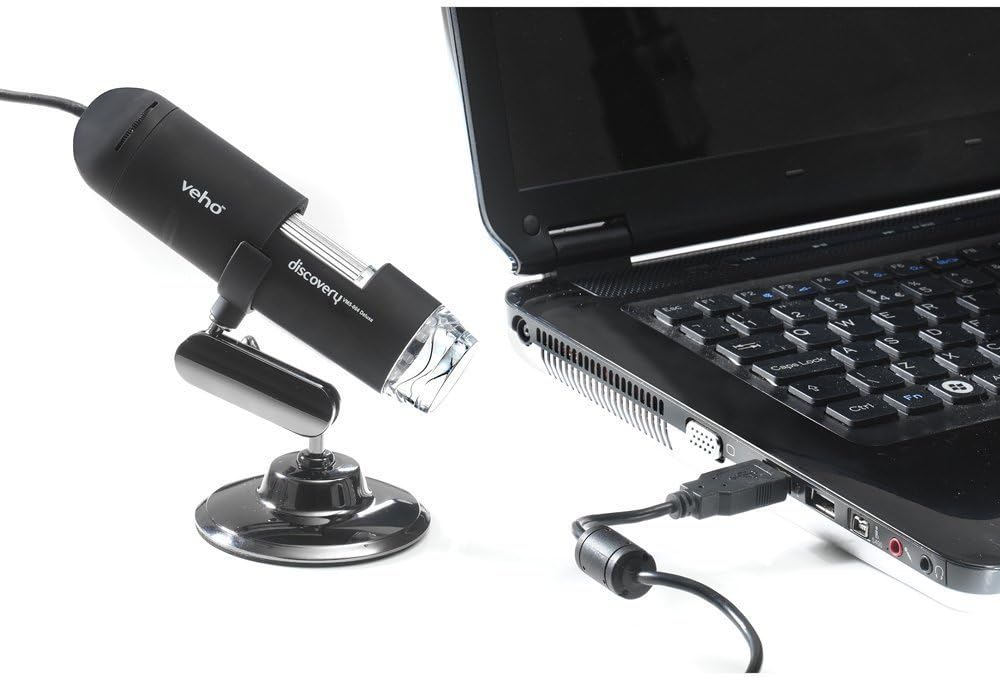
Figure 5.1: The microscope securely mounted on its flexi alloy stand.
5.2 การติดตั้งซอฟต์แวร์
The Veho VMS-004 requires driver and software installation for full functionality on your computer (PC or Mac compatible).
- Insert the provided software CD into your computer's CD/DVD drive. If your computer does not have a CD drive, please visit the official Veho support website to download the necessary drivers and software.
- Follow the on-screen instructions to install the drivers and the accompanying application.
- หากหลังจากติดตั้งเสร็จแล้ว ให้รีสตาร์ทคอมพิวเตอร์ของคุณ
5.3 การเชื่อมต่อกล้องจุลทรรศน์
Once the software is installed, connect the microscope to your computer.
- Plug the USB cable of the microscope into an available USB port on your computer.
- The computer should automatically detect the device.
- Launch the installed microscope application. You should see a live feed from the microscope's camera.

Figure 5.2: The USB microscope connected to a laptop, ready for use.
6. คู่มือการใช้งาน
6.1 Placing the Object
Position the object you wish to observe directly beneath the microscope lens. Adjust the flexible stand to bring the lens close to the object.

Figure 6.1: The microscope positioned over a coin for observation.
6.2 การปรับกำลังขยายและโฟกัส
The microscope offers up to 400x digital magnification. To achieve a clear image:
- Adjust the distance between the microscope lens and the object using the flexible stand.
- Rotate the focus wheel on the microscope body until the image on your computer screen is sharp and clear.
- บันทึก: The effective magnification changes with the distance from the object and the focus setting.
6.3 การควบคุมแสงสว่างของไฟ LED
The microscope features built-in LEDs to illuminate your subject. To adjust the brightness:
- Locate the LED illumination control (a small wheel or dial) on the microscope cable or body.
- Rotate the control to increase or decrease the LED brightness as needed for optimal viewการไอเอ็นจี
6.4 การบันทึกภาพนิ่งและวิดีโอ
The included software allows you to capture still images and record videos.
- ภาพนิ่ง: Press the snapshot button on the microscope body or click the capture button within the software interface.
- การบันทึกวิดีโอ: Use the record function within the software application to start and stop video capture.
- ถูกจับ files are typically saved to a default folder on your computer, which can usually be configured within the software settings.
6.5 Measurement Software
The accompanying software includes measurement capabilities. Refer to the software's help documentation for detailed instructions on how to calibrate and use the measurement tools. For accurate measurements, it is recommended to use a known reference scale in your image.
7. การบำรุงรักษา
- การทำความสะอาดเลนส์: ใช้ผ้านุ่มไม่เป็นขุยที่ออกแบบมาสำหรับเลนส์สายตาโดยเฉพาะ ห้ามใช้น้ำยาทำความสะอาดหรือตัวทำละลายที่มีฤทธิ์กัดกร่อน
- ทำความสะอาดร่างกาย: เช็ดตัวกล้องจุลทรรศน์และฐานรองด้วยผ้าแห้งหรือผ้าชุบน้ำหมาดๆamp,ผ้าเนื้อนุ่ม.
- พื้นที่จัดเก็บ: When not in use, store the microscope in a clean, dry, and dust-free environment.
- การอัปเดตซอฟต์แวร์: Periodically check the Veho official website for software and driver updates to ensure compatibility and optimal performance.
8 การแก้ไขปัญหา
| ปัญหา | สาเหตุที่เป็นไปได้ | สารละลาย |
|---|---|---|
| No image on screen / Device not detected |
|
|
| ภาพเบลอหรือไม่ชัด |
|
|
| ภาพมืดหรือสว่างเกินไป |
|
|
| Magnification does not appear to be 400x |
|
|
9. ข้อมูลจำเพาะ
| หมายเลขรุ่น | VMS-004D |
| การขยายภาพ | Up to x400 (digital) |
| เลนส์ | CMOS 2.0 ล้านพิกเซล |
| การส่องสว่าง | On/Off LEDs (adjustable brightness) |
| ที่อยู่อาศัย | Tacton Rubber Touch |
| ยืน | Flexi Alloy Stand |
| การเชื่อมต่อ | ยูเอสบี |
| ความเข้ากันได้ | เข้ากันได้กับ PC และ Mac |
| ขนาดสินค้า | 13.46 x 10.92 x 22.35 ซม. |
| น้ำหนักสินค้า | 159 กรัม |
| เล่มที่tage | 5 โวลต์ (ใช้พลังงานจาก USB) |
| ประเภทแหล่งกำเนิดแสง | ฮาโลเจน |
| มุมจริงของ View | 30 องศา |
10. การรับประกันและการสนับสนุน
For warranty information, technical support, or service inquiries, please refer to the warranty card included with your product or visit the official Veho webไซต์นี้ โปรดเก็บหลักฐานการซื้อไว้เพื่อใช้ยืนยันการรับประกัน
Veho Official Webเว็บไซต์: www.veho-world.com