
การแนะนำ
The Iomega Prestige Desktop Hard Drive USB 2.0 offers a simple and reliable solution for expanding your storage capacity. This manual provides essential information for setting up, operating, and maintaining your device.

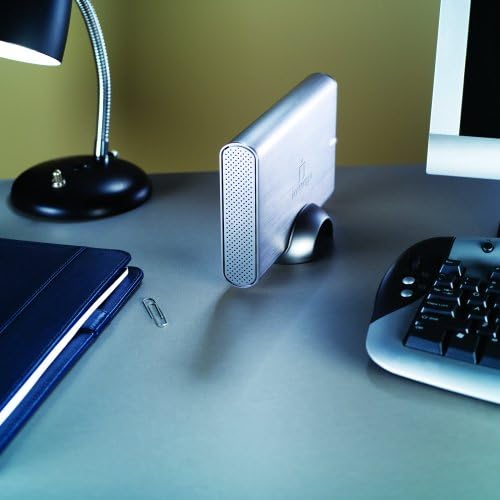
Image: The Iomega Prestige 500 GB External Hard Drive, silver, standing upright on a desk with its included stand, positioned next to a computer monitor, lamp, and keyboard.
เนื้อหาแพ็คเกจ
- Iomega Prestige 500 GB USB 2.0 Desktop External Hard Drive
- สายเคเบิล USB 2.0
- อะแดปเตอร์แปลงไฟ
- เดสก์ท็อป
- คู่มือเริ่มต้นอย่างรวดเร็ว
คุณสมบัติผลิตภัณฑ์
- ความจุ: 500 GB for ampการจัดเก็บข้อมูล
- อินเทอร์เฟซ: USB 2.0 for broad compatibility.
- ออกแบบ: Stylish dark silver brushed aluminum construction with included stand for vertical placement.
- ความสะดวกในการใช้งาน: ใช้งานง่าย เพียงเสียบปลั๊กก็ใช้งานได้ทันที
- พลัง: External power adapter for stable operation.
ภาพ: ด้านหน้า view of the Iomega Prestige External Hard Drive, showcasing its brushed silver finish and the Iomega logo, with the stand visible at the bottom.
การตั้งค่า
1. การเชื่อมต่อทางกายภาพ
- Place the hard drive on a stable, flat surface, or use the included stand for vertical orientation. Ensure adequate ventilation.
- Connect the power adapter to the hard drive's power input port and then plug it into a wall outlet.
- Connect one end of the USB 2.0 cable to the USB port on the hard drive.
- เสียบปลายอีกด้านของสาย USB 2.0 เข้ากับพอร์ต USB ที่ว่างอยู่บนคอมพิวเตอร์ของคุณ
- Press the power button on the hard drive to turn it on. The power indicator light should illuminate.
2. Initial Setup (Windows/macOS)
The drive is pre-formatted for Windows. For macOS, reformatting is required.
สำหรับ Windows:
The drive should be automatically detected and appear as a new drive letter in "My Computer" or "This PC". No additional drivers are typically required.
สำหรับ macOS:
- Connect the drive as described above.
- เปิด "Disk Utility" (แอปพลิเคชัน > ยูทิลิตี้ > Disk Utility)
- Select the Iomega drive from the sidebar.
- Click "Erase".
- Choose a format (e.g., "Mac OS Extended (Journaled)") and a scheme (e.g., "GUID Partition Map").
- คลิก "ลบ" อีกครั้งเพื่อยืนยัน Warning: This will delete all data on the drive.
การใช้งานอุปกรณ์
1. การโอนข้อมูล
การถ่ายโอน files, simply drag and drop them to and from the Iomega drive icon on your computer. You can also use copy and paste functions.
2. การเคลื่อนย้ายอย่างปลอดภัย
Always safely eject the hard drive before disconnecting it or turning off its power to prevent data corruption.
สำหรับ Windows:
- Click the "Safely Remove Hardware and Eject Media" icon in the system tray.
- Select the Iomega drive from the list.
- Wait for the "Safe to Remove Hardware" message before disconnecting.
สำหรับ macOS:
- Drag the Iomega drive icon from your desktop to the Trash icon in the Dock (the Trash icon will change to an Eject icon).
- Alternatively, right-click (or Control-click) the drive icon and select "Eject".
การซ่อมบำรุง
- การดูแลทางกายภาพ: Keep the drive in a clean, dry environment. Avoid extreme temperatures and direct sunlight.
- การระบายอากาศ : Ensure the drive's ventilation holes are not obstructed to prevent overheating.
- การสำรองข้อมูล: Regularly back up critical data from your external drive to another location to prevent data loss.
- อัพเดตเฟิร์มแวร์: Check the official Iomega support webเว็บไซต์สำหรับอัพเดตเฟิร์มแวร์ที่มีสำหรับรุ่นของคุณ
การแก้ไขปัญหา
ไม่พบไดรฟ์:
- ตรวจสอบให้แน่ใจว่าอะแดปเตอร์ไฟฟ้าเชื่อมต่ออย่างแน่นหนาและไดรฟ์เปิดอยู่
- ตรวจสอบให้แน่ใจว่าสาย USB เชื่อมต่อกับฮาร์ดไดรฟ์และคอมพิวเตอร์อย่างแน่นหนาแล้ว
- ลองใช้พอร์ต USB อื่นบนคอมพิวเตอร์ของคุณ
- ทดสอบด้วยสาย USB อื่นหากมี
- รีสตาร์ทเครื่องคอมพิวเตอร์ของคุณ
ความเร็วในการถ่ายโอนข้อมูลช้า:
- Ensure you are using a USB 2.0 port on your computer.
- หลีกเลี่ยงการโอนย้ายขนาดเล็กจำนวนมาก files simultaneously; compressing them into an archive can improve speed.
- ปิดแอปพลิเคชันอื่น ๆ ที่อาจใช้ทรัพยากรระบบ
ระบบขับเคลื่อนมีเสียงผิดปกติ:
A slight hum is normal. However, if you hear clicking, grinding, or loud scraping sounds, immediately back up any accessible data and discontinue use. Contact support if necessary.
ข้อมูลจำเพาะ
| หมายเลขรุ่น | 34270 |
| ความจุในการเก็บข้อมูลแบบดิจิตอล | 500GB |
| อินเทอร์เฟซฮาร์ดดิสก์ | ยูเอสบี 2.0 |
| เทคโนโลยีการเชื่อมต่อ | ยูเอสบี |
| ปัจจัยรูปแบบฮาร์ดดิสก์ | 3.5 นิ้ว |
| ความเร็วในการหมุนของฮาร์ดดิสก์ | 7200 รอบต่อนาที |
| อัตราการถ่ายโอนข้อมูล | Up to 480 Megabytes Per Second (USB 2.0) |
| ขนาดหน่วยความจำแคชที่ติดตั้ง | 8MB |
| อุปกรณ์ที่รองรับ | พีซีเดสก์ท็อป |
| สี | เงิน |
| น้ำหนักสินค้า | 2.45 ปอนด์ (ประมาณ 1.11 กก.) |
การรับประกันและการสนับสนุน
The Iomega Prestige Hard Drive comes with a รับประกัน 3 ปี with product registration. For technical support, warranty claims, or further assistance, please visit the official Iomega support webเว็บไซต์หรือติดต่อฝ่ายบริการลูกค้าของพวกเขา
สำหรับข้อมูลการสนับสนุนล่าสุด โปรดดูที่... www.iomega.com/support (หมายเหตุ: นี่เป็นเพียงตัวอย่างชั่วคราว URL, please refer to your product's official documentation for the correct support link.)