
การแนะนำ
This manual provides comprehensive instructions for the D-Link DCS-900 10/100TX Home Security Internet Camera. The DCS-900 is designed as an inexpensive remote monitoring solution, combining video surveillance with Fast Ethernet reliability. It features a built-in web server, allowing direct streaming of images to the internet without requiring a dedicated PC. Users can remotely access the camera via any web เบราว์เซอร์โดยป้อนที่อยู่ IP
คุณสมบัติที่สำคัญ ได้แก่:
- Compact design with an integrated web เซิร์ฟเวอร์
- ความสามารถในการ view up to 4 cameras on a single screen.
- Web-based remote access using any Java-enabled browser.
- Functionality to archive and record streaming video directly to a hard drive.
- Bundled software for multi-camera monitoring and management.
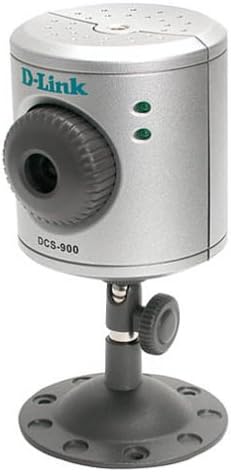
รูปที่ 1: The D-Link DCS-900 Internet Camera, a compact silver cylindrical device mounted on an adjustable black stand. The front features a camera lens with a textured adjustment ring, and two green indicator lights. The D-Link logo and "DCS-900" model number are visible on the front.
การติดตั้งและการตั้งค่า
The D-Link DCS-900 is designed for quick and easy integration into your existing Fast Ethernet network.
- การเชื่อมต่อทางกายภาพ: Connect the camera to your network router or switch using an Ethernet cable. Ensure the camera is powered on using the provided AC/DC adapter.
- การกำหนดค่าเริ่มต้น: The camera typically uses a default IP address or obtains one via DHCP. A setup wizard is included to guide you through the initial configuration process. This wizard helps in assigning a static IP address if required, or confirming the dynamically assigned one.
- Web-Based Access: Once connected and powered, open a web browser on a computer connected to the same network. Enter the camera's IP address into the browser's address bar. This will open the camera's web-based interface for further management and configuration.
- การติดตั้งซอฟต์แวร์: Install the included Windows-based software, such as IPView SE. This software provides enhanced features for multi-camera monitoring and management, including video capture and motion detection capabilities.
- การติดตั้ง: The camera comes with sturdy mounting hardware suitable for use as a table stand or for screwing into a wall. It can also be mounted on a standard tripod. Ensure the camera is positioned to cover the desired surveillance area.
บันทึก: D-Link recommends consulting the detailed setup guide provided with the product for specific network configurations, especially when integrating with DSL modems, firewalls, or routers.
คำแนะนำการใช้งาน
The D-Link DCS-900 offers various operational modes and settings for effective surveillance.
- การเข้าถึงระยะไกล: Access the camera remotely from any location with internet access by typing its IP address into a web เบราว์เซอร์ NS web-based interface allows for real-time viewการปรับแต่งและการกำหนดค่า
- Multi-Camera Monitoring: The included software, such as IPView SE, allows you to monitor up to four cameras simultaneously on a single screen. This feature is useful for comprehensive surveillance setups.
- Video Archiving and Recording: Utilize the bundled software to archive and record streaming video directly to your computer's hard drive. This enables review of past footage.
- Image Settings Adjustment: ผ่านทาง web interface or bundled software, you can adjust various image parameters:
- ปณิธาน: Adjust video capture resolution (e.g., 320x240 to 640x480 pixels).
- Compression Rate: Optimize video quality versus file ขนาด.
- อัตราเฟรม: Control the smoothness of video playback (e.g., 1 frame per second for low bandwidth, higher for smoother motion).
- Brightness, Contrast, Saturation: Fine-tune image appearance.
- ความถี่แสง: Adjust for different lighting environments.
- การตรวจจับการเคลื่อนไหว: ไอพีView SE software provides motion detection capabilities, allowing the camera to trigger recordings or alerts when movement is detected within its field of view.
การซ่อมบำรุง
Regular maintenance ensures optimal performance and longevity of your D-Link DCS-900 camera.
- อัพเดตเฟิร์มแวร์: Periodically check the D-Link support website for firmware updates. Updating the firmware can improve performance, add new features, and resolve known issues. Instructions for updating firmware are typically provided with the update package.
- การทำความสะอาด: Gently clean the camera lens and exterior casing with a soft, dry cloth. Avoid using abrasive cleaners or solvents that could damage the camera's surfaces. Ensure the lens is free from dust and smudges for clear image quality.
- สภาพแวดล้อม : Ensure the camera is operated within its specified environmental conditions (temperature, humidity) to prevent damage. Avoid exposing the camera to extreme temperatures or direct moisture.
การแก้ไขปัญหา
This section addresses common issues you might encounter with your D-Link DCS-900 camera.
- Camera Not Accessible via Web เบราว์เซอร์:
- Verify the camera is powered on and connected to the network.
- Ensure your computer is on the same network segment as the camera.
- Confirm the camera's IP address is correct. If using DHCP, check your router's client list.
- Check firewall settings on your computer and network router; they might be blocking access.
- If accessing from the internet, ensure port forwarding is correctly configured on your router for the camera's port.
- Poor Image Quality / Low Light Performance:
- Adjust brightness, contrast, and saturation settings in the camera's web อินเทอร์เฟซ
- ตรวจสอบให้แน่ใจว่าเลนส์สะอาดและปราศจากสิ่งกีดขวาง
- The DCS-900 may struggle in very low light conditions. Consider adding external illumination for night viewหากจำเป็น
- Slow Browser Interface / Configuration Timeouts:
- ให้แน่ใจว่าคุณ web เบราว์เซอร์เป็นเวอร์ชันล่าสุด
- ลองล้างแคชและคุกกี้ของเบราว์เซอร์ของคุณดู
- A stable network connection is crucial. Check for network congestion.
- If issues persist, try a different web เบราว์เซอร์
- Recording Function Not Working:
- Verify that the bundled software (e.g., IPView SE) is correctly installed and configured for recording.
- Ensure there is sufficient disk space on your computer for storing recordings.
- Check motion detection settings if recording is triggered by motion.
- ปัญหาการอัพเดตเฟิร์มแวร์:
- Follow the firmware update instructions precisely.
- ห้ามปิดเครื่องระหว่างการอัปเดตเฟิร์มแวร์
- If an update fails, consult D-Link support for recovery procedures.
ข้อมูลจำเพาะ
| คุณสมบัติ | รายละเอียด |
|---|---|
| หมายเลขรุ่น | ดีซีเอส-900 |
| ยี่ห้อ | ดีลิงค์ |
| เทคโนโลยีการเชื่อมต่อ | มีสาย (อีเธอร์เน็ต) |
| ความละเอียดในการจับภาพวิดีโอ | สูงสุด 640 x 480 พิกเซล |
| รูปแบบการจับภาพวิดีโอ | MPEG-4 |
| จำนวนช่องสัญญาณ | Supports monitoring up to 4 cameras |
| แหล่งพลังงาน | อะแดปเตอร์ AC/DC |
| ขนาดรายการ (ยาว x กว้าง x สูง) | 4 x 7 x 3 นิ้ว |
| น้ำหนักสินค้า | 0.01 ออนซ์ |
| ประเภทการติดตั้ง | Ceiling Mount, Table Stand, Tripod |
| วิธีการควบคุม | Remote (Web-based interface) |
| การใช้ที่แนะนำ | Surveillance (Home, Office, Classroom, Kitchen, Living Room) |
ข้อมูลการรับประกัน
Specific warranty details for the D-Link DCS-900 Internet Camera are typically provided with the product packaging or on the official D-Link website. Please refer to the documentation included with your purchase or visit the D-Link support portal for the most current and accurate warranty terms and conditions.
การสนับสนุนลูกค้า
For further assistance, technical support, or to access additional resources, please contact D-Link customer support.
- การสนับสนุนทางออนไลน์: Visit the official D-Link support website for FAQs, troubleshooting guides, driver downloads, and firmware updates.
- การสนับสนุนทางโทรศัพท์: Contact D-Link's technical support hotline during business hours for direct assistance. Refer to the D-Link webเว็บไซต์สำหรับหมายเลขติดต่อในภูมิภาค