
1. บทนำ
This manual provides detailed instructions for the installation, operation, and maintenance of your Lantronix KVM Serverswitch, model 300.000.9000. This device allows you to control multiple computers from a single PS/2 keyboard, PS/2 mouse, and VGA monitor console. Please read this manual thoroughly before using the product to ensure proper setup and optimal performance.
2. ข้อมูลด้านความปลอดภัย
To prevent damage to the product or injury to yourself, observe the following safety precautions:
- ตรวจสอบให้แน่ใจว่าวางอุปกรณ์ไว้บนพื้นผิวที่มั่นคงและระดับ
- อย่าให้เครื่องโดนความชื้น อุณหภูมิที่สูงหรือต่ำเกินไป หรือโดนแสงแดดโดยตรง
- ใช้เฉพาะอะแดปเตอร์ไฟฟ้าที่มาพร้อมกับเครื่องเท่านั้น
- อย่าเปิดอุปกรณ์casinก. ส่งต่อการบริการทั้งหมดให้กับบุคลากรที่มีคุณสมบัติเหมาะสม
- Disconnect power before cleaning. Use a soft, dry cloth for cleaning.
3. เนื้อหาบรรจุภัณฑ์
ตรวจสอบว่ามีรายการทั้งหมดอยู่ในแพ็คเกจของคุณ:
- Lantronix KVM Serverswitch (Model 300.000.9000)
- อะแดปเตอร์แปลงไฟ
- Rack Mount Kit (optional, may be sold separately)
- คู่มือเริ่มต้นใช้งานฉบับย่อ (เอกสารนี้ทำหน้าที่เป็นคู่มือฉบับเต็ม)
4. สินค้าหมดview
The Lantronix KVM Serverswitch 300.000.9000 is an 8-port KVM switch designed for managing multiple PS/2-based servers or PCs. It features a robust design suitable for server room environments.
4.1 แผงด้านหน้า
The front panel typically includes port selection buttons and LED indicators for active ports.
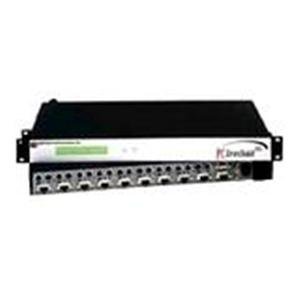
ภาพ: ด้านหน้า view of the Lantronix KVM Serverswitch. This image displays the device's front panel, featuring multiple buttons for selecting connected computers and corresponding LED indicators to show the active port.
4.2 แผงด้านหลัง
The rear panel houses the console ports for your keyboard, mouse, and monitor, as well as the KVM ports for connecting to the servers/PCs and the power input.
Note: A specific image for the rear panel is not available. Please refer to the physical device for port identification.
5. การตั้งค่า
Follow these steps to set up your KVM Serverswitch:
- ปิดอุปกรณ์ทั้งหมด: โปรดตรวจสอบให้แน่ใจว่าคอมพิวเตอร์และสวิตช์ KVM ทุกเครื่องปิดอยู่ก่อนทำการเชื่อมต่อใดๆ
- เชื่อมต่ออุปกรณ์คอนโซล:
- Connect your PS/2 keyboard to the keyboard port on the KVM switch's console section.
- Connect your PS/2 mouse to the mouse port on the KVM switch's console section.
- Connect your VGA monitor to the VGA port on the KVM switch's console section.
- เชื่อมต่อคอมพิวเตอร์: For each computer you wish to connect:
- Connect a KVM cable (VGA, PS/2 keyboard, PS/2 mouse) from the computer's respective ports to an available KVM port on the switch.
- Ensure a secure connection for all cables.
- เชื่อมต่อพลังงาน: Plug the supplied power adapter into the KVM switch's power input, then plug the adapter into a power outlet.
- เปิดเครื่อง: First, power on the KVM switch. Then, power on all connected computers.
6. Operating the KVM Serverswitch
The Lantronix KVM Serverswitch offers multiple methods for switching between connected computers.
6.1 Front Panel Push Buttons
Press the corresponding button on the front panel to switch to the desired computer. The LED indicator for the selected port will illuminate.
6.2 การสลับปุ่มลัด
Use keyboard hotkeys to switch between computers without needing to reach the switch. Common hotkey sequences include:
- [Scroll Lock] + [Scroll Lock] + [Port Number]: Switches directly to the specified port.
- [Scroll Lock] + [Scroll Lock] + [Up/Down Arrow]: Switches to the next/previous port.
- Refer to the specific hotkey combinations printed on the device or in a separate quick start guide if available, as they can vary.
6.3 Auto-Scan Mode
The KVM switch may feature an auto-scan mode that automatically cycles through all connected computers, displaying each for a set duration. This is useful for monitoring multiple systems. Consult the device's specific features for activating and configuring auto-scan.
7. การบำรุงรักษา
Regular maintenance ensures the longevity and optimal performance of your KVM switch.
- การทำความสะอาด: Disconnect power before cleaning. Use a soft, dry, lint-free cloth to wipe the exterior of the device. Do not use liquid or aerosol cleaners.
- การระบายอากาศ : ตรวจสอบให้แน่ใจว่าช่องระบายอากาศไม่ถูกปิดกั้น การไหลเวียนของอากาศที่เหมาะสมจะช่วยป้องกันความร้อนสูงเกินไป
- การจัดการสายเคเบิล: Keep cables organized and free from kinks or excessive tension to prevent damage to connectors and ensure reliable signal transmission.
8 การแก้ไขปัญหา
If you encounter issues with your KVM Serverswitch, refer to the following common problems and solutions:
| ปัญหา | สาเหตุที่เป็นไปได้ | สารละลาย |
|---|---|---|
| No video display. | Loose VGA cable connection. Incorrect port selected. Monitor not powered on. | Check all VGA cable connections. Ensure the correct port is selected on the KVM switch. Verify monitor power. |
| แป้นพิมพ์หรือเมาส์ไม่ตอบสนอง | Loose PS/2 cable connection. Incorrect port selected. Keyboard/mouse not compatible. | Check all PS/2 cable connections. Ensure the correct port is selected. Try a different keyboard/mouse if available. |
| KVM switch not powering on. | Power adapter not connected or faulty. Power outlet not working. | Verify power adapter connection to the switch and outlet. Test the outlet with another device. |
| Cannot switch between computers. | Hotkeys not recognized. Front panel buttons unresponsive. | Ensure hotkey sequence is correct. Try using front panel buttons. Power cycle the KVM switch and connected computers. |
9. ข้อมูลจำเพาะ
Key technical specifications for the Lantronix KVM Serverswitch 300.000.9000:
- หมายเลขรุ่น: 300.000.9000
- ASIN: B00006B74R
- ยี่ห้อ: แลนทรอนิกซ์
- จำนวนพอร์ต: 8 (for PS/2 PCs/Servers)
- Console Connections: 1 x VGA, 1 x PS/2 Keyboard, 1 x PS/2 Mouse
- PC Connections: 8 x VGA, 8 x PS/2 Keyboard, 8 x PS/2 Mouse (via KVM cables)
- วิธีการสลับ: Front Panel Push Buttons, Hotkeys
- ขนาดแพ็คเกจ: 22.5 x 12.25 x 6.5 นิ้ว
- น้ำหนักสินค้า: 11.18 ปอนด์
- ผู้ผลิต: แลนทรอนิกซ์
- วันที่เข้าใช้งานครั้งแรก: วันที่ 21 มิถุนายน 2002
- ยูพีซี: 783384222113
10. การรับประกันและการสนับสนุน
For warranty information and technical support, please refer to the official Lantronix webหรือติดต่อฝ่ายบริการลูกค้า เก็บใบเสร็จรับเงินไว้เป็นหลักฐานการซื้อสำหรับการเคลมประกัน
Lantronix Official Webเว็บไซต์: www.lantronix.com